How to Set Up Chrome Kiosk Mode for a Time Clock
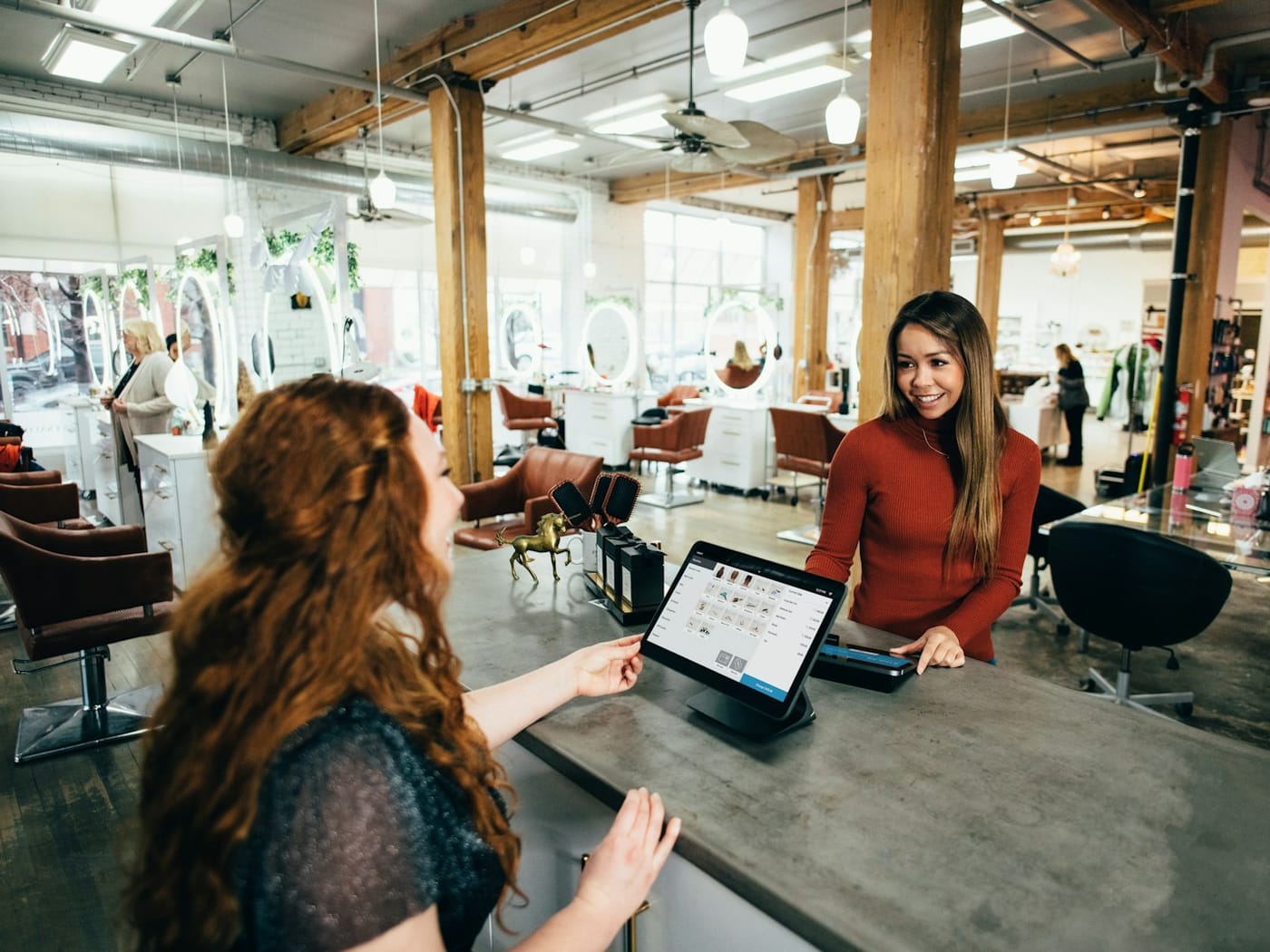
Kiosk mode locks a device to a single full-screen app, perfect for a shared time clock at the front counter. Here's how to set it up.
Chromebook / Chrome Kiosk Mode
On a Chromebook you can launch Chrome in kiosk mode so the device boots straight into one web app, full-screen, with the menus locked. For a quick version on any computer, open Chrome and press F11 for full-screen, or launch Chrome with the --kiosk flag pointing at your time clock URL.
iPad (Guided Access) & Android
On an iPad, use Guided Access (Settings → Accessibility → Guided Access) to lock the tablet to your time clock in Safari, triple-click to start, and staff can't leave the app. On Android, use Screen Pinning (Settings → Security → Screen pinning) for the same effect.
Use It as a Time Clock
Point the kiosk at Kloqk's free time clock, mount the tablet by the entrance, and staff punch in with a 4-digit PIN, with an optional webcam photo to stop buddy punching. No app to install.
FAQ
How do I put Chrome in kiosk mode?
On a Chromebook, set a kiosk app in device settings; on any computer, launch Chrome with the --kiosk flag or press F11 for full-screen pointed at your time clock.
Can I lock an iPad to just the time clock?
Yes, use Guided Access to lock the iPad to your time clock in Safari so staff can't switch apps.
Track hours the easy way, free
Kloqk is a free time clock that handles hours, overtime, and payroll-ready exports.
Start free