Mobile Clock-In Job Site Setup: A Small Business Guide

A mobile clock-in job site setup is the process of configuring mobile time tracking tools so your workforce can record hours accurately, from any location, in a way that feeds directly into payroll. The industry term for this broader practice is mobile workforce management. Small businesses in construction, landscaping, and field services rely on it to replace paper timesheets and manual entry. Tools like Kloqk, TCP MobileClock, and ClockInOut make the process accessible without expensive software contracts. The FLSA requires accurate time records including hours worked each day and each week, with payroll records retained for at least three years. Getting the setup right from day one protects you legally and saves hours of administrative work every pay period.
What tools do you need for a mobile clock-in job site setup?
The foundation of any mobile job site management system is a clock-in mobile app with core features: clock-in and clock-out functionality, GPS location capture, and a manager dashboard. Without these three, you are just digitizing a paper problem rather than solving it.
GPS geofencing is the feature that separates a real job site solution from a generic time app. GPS geofencing restricts clock-ins to a defined geographic boundary around your job site. TCP MobileClock uses location-based punch restrictions so employees cannot clock in from a parking lot two blocks away. Kloqk includes GPS geofencing at no cost, which is uncommon among free tools.
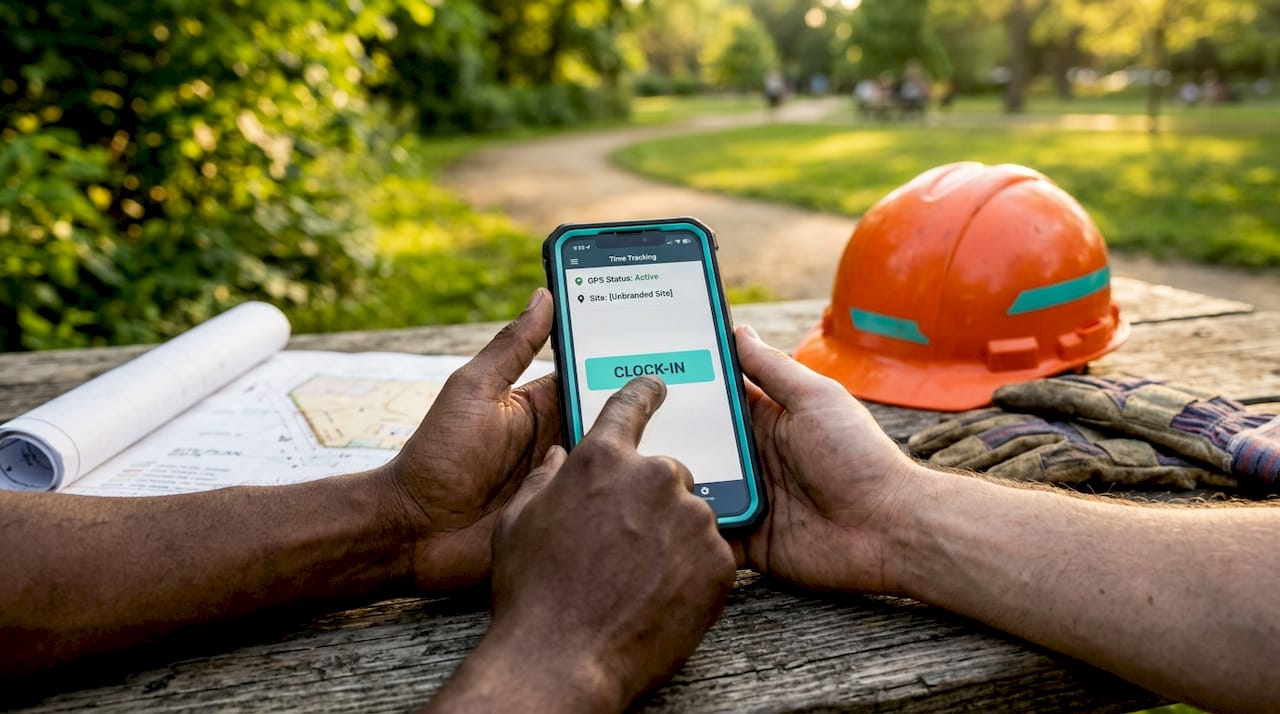
Offline mode matters more than most managers expect. Construction sites, rural properties, and basement work areas often have poor cell coverage. Some mobile clock-in apps support offline clocking with automatic data sync once a connection is restored. TCP MobileClock supports this feature. Without it, employees either skip punches or managers spend time correcting records after the fact.
Role-based access control keeps your data clean. Admins set system rules, supervisors review and approve time, and employees only see their own records. This structure prevents unauthorized edits and creates a clear audit trail.
Payroll integration is the final piece. A clock-in mobile app that does not connect to your payroll system just creates a second manual step. Look for direct exports to QuickBooks, Gusto, or ADP, or at minimum a clean CSV export.
| Feature | Why it matters |
|---|---|
| GPS geofencing | Prevents clock-ins from outside the job site |
| Offline mode | Captures punches in low-signal areas |
| Role-based access | Controls who can edit or approve time |
| Payroll export | Removes manual data entry from the pay cycle |
| Overtime rules | Flags hours automatically before payroll runs |
Pro Tip: Before choosing a clock-in mobile app, map out every job site location and check whether each one has reliable cell coverage. Sites with dead zones need an app with confirmed offline sync, not just a marketing claim about it.
How to configure your mobile clock-in settings step by step
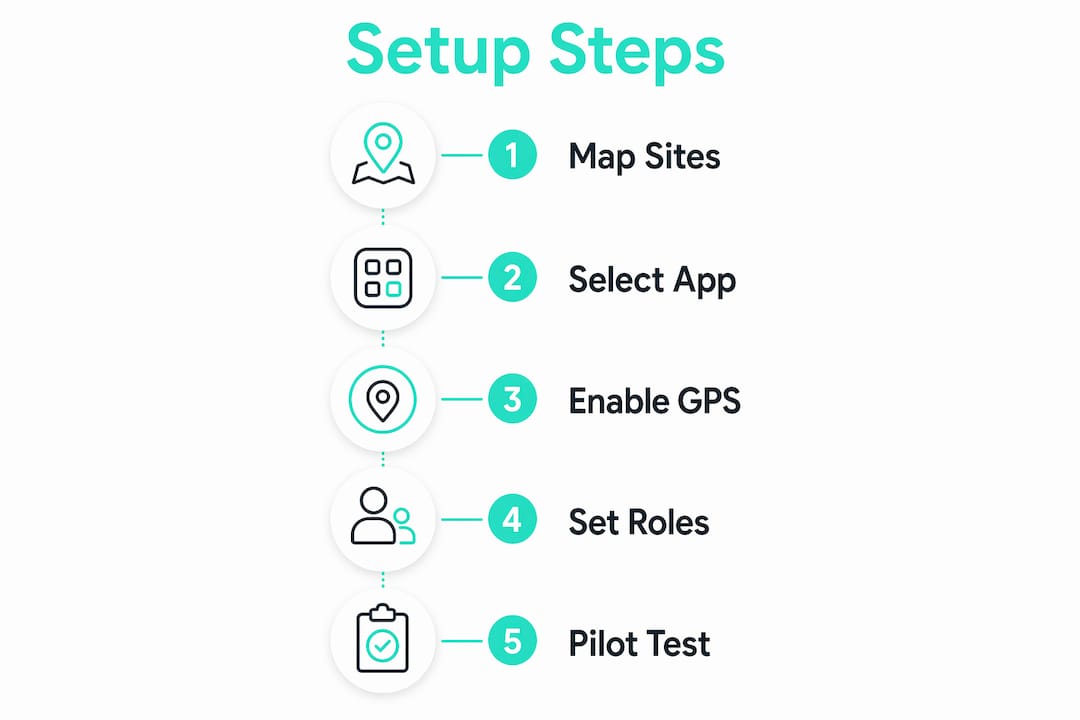
Successful mobile time tracking depends on defining user roles, configuring geofencing, setting job codes, and running a pilot before full deployment. Skipping any of these steps creates confusion on day one and errors that compound over time.
-
Define user roles and permissions. Create three tiers: admin, supervisor, and employee. Admins control system settings. Supervisors approve timesheets for their crews. Employees clock in and out only. Assign roles before anyone touches the app.
-
Set geofence boundaries for each job site. Draw a boundary that covers the full work area, including staging zones and parking areas where employees legitimately start their day. A boundary that is too tight will block valid punches and frustrate your crew.
-
Configure job codes or cost codes. If you track labor by project or phase, set up codes before rollout. Employees select the relevant code at clock-in. This data flows into job costing reports and saves hours of manual allocation later.
-
Establish work hours and overtime rules. Enter your standard shift hours and set overtime thresholds. Federal law requires overtime pay for hours over 40 per week, but some states have daily overtime rules. Build these into the system so the app flags violations automatically.
-
Write and distribute your clock-in policy. Cover when employees must clock in, what to do if they forget, and who to contact for corrections. Training and clearly communicated policies matter as much as technical features for preventing timekeeping errors and disputes.
-
Run a pilot with a small group. Test geofence accuracy, offline sync, and payroll export with three to five employees before rolling out to the full team. Pilot testing configuration settings with a small group reduces rollout errors and employee frustration significantly.
Pro Tip: Run your pilot on a real job site, not the office. Office Wi-Fi and GPS conditions are nothing like a construction site or a landscaping crew working across multiple properties.
What are best practices for managing time record corrections?
Accurate payroll starts with a clear process for handling missed or incorrect punches. Every manager running a mobile job site setup will face this situation regularly.
Employers must correct inaccurate or missing time punches rather than deny wages when an employee forgets to clock in or out. This is not optional. Withholding pay for a missed punch is an FLSA violation even if the employee was at fault. Your written policy should specify that employees report missed punches to their supervisor by the end of the same shift.
Supervisors need a clear review window. Set a deadline, such as every Friday by noon, for supervisors to review and approve the prior week’s timesheets. Late approvals delay payroll and create compliance risk. Your clock-in mobile app should send automated reminders to supervisors who have unapproved records.
“The best system is one that proves reliable hours worked over feature-rich complexity.” The FLSA does not require any specific technology for timekeeping. Paper, a time clock, or a mobile app all satisfy the law as long as records are accurate and complete.
Common mistakes to avoid in mobile time record management:
- No written correction policy. Without one, supervisors make inconsistent edits and employees dispute records at payroll time.
- Admins editing time without documentation. Every correction should include a note explaining the change. This creates the audit trail you need if a wage claim arises.
- Missing the three-year retention rule. FLSA requires payroll records to be retained for at least three years. Store records in the app or export and archive them systematically.
- Ignoring timesheet submission deadlines. Employees who submit late push payroll back. Set firm deadlines and enforce them consistently.
- Relying on memory for corrections. Managers who reconstruct hours from memory rather than actual records create liability. Use your app’s audit log as the source of truth.
How do you troubleshoot common mobile clock-in problems?
Even a well-configured job site setup will hit friction points. Knowing the most common issues in advance cuts resolution time significantly.
GPS signal problems are the most frequent complaint on construction and landscaping sites. If employees report location mismatches or failed geofence punches, first check whether the geofence boundary is large enough. A 200-foot radius works for most single-building sites. For sprawling sites, expand it or use multiple overlapping zones. GPS and geofencing features are critical for accurate location-based clocking, but they require correct configuration to function reliably.
Common troubleshooting issues and fixes:
- App crashes or freezes. Update the app to the latest version. Most crashes on job sites come from outdated software running on older phones with limited memory.
- Sync delays after offline punching. Confirm the employee’s phone has location services and background app refresh enabled. Sync failures are almost always a phone settings issue, not a server problem.
- Buddy punching. One employee clocking in for another is a real cost for small businesses. Photo verification at clock-in, available in Kloqk, stops this without confrontation. The photo is timestamped and tied to the punch record.
- Employee resistance. Workers who distrust GPS tracking often fear surveillance beyond work hours. Address this directly: explain that location is only captured at the moment of a punch, not continuously. Show them the data the app collects.
- Repeated missed punches from the same employee. This is a training issue, not a technology issue. A one-on-one walkthrough of the app usually resolves it. If it continues, it becomes a performance conversation.
When a problem persists after basic troubleshooting, contact your vendor’s support team with specific details: device model, operating system version, and a screenshot of the error. Vague support tickets take longer to resolve.
Key Takeaways
A successful mobile clock-in job site setup requires the right app features, clear written policies, and a pilot test before full deployment.
| Point | Details |
|---|---|
| Choose features that match your sites | Prioritize GPS geofencing and offline mode for field crews with poor cell coverage. |
| Configure before you launch | Set user roles, geofence boundaries, and overtime rules before any employee touches the app. |
| Write your correction policy first | Define who can edit time records and how missed punches are reported before rollout. |
| Pilot test on a real job site | Test with three to five employees in actual field conditions to catch configuration errors early. |
| Retain records for three years | FLSA requires payroll records to be kept for at least three years, so archive exports systematically. |
What I’ve learned from watching small businesses get this wrong
The businesses that struggle with mobile clock-in setups almost never have a technology problem. They have a policy problem. I have seen managers spend weeks comparing apps, then launch without a written rule about what happens when someone forgets to punch out. Within a month, supervisors are manually editing half the timesheets and nobody trusts the data.
The other pattern I see constantly: skipping the pilot. It feels like an extra step when you are in a hurry to fix a payroll headache. But a two-week pilot with a small crew will surface every geofence misconfiguration, every phone compatibility issue, and every employee who needs a five-minute walkthrough. That two weeks saves you three months of corrections.
The most effective mobile timekeeping systems balance compliance, simplicity, and usability. That means resisting the urge to turn on every feature at once. Start with clock-in, clock-out, GPS, and payroll export. Add job codes and photo verification in the second month once the crew is comfortable. Complexity introduced too early kills adoption.
One more thing: small business rollouts often fail because of process gaps, not software limitations. The app is rarely the problem. The missing written policy, the supervisor who never checks the dashboard, the employee who was never shown how to use the app on their specific phone model. Fix the process first. The technology will follow.
Saad
Kloqk gives small businesses a free job site clock-in solution
Kloqk is built for exactly this situation: a small business owner who needs accurate job site time tracking without paying per seat or per feature. The free time clock app includes GPS geofencing, photo verification, overtime calculations, and payroll exports at no cost. There is no per-seat fee and no feature paywall.
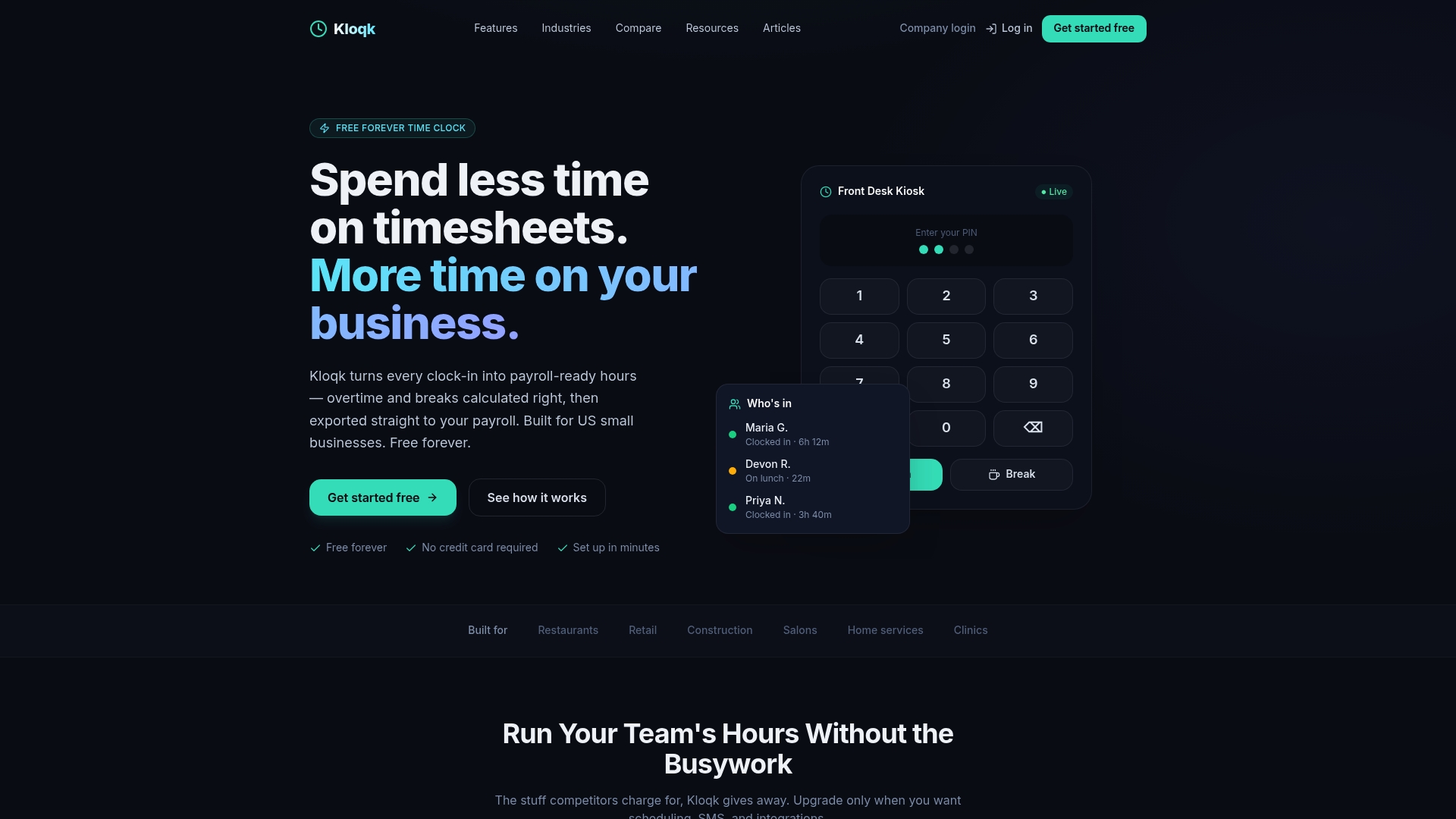
For construction crews, landscaping teams, and field service businesses, Kloqk’s construction time clock handles multi-site tracking and integrates with common payroll tools. The employee time tracking software turns raw clock-in data into payroll-ready hours automatically. You can set up your first job site, configure geofencing, and run a pilot with your crew today, all without a credit card.
FAQ
What is a mobile clock-in job site setup?
A mobile clock-in job site setup is the process of configuring a mobile time tracking app with GPS, geofencing, and user roles so employees can record hours accurately from a physical work location.
Does the FLSA require a specific app for time tracking?
The FLSA does not require any specific technology. Any method, including paper, a time clock, or a mobile app, satisfies the law as long as records are accurate, complete, and retained for at least three years.
What happens if an employee forgets to clock in or out?
Employers must correct the record and pay all earned wages. Withholding pay for a missed punch is an FLSA violation. A written policy should require employees to report missed punches to their supervisor by the end of the same shift.
How does GPS geofencing prevent time fraud?
GPS geofencing restricts clock-ins to a defined geographic boundary around the job site. Employees outside that boundary cannot punch in, which eliminates false clock-ins from off-site locations.
How many employees should I include in a pilot test?
Three to five employees is the standard recommendation for a pilot. This group is large enough to surface configuration errors and phone compatibility issues without disrupting your full operation.
Recommended
Sources
Every figure on this page traces to one of these. Primary law and government sources are listed first.
Written by
Marcus ReyesPayroll & Timekeeping Specialist
Marcus covers payroll accuracy, timesheets, and time tracking, the unglamorous mechanics that keep paychecks correct and audits painless.
Keep Reading
Track Hours the Easy Way
Kloqk is a free time clock that handles punches, breaks, overtime, and payroll-ready reports.
Start free