Break Reminders for Employers: Set Up 3 Schedules in 5 Minutes

Use an interval timer for ongoing desk work and fixed clock alarms for breaks that must land at set times. The fastest channels are the macOS Clock app, Windows Focus sessions, Android Digital Wellbeing, and a browser-based timer. Pick one channel, and label the reminder with the exact action, such as “stand and stretch,” so you actually do it.
TL;DR:
- Windows Focus sessions let you set a work duration, add breaks, and mute other notifications, while Mac Clock supports repeatable timers and labeled alarms.
- Android Digital Wellbeing limits app use rather than confirming physical breaks, and YouTube reminders reset when you close the app, sign out, or switch devices.
- Browser reminders may stop when their tab closes, so keep the tab open or export important alerts to a calendar.
- For hourly teams, match reminders to applicable state rules and employee policies, record breaks in one system, and export those hours to payroll.
- Use one reminder channel, name the physical action, and verify repeat days and snooze settings to reduce missed or ignored alerts.
Table of Contents
- How do you choose between interval timers and clock-time alarms?
- How do you set break reminders on a Mac and in Windows?
- How do you set break reminders on Android and in apps?
- Can you use browser timers for recurring reminders?
- Which three break schedules can you copy today?
- What should your setup checklist include?
- How do break reminders connect to time tracking and payroll?
- How do you customize break reminders for federal and state labor laws?
- How do break reminders improve compliance and cut payroll errors?
- What do automated break reminders in modern time tracking software offer?
- Why stick with reminders until the habit forms?
- Want break tracking that runs itself?
- FAQ
- Sources
How do you choose between interval timers and clock-time alarms?
Before you touch any settings, decide which rhythm fits your day. Apple’s Clock guide separates the two for a reason: timers follow elapsed work, while alarms follow the clock on the wall.
- Interval timer: counts down from the moment you press start, so the break arrives after a fixed stretch of work, whenever that stretch began.
- Clock-time alarm: fires at a set time on the days you choose, no matter what you were doing.
- Best fit for timers: uninterrupted focus work, where a phone call or a late start shifts your whole day.
- Best fit for alarms: predictable events such as lunch, a standing meeting, or an end-of-day stretch.
The trade-off is simple. A timer moves with you, which is great until you forget to restart it. An alarm never moves, which is great until your schedule does. Mixing them up is a common reason reminders fire at the wrong moment after an interruption.
How do you set break reminders on a Mac and in Windows?
Both systems have native tools, so you do not need to install anything.
On a Mac:
- Open the Clock app and choose Timers.
- Set your work interval and click Start.
- When it ends, choose Options and then Repeat to run it again.
- For fixed times, open Alarms, add the time, select the weekdays under Repeat, add a label like “stand and stretch,” pick a sound, and save.
Apple documents that you can create multiple timers with custom names and sounds, pause and resume them, and repeat them.
On Windows:
- Open the Clock app and choose Focus sessions, or go to Settings, System, Focus.
- Set the session length.
- Turn on breaks and choose options such as showing the timer.
- Start the session.
Microsoft’s Focus documentation says a session lets you pick a duration, include breaks, and suppress other notifications while it runs.
Pro Tip: Choose Windows Focus sessions over a bare alarm for computer work, because the visible countdown and muted notifications keep other alerts from drowning out your break cue.
How do you set break reminders on Android and in apps?
Phones take a different route. Digital Wellbeing is built to limit app use, so treat it as a nudge rather than a true stretch reminder.
- App timers: open Settings, then Digital Wellbeing & parental controls, then App timers. Tap Set timer next to an app, choose a daily allowance, and tap OK, as described in Google’s Android help.
- Focus mode: pick the distracting apps to pause, then use Set a schedule so it switches on automatically. Internet Matters walks through the same menus, and notes that names can vary by manufacturer and Android version.
- Take a break: on Pixel phones, this option temporarily unpauses apps while Focus mode is on, per Pixel Phone Help.
- YouTube: turn on Remind me to take a break, choose a frequency, and tap OK. Per Google’s YouTube help, closing the app, signing out, or switching devices resets the timer.
None of these checks whether you actually stood up. They limit screen time; a labeled timer handles the physical break.
Can you use browser timers for recurring reminders?
Yes, and they suit short tasks or cross-device work where no native app is available. A typical web tool asks you to allow notifications, then lets you choose every N minutes within active hours or fixed times, pick days and a sound, and set snooze.
The catch is delivery. Local browser notifications stop if the tab closes. One tool described in Apple’s Clock guide material offers optional cloud wake-ups and .ics export to Google Calendar, Outlook, or Apple Calendar, but those are that tool’s own features, not universal browser behavior. If a reminder truly matters, export it to your calendar or keep the tab pinned.
Which three break schedules can you copy today?
Start with one cadence and adjust after a week.
- Microbreaks: take regular short pauses. An eye break can involve looking away from the screen and setting it as a repeating timer.
- Pomodoro-style: 25 minutes of work and 5 off suits tasks you keep putting off. Use 50 and 10 when the work needs deeper concentration, such as writing or analysis.
- Long-focus block: work for an extended stretch, then take a break. This can suit design, coding, or study days with few meetings. Schedule blocks around your day.
Pro Tip: Set the break label to a physical action, such as “refill water” or “walk to the window,” so the alert tells you what to do instead of just chiming.
What should your setup checklist include?
A few minutes of testing prevents noisy or missed reminders.
- Pick one primary channel and turn off duplicates. Apple’s alarm guidance is to avoid stacking several independent reminders for the same behavior, because repeated generic notifications quickly become background noise.
- Label each reminder with a specific action: “stand and stretch,” “look away from the screen,” or “refill water.”
- Keep a short snooze at first, then shorten it as the habit forms.
- Start a timer and confirm it repeats.
- Check the repeat days on every alarm.
- Run one Focus session to confirm other notifications stay quiet.
Key finding from the docs: Apple’s guide recommends one channel, a specific label, and snooze left available early on, because generic repeated alerts get ignored.
How do break reminders connect to time tracking and payroll?
Personal reminders keep you healthy. For a team, the same break also has to show up in the hours that get paid. When a break is a Clock app alarm on one person’s laptop, it never reaches the timesheet, so a manager has to guess or correct it later.
Connecting reminders to time tracking closes that gap. Employees clock out for a break and back in, the system records the gap, and the paid hours reflect it without anyone editing a spreadsheet. The reminder prompts the action, and the timesheet records it in the same place.
For hourly teams in restaurants, retail, or construction, this matters most at the end of the pay period. Missed breaks, forgotten clock-outs, and rounded guesses turn into payroll questions. If you are building reminders for staff, our timesheet reminder message examples give you sample wording you can adapt for break prompts and notifications.
Here is a practical way to set it up. Decide whether breaks are paid or unpaid, write that rule down, and choose one place where breaks get recorded. Then make the reminder match: a prompt that says “start your unpaid break” is more useful than a generic chime. Finally, export the hours to payroll from that same record. One source of truth beats three partial ones.

How do you customize break reminders for federal and state labor laws?
Break rules differ by state, and they differ by employee type. Federal law sets a baseline, but many states add their own requirements for meal periods, rest breaks, and when they must occur. We do not give legal advice here, so confirm your obligations with your state labor department or a qualified professional before you turn a rule into a setting.
What you can do is make your tools follow whatever rule applies to you. Start by writing down the policy in plain terms: how long the break is, whether it is paid, and by when in the shift it must start. Then translate each part into a reminder.
- Set a meal-break prompt at the point in the shift when your rule says it must begin, not at a random time.
- Use separate labels for paid rest breaks and unpaid meal breaks so the record is clear.
- Adjust reminders per location if you operate in more than one state.
Our break policy examples give HR teams copy-ready wording to start from. For hourly teams, overtime tracking with break rules by state lets you apply the right rule to the right location instead of tracking it by hand. The goal is a reminder that matches written policy, so the record shows you followed it.
How do break reminders improve compliance and cut payroll errors?
Most payroll mistakes around breaks come from memory. Someone forgets to clock out for lunch, or clocks back in late, and the hours quietly drift. A timely reminder removes the need to remember.
The effect shows up in a few places. Employees take breaks at the right time instead of skipping them during a busy shift. Managers see a clean record of when each break started and ended. Payroll gets hours that need fewer manual fixes, because the gap was captured at the moment it happened.
A reminder works best when it is specific and arrives at the right moment. “Time for your unpaid break, please clock out” leaves little room for confusion. A vague “take a break” does not tell anyone whether to clock out.
A few habits make the difference:
- Remind at the start of the break and again when it should end.
- Keep the wording identical across the team so nobody interprets it differently.
- Review missed or shortened breaks each pay period and adjust the reminder timing.
Over time, the pattern in your records tells you which shifts skip breaks and which reminders get ignored. That is useful for coaching and for catching a compliance gap early, long before it becomes a payroll dispute. Fewer corrections at the end of the period also means less time spent reconciling timesheets.
What do automated break reminders in modern time tracking software offer?
Automated tools go beyond a chime. They tie the reminder to the clock itself, so the prompt and the record are one action.
Common features worth looking for include:
- Break rules built in: the software prompts a break and applies the right deduction or paid status automatically.
- Photo verification: a quick photo at clock-in confirms the right person is punching in, which supports accurate break and shift records.
- GPS geofencing: punches are limited to the job site, which helps prevent time theft and confirms where work happened. See our GPS time clock with geofencing for how this works.
- Mobile and kiosk punching: staff can clock out for a break from a phone or a shared tablet at the location.
- Payroll-ready exports: hours, overtime, and breaks flow into a timesheet your payroll process can use.
For crews that work away from a desk, remote employee time tracking keeps the same break and shift record without a central office. The value is consistency: the same reminder, the same rule, and the same record for every employee, every shift.
Why stick with reminders until the habit forms?
Commit to one channel for several weeks before you judge it. The first days feel intrusive, and the urge to switch tools or mute everything is strong. Resist it. Start with a gentle cadence, such as a repeating microbreak timer, and add structure only after it feels natural. Shorten your snooze a little each week. Energy also follows a daily rhythm, and Middy’s piece on anchoring wake time is a useful read when deciding where your breaks should fall. If you manage a team, our break policy examples are a good place to begin.
Saad
Want break tracking that runs itself?
If you manage hourly staff, a reminder on each person’s phone only goes so far. With Kloqk, we give you a free core time clock that turns clock-ins into payroll-ready timesheets, with overtime and break calculations included at no cost. We export payroll-ready hours, so you can spend less time fixing timesheets by hand.
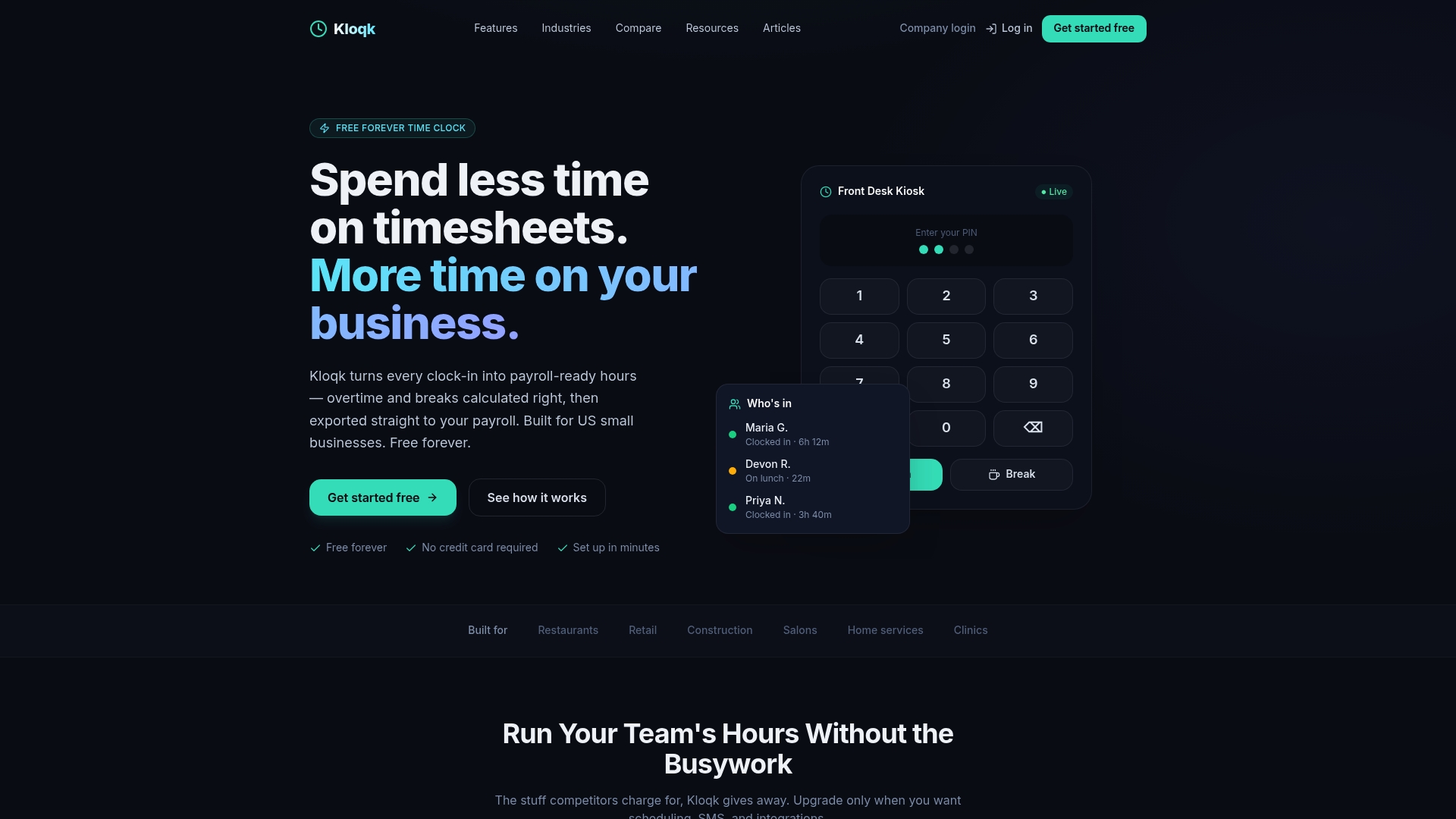
Our Free plan covers the essentials, and our Pro plan ($29 per month per location) and Premium plan ($59 per month per location) add more as you grow. You can compare them on our pricing page. To see how break tracking and payroll-ready records work together, start with our employee time tracking features and set up your free account today.
FAQ
How do I set a recurring break reminder on my phone?
Use a labeled repeating alarm or timer in your phone’s clock app, or schedule Focus mode in Digital Wellbeing on Android. Android’s tools mainly pause apps, so a repeating timer with a clear label works better for physical breaks.
What is the best break reminder setup for Windows?
Windows Focus sessions are the simplest native option. You set a duration, include breaks, and notifications are suppressed during the session, per Microsoft’s support page.
How often should I take breaks while working?
A common starting point is short pauses at regular intervals, such as a 25 minute work and 5 minute break pattern. Pick one cadence, run it for a week, and adjust to how you feel.
Do break reminders work if I close my browser tab?
Usually not. Local browser notifications stop when the tab closes, so export the reminder to a calendar or keep the tab open if the reminder matters.
Sources
Recommended
Sources
Every figure on this page traces to one of these. Primary law and government sources are listed first.
Written by
Sam TolbertWorkforce Operations Editor
Sam writes about scheduling, shift work, and the software that runs an hourly workforce, what actually saves time on the floor versus what just adds clicks.
Keep Reading
Track Hours the Easy Way
Kloqk is a free time clock that handles punches, breaks, overtime, and payroll-ready reports.
Start free