Test Role Based Time Clock Permissions Free on Kloqk for SMB

Role-based time clock permissions assign clock-in, editing, approval, and payroll-export rights to job roles rather than individual people, so every employee gets exactly the access their position requires. This structure cuts admin errors, protects payroll data, and keeps time edits traceable. The fastest way to start is to build separate admin and manager roles today and turn on audit logging before you do anything else.
TL;DR:
- Small businesses should limit roles to a maximum of five to prevent confusion and ensure clear permission boundaries for clock-in, approval, and export functions.
- Enabling multi-factor authentication and comprehensive audit logging significantly reduces security risks, especially when multiple users have elevated access or when duties cannot be fully separated.
- Regularly testing role permissions with dummy accounts and reviewing audit logs every 6 to 12 months helps prevent permission creep and quickly identifies unauthorized access.
- For businesses handling exceptions, establishing a formal override process with temporary elevation and documented approval maintains system integrity and audit trails.
- Keeping detailed records of time edits, approvals, and payroll exports is crucial for compliance and resolving disputes, particularly under federal recordkeeping regulations.
Table of Contents
- What RBAC means for time clock systems
- Common roles and a simple permission matrix for small-business time clocks
- Security best practices: least privilege, MFA, and audit trails
- Step-by-step checklist to configure role-based permissions in your time clock
- Testing, maintenance, and entitlement reviews
- Recordkeeping and compliance for time clocks
- Practical trade-offs for small-business managers
- Handling exceptions and overrides in role-based permissions
- Customizing roles for different industries and company sizes
- What actually matters when you set this up
- How Kloqk implements role-based time clock permissions
- Authoritative resources and standards
- Sources
- FAQ
What RBAC means for time clock systems
Role-based access control, or RBAC, works on a simple chain: you define roles, attach permissions to those roles, then assign employees to the roles that match their job. Nobody gets a custom bundle of access, and nobody inherits more than their position needs. Role-based access control reduces administrative complexity and errors because you manage a handful of roles instead of dozens of individual permission sets, according to NIST.
Roles can also inherit permissions from a hierarchy. A payroll manager role might inherit everything a scheduler can do, plus export rights, so you’re not rebuilding permissions from scratch for every position.
For a time clock system, the permission types that matter most are:
- View: see clock-in records, timesheets, or schedules without changing them.
- Edit: correct a missed punch or adjust hours before submission.
- Approve: sign off on a timesheet so it moves to payroll.
- Export: pull finalized hours into a payroll system.
- Configure: change system settings, add locations, or create new roles.
Keeping these five actions distinct, instead of bundling them into one “manager” permission, is what makes the difference between a system that catches errors and one that hides them.
Common roles and a simple permission matrix for small-business time clocks
Most small businesses need only a handful of roles to cover every function on a time clock system. Adding more than that usually creates confusion rather than security.
- Owner/Admin: configures the system, manages roles, and has full visibility but should rarely touch daily edits.
- Payroll/HR: exports finalized hours, reviews approved timesheets, and manages compliance records.
- Manager/Supervisor: approves timesheets, edits punches for their team, and views schedules.
- Scheduler: builds and adjusts shifts but shouldn’t approve or export payroll.
- Employee: clocks in and out, views personal hours, and requests corrections.
A generic permission layout looks like this: Owner/Admin gets view, edit, approve, export, and configure. Payroll/HR gets view, approve, and export, but not configure. Manager/Supervisor gets view, edit, and approve for their own team only. Scheduler gets view and limited edit for shift data, nothing else. Employee gets view of their own records and a request-edit function, nothing more.
Keep this role set small and write down what each role is responsible for. Entitlement creep, where employees accumulate extra permissions over time as they move between projects or cover for coworkers, is one of the most common ways small businesses lose track of who can actually touch payroll data. A documented role list makes it obvious when someone has more access than their job requires.
Security best practices: least privilege, MFA, and audit trails
Role design only works if you back it with a few security habits that take minutes to set up but close the gaps that matter most.
- Apply least privilege by default. Give every role the minimum access needed for its function, then review permissions every 6 to 12 months to catch anything that’s grown beyond that.
- Require multi-factor authentication for admin accounts. CISA recommends MFA and least privilege as baseline controls for any account with elevated access, including remote logins.
- Separate duties where you can. The person who edits a timesheet shouldn’t be the same person who approves it. When your team is too small for that split, increase how often you review the audit log instead.
- Turn on comprehensive audit logging. Every edit, approval, and export should leave a record of who did it and when, retained long enough to support an investigation or a labor dispute.
Pro Tip: If you can’t separate duties because you only have two or three people running the business, set a recurring calendar reminder to review the audit log before every payroll run instead of after problems appear.
Step-by-step checklist to configure role-based permissions in your time clock
Setting up roles correctly the first time saves you from untangling permissions later, especially once you have more than a few employees on the system.
- Map job functions to roles. List every position in your business and write down what each one actually needs to see, edit, or approve.
- Create the roles in your time clock system and assign the minimal permission set that matches each job function, not the most convenient one.
- Test each role with a sandbox or dummy account before rolling it out, confirming that a manager can approve but not export, and an employee can view but not edit someone else’s hours.
- Lock payroll export to the Payroll/HR role only, and require manager approval before any edited timesheet moves forward.
- Automate revocation at termination. When someone leaves, their access should end the same day, and the offboarding step should be written down so it’s not forgotten during a busy week.
Testing, maintenance, and entitlement reviews
Permissions drift the moment you stop checking them, so testing shouldn’t be a one-time step during setup.
- Test as a real user, not just as the admin, confirming that approval and export functions behave as expected for each role, including edge cases like a manager trying to export or an employee trying to approve their own hours.
- Run entitlement reports periodically, listing every user by role, and compare that list against actual headcount to catch former employees or duplicated accounts.
- Adjust roles the moment someone changes jobs, rather than leaving old permissions in place alongside new ones.
- Use audit logs to spot unusual edits, like a timesheet changed outside business hours, and keep that evidence available in case a payroll dispute comes up.
Recordkeeping and compliance for time clocks
Your time clock records need to show more than final hours. Keep the original clock-in and clock-out times, every edit with who made it and when, signed manager approvals, and a record of each payroll export. Federal recordkeeping rules require employers to maintain accurate hours-worked and time-of-day records, and an editable history that can’t be traced back to a person and a timestamp won’t hold up if a wage claim or audit comes along.
The right balance lets employees request corrections without letting them quietly rewrite their own hours. Edit logs paired with manager approval on every change give you both flexibility and a clean paper trail.
Practical trade-offs for small-business managers
Most small teams can’t fully separate duties. When the same person schedules, approves, and sometimes edits timesheets, the fix isn’t more roles, it’s tighter monitoring: frequent audit-log reviews and dual approval on high-risk edits like large overtime adjustments. If you do one thing this week, enable MFA, turn on audit logs, prune any role nobody remembers creating, and test your setup in a sandbox before trusting it with real payroll.
Saad
Handling exceptions and overrides in role-based permissions
Every role structure eventually runs into a situation it wasn’t built for: a manager needs to approve their own hours because no one else is on shift, or an employee’s punch needs correcting after payroll has already closed. Build a defined override path instead of letting people work around the system informally.
A practical approach is a temporary elevation process: a manager can request short-term access to a higher permission, the request gets logged automatically, and the elevated access expires after a set window, usually 24 to 48 hours. This keeps the exception visible instead of quietly expanding someone’s permanent role.

For after-the-fact corrections, route them through a documented adjustment request rather than a direct edit. The employee or manager flags the issue, a second person with approval rights reviews and confirms it, and the change lands in the audit log with a note explaining why. This matters most around overtime, where an unreviewed edit can create both a payroll error and a compliance question.
Avoid giving anyone a standing “override” permission that bypasses the normal approval chain. If overrides happen often enough that you’re tempted to make one permanent, that’s usually a sign your role structure needs adjusting, not that the exception should become the rule.
Customizing roles for different industries and company sizes
A restaurant with rotating shift leads needs a different role setup than a construction crew working multiple job sites, even though both are running hourly time tracking.
Restaurants often benefit from a shift-lead role that sits between employee and manager: it can approve minor time corrections during a shift but can’t touch payroll exports or scheduling for other locations. Construction and field-service businesses tend to need role permissions tied to job sites or crews, so a foreman can approve hours for their crew without seeing payroll data for the whole company. Clinics and salons, where scheduling and client-facing time often overlap, usually do well with a tighter split between front-desk staff, who need view-only access to their own hours, and an office manager role that handles approvals and exports.
As a company grows past a handful of employees, the same five core roles (Owner/Admin, Payroll/HR, Manager/Supervisor, Scheduler, Employee) can usually absorb more people without multiplying into a dozen variations. The better move is to add location or department scoping to existing roles rather than creating a new role for every team. A ten-person shop and a hundred-person multi-location business can run the same role names; what changes is how narrowly each role’s visibility is scoped by site or department.

What actually matters when you set this up
Most advice on access control reads like it was written for enterprise IT departments, full of role hierarchies and formal separation-of-duty matrices that assume you have a compliance team. Small businesses don’t need that complexity. What the research supports is a narrower focus: a handful of well-defined roles, MFA on admin accounts, and regularly checking the audit log cover most of the risk that role-based permissions are meant to solve.
Where conventional advice falls short is assuming every business can separate duties cleanly. A three-person restaurant can’t always have a different person schedule, edit, and approve hours, and pretending otherwise just leads to workarounds that break the system’s traceability instead. The more honest priority for a small team is monitoring frequency over structural purity: review your logs on a fixed schedule, tied to payroll, so a bad edit gets caught before it becomes a paycheck.
If you do nothing else, prioritize turning on audit logs and testing your role setup with a real dummy account before trusting it with live payroll data.
How Kloqk implements role-based time clock permissions
These roles and controls can be built directly into a free time clock plan, allowing setup of admin and manager roles, audit logging, and testing of the structure before processing payroll.
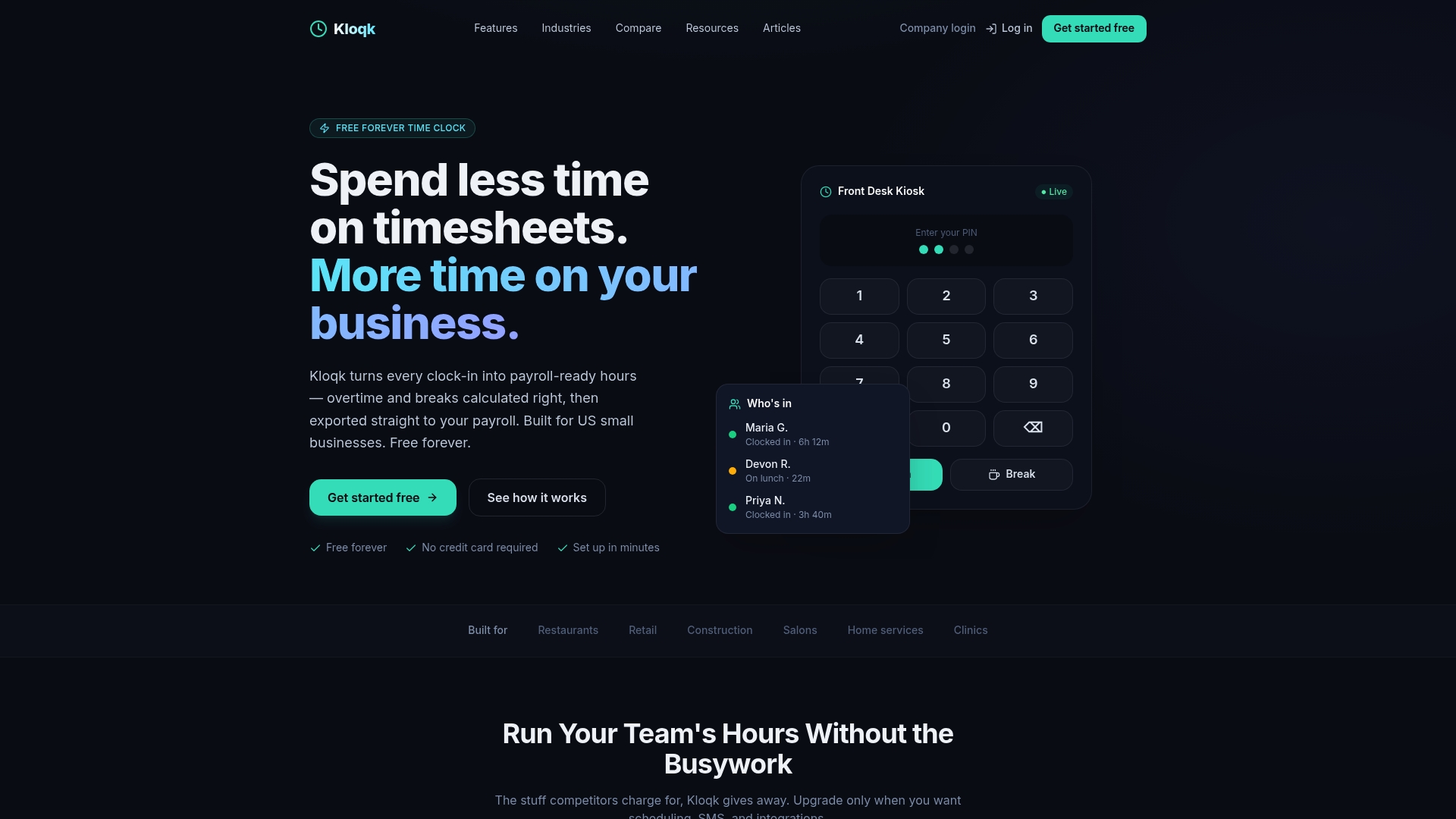
- Role-based permissions separate who can view, edit, approve, and export time without extra configuration work.
- Photo verification confirms the person clocking in is who they say they are.
- GPS geofencing restricts clock-ins to approved job sites or locations.
- Audit logs track every edit and approval so you have a record if a dispute comes up.
- Payroll-ready exports stay locked to the payroll role, matching the least-privilege setup this guide recommends.
If you want to see how role separation works in practice, the free plan lets you create roles, run a sandbox test, and review the audit trail before you ever process real hours. Upgrading to Pro or Premium later adds scheduling and PTO tools, but the core time tracking and permission features stay free at any team size.
Authoritative resources and standards
For deeper reading on the standards behind this guide: NIST’s RBAC model covers role hierarchies and administrative controls, CISA’s MFA guidance outlines least-privilege basics, CISA’s logging guidance explains audit-trail practices, and federal recordkeeping rules set requirements for time and payroll records.
Sources
- Role-Based Access Control (RBAC) NIST
- Require multifactor authentication CISA
- 29 CFR Part 516 Records to be kept by employers
FAQ
Can my employer see where I clock in from?
Yes, if your employer uses GPS geofencing or location tracking on their time clock system, they can see the location tied to each clock-in. This is typically used to confirm employees are punching in from an approved job site rather than to monitor movement throughout the day.
Is there a free time clock app available for employees?
Yes, several time tracking platforms offer free plans for small businesses, including core features like clock-ins, break tracking, and payroll exports. Kloqk, for example, offers its core time tracking and role-based permission features at no cost, with optional paid upgrades for scheduling and PTO tools.
What is the best time tracking software for remote employees?
The right choice depends on your team’s needs, but effective options for remote teams typically combine GPS verification, photo confirmation at clock-in, and role-based approval workflows so managers can review hours without seeing unrelated payroll data. Look for a platform that lets you scope permissions by location or crew if your remote staff work across multiple sites.
What is the best clocking system for small businesses?
A good time clock system for a small business should include role-based permissions, audit logging, and payroll-ready exports without requiring a paid plan to access those basics. Kloqk offers these features free, including photo verification and GPS geofencing, with paid tiers available for scheduling and hiring tools if a business needs them later.
How often should I review employee time clock permissions?
A practical cadence is every 6 to 12 months, or immediately whenever someone changes roles or leaves the company. Regular reviews catch permissions that have accumulated beyond what a role actually needs, which is one of the most common gaps in small-business access control.
Recommended
Sources
Every figure on this page traces to one of these. Primary law and government sources are listed first.
- 1. Electronic Code of Federal Regulationsprimary
- 2. csrc.nist.gov
- 3. cisa.gov
Written by
Marcus ReyesPayroll & Timekeeping Specialist
Marcus covers payroll accuracy, timesheets, and time tracking, the unglamorous mechanics that keep paychecks correct and audits painless.
Keep Reading
Track Hours the Easy Way
Kloqk is a free time clock that handles punches, breaks, overtime, and payroll-ready reports.
Start free