Avoid Payroll Risk: SMS Time Clock Setup for Small Business Managers

Yes, you can set up an SMS time clock by connecting an SMS provider to your time-clock app, enabling the feature in your account settings, requiring each employee to opt in and verify their phone number, and testing the flow before you rely on it. You need three things to start: admin access to your time clock app, an SMS provider account with a send-from number, and a plan for employee verification. Log in to your admin dashboard, open the SMS settings, and expect to spend time on compliance checks and testing before a full rollout.
TL;DR:
- Using SMS clocking requires employee opt-in, documented consent, and verification to comply with legal and carrier regulations.
- Key setup steps include obtaining dedicated phone numbers, credentials, and webhook URLs from your SMS provider, then configuring your time clock app accordingly.
- Testing should cover duplicate messages, incorrect keywords, unverified numbers, and message delivery to ensure accurate clock-in logging.
- Common issues like credential errors, carrier blocks, or opt-outs can typically be resolved by verifying settings or contacting your SMS provider.
- SMS clocking is most suitable for dispersed crews without reliable smartphone access, but less appropriate for businesses needing strict security like healthcare facilities.
Table of Contents
- What to prepare before you start
- Step-by-step setup inside your time clock app
- Testing and confirming your setup works
- Fixing the most common problems after launch
- Your pre-launch checklist and ongoing policies
- How Kloqk supports mobile and SMS-friendly clocking
- When SMS clocking makes sense and when it doesn’t
- Get started with a free SMS-ready time clock
- FAQ
- Sources
What to prepare before you start
Before you touch any settings, confirm you have the right access and the right information in hand. Setup goes faster when you gather everything up front instead of discovering a missing credential halfway through.
Check your admin role first. Most time clock platforms restrict SMS configuration to account owners or users with a specific “integrations” or “communications” permission. If you manage multiple locations, confirm whether SMS settings apply account-wide or per location, since that changes how many times you repeat the setup.
You’ll also need several pieces of information from your SMS provider before you open the time clock app’s settings:
- An outbound phone number dedicated to time clock messages.
- An account SID and auth token (the credentials that prove your app is authorized to send and receive texts).
- A webhook URL where the SMS provider sends incoming message data.
- Confirmation of whether messages are sent automatically by the system or manually by a staff member.
That last point matters more than it looks. Automated, high-volume texts face stricter consent rules than a one-off manual message, according to implementation notes for a Twilio-based SMS manager, which specify that administrators need SMS permissions enabled and should run a test message before going live.
Every employee needs to opt in before you send them time clock texts, and you should document that consent, including the date and the method (a signed form, a reply text, or an app confirmation). Keep a record of opt-outs too. The FCC’s Second Report and Order describes prior express written consent requirements for certain automated texts and gives terminating carriers authority to block messages after notification, so a documented consent trail protects you if a number ever gets flagged.

Pro Tip: Treat SMS consent like a payroll record: store it somewhere you can retrieve in seconds, not somewhere you’ll have to search for later.
If you plan to send anything beyond basic clock-in and clock-out confirmations, such as shift reminders or marketing-style messages, have someone review your consent language against current rules. The TCPA Compliance for SMS guide is a useful starting point for U.S. businesses building out consent language and opt-in flows.
Step-by-step setup inside your time clock app
Once your prerequisites are in place, the actual configuration is mostly a matter of pasting credentials into the right fields and deciding who gets access.
Start with the SMS provider side:
- Purchase or assign a dedicated outbound number through your SMS provider.
- Copy the account SID, auth token, and webhook URL from the provider’s dashboard.
- Set the webhook to point at the endpoint your time clock app specifies in its SMS integration documentation.
- Confirm the number is registered for two-way messaging, since employees need to text in, not just receive confirmations.
Then move into the time clock app itself:
- Open the admin dashboard and navigate to the SMS or communications settings.
- Paste the outbound number, SID, and auth token into the matching fields.
- Toggle on SMS clocking at the account level, then decide whether to enable it for all locations or just specific ones.
- Choose which employees or roles can use SMS clocking, since some teams restrict it to field staff without smartphone access.
- Set whether SMS clock-ins also require photo or GPS verification, or whether text-based punches bypass those checks.
- Define the clock-in message format, typically a keyword like “IN” or “OUT” followed by an employee ID, or a short link employees tap to confirm.
- Turn on verification so each employee’s first message triggers a confirmation code or ID check before the system accepts future punches.
- Enable logging so every SMS attempt stores the phone number, message text, timestamp, and delivery status alongside the timecard entry.
A few of these decisions deserve more thought than a simple toggle:
- Message format matters for accuracy. A simple keyword system (“IN” or “OUT”) is easier for employees to remember than a multi-step code, but it offers less verification.
- Photo and GPS checks add friction but reduce buddy punching and time theft, especially for construction or field crews working away from a fixed location.
- Verification should happen once per employee, not per shift. Requiring a fresh code every time someone clocks in defeats the purpose of a fast text-based system.
Logging is the piece managers skip most often, and it’s the one you’ll need most when a dispute comes up. Every SMS entry should carry enough metadata (the sending number, the exact text, delivery confirmation) that you can reconstruct exactly what happened if a punch looks wrong in payroll. Without that trail, you’re left guessing whether a missed clock-out was an employee error or a dropped message.
Testing and confirming your setup works
Before any employee relies on SMS clocking for a real shift, run through a short set of test cases using your own phone or a manager’s number.
- Send a normal clock-in and clock-out, then confirm both appear correctly on the timecard.
- Text the same keyword twice in a row to see how the system handles duplicate punches.
- Send a misspelled or wrong keyword to confirm the app rejects it instead of logging a bad entry.
- Try texting from an unverified number to make sure the system blocks the entry until verification completes.
- Test STOP, HELP, and START to confirm opt-out and re-enrollment both work as expected.
Once the test messages go through, check that they map correctly to the right employee ID and location code, and that break and overtime calculations still apply the way they would for an app or kiosk punch. If your provider offers delivery reports or webhook logs, use them to see whether a failed text was never sent, never delivered, or sent but never answered. That distinction tells you whether the problem is your configuration, the carrier, or the employee’s phone.
Finally, run a sample payroll export and confirm it includes the SMS metadata (source, timestamp, verification status) alongside the hours. That record is what you’ll point to if a pay dispute ever comes up.
Pro Tip: Run your tests during a real shift window, not during off-hours, since carrier delivery speed can vary by time of day.
Fixing the most common problems after launch
Most SMS clocking issues fall into a handful of categories, and nearly all of them are solvable without opening a support ticket.
- Credential errors or webhook failures: if messages aren’t reaching your app, recheck the SID, auth token, and webhook URL for typos, and resend a test message to confirm the connection.
- Carrier blocking: if an employee’s texts stop arriving entirely, the number may have been flagged under carrier filtering or the FCC’s blocking rules described in its Second Report and Order. Contact your SMS provider for delivery logs and, if needed, the carrier to dispute the block.
- Employee opted out or number blocked: an employee who texted STOP will not receive messages until they text START again. Confirm they understand this before reassigning them a new number.
- Wrong employee matched to a punch: this usually means verification wasn’t required or an employee ID got typed incorrectly. Require a verification code or employee ID in every message to prevent mismatches.
- Reassigned or recycled phone numbers: if someone’s old number gets handed to a new employee, that number may still be tied to the previous person’s opt-in record. Update records whenever a staff member changes phones.
- Messages sent but never logged: check that logging is enabled at both the provider and app level, since a missing webhook subscription can cause silent gaps in the timecard.
Your pre-launch checklist and ongoing policies
A short checklist before go-live saves most of the headaches that come up in the first week.
- Confirm admin setup is complete: credentials entered, toggles enabled, and the right employees assigned access.
- Confirm every employee has opted in and completed verification, with consent documented.
- Run through the test cases from the testing section and confirm results in the timecard.
- Keep a fallback clocking method (app or kiosk) available for anyone whose phone or carrier causes problems.
Give employees a short written explanation before launch: the exact keywords to text, what happens if they lose their phone or get a new number, and how to text STOP or START if needed. Clear language up front cuts down on confused calls later.
Assign one person as the SMS owner, someone who checks logs periodically, resolves blocked numbers, and updates opt-in records when staff turnover happens. A simple weekly glance at delivery logs catches most problems before they become payroll disputes.
Pro Tip: Put your SMS keywords on a laminated card at the job site or break room. Employees forget instructions faster than you’d expect.
How Kloqk supports mobile and SMS-friendly clocking
A free time clock platform can include features that make SMS clocking safer to rely on, such as photo verification on clock-ins, GPS geofencing to confirm location, and payroll-ready exports that combine hours, overtime, and breaks into one file. Every punch, whether it comes from the app, a kiosk, or a text message, logs with a timestamp and status, which gives you the audit trail discussed earlier in this guide.
For managers setting up mobile crews, Kloqk’s guide to mobile clock-in job site setup walks through the practical side of getting field staff clocking in correctly. The free time tracking features page covers the verification and export tools referenced throughout this article in more detail.
- Photo verification confirms the person clocking in matches your records.
- GPS geofencing flags punches made outside an approved job site or location.
- Payroll exports include timestamps and verification status for every entry, SMS or otherwise.
When SMS clocking makes sense and when it doesn’t
SMS clocking works best for distributed crews without reliable smartphone or app access: construction sites, delivery routes, seasonal labor. It’s fast to set up and doesn’t require anyone to download anything. But if your business needs tighter security, like a clinic handling scheduled shifts with strict compliance needs, an app or kiosk with built-in photo and GPS checks is the safer default.
My advice: pilot SMS clocking with a small group for 30 days, watch the logs closely, and expand only once the edge cases (blocked numbers, reassigned phones, missed texts) stop surprising you.
Saad
Get started with a free SMS-ready time clock
Core time clock features, including photo verification, GPS geofencing, and payroll-ready exports, can be offered free with no per-seat charge, providing a working foundation before adding SMS functionality. Paid tiers (Pro and Premium) add scheduling, PTO, and other tools if your team grows into them, as listed on the pricing page.
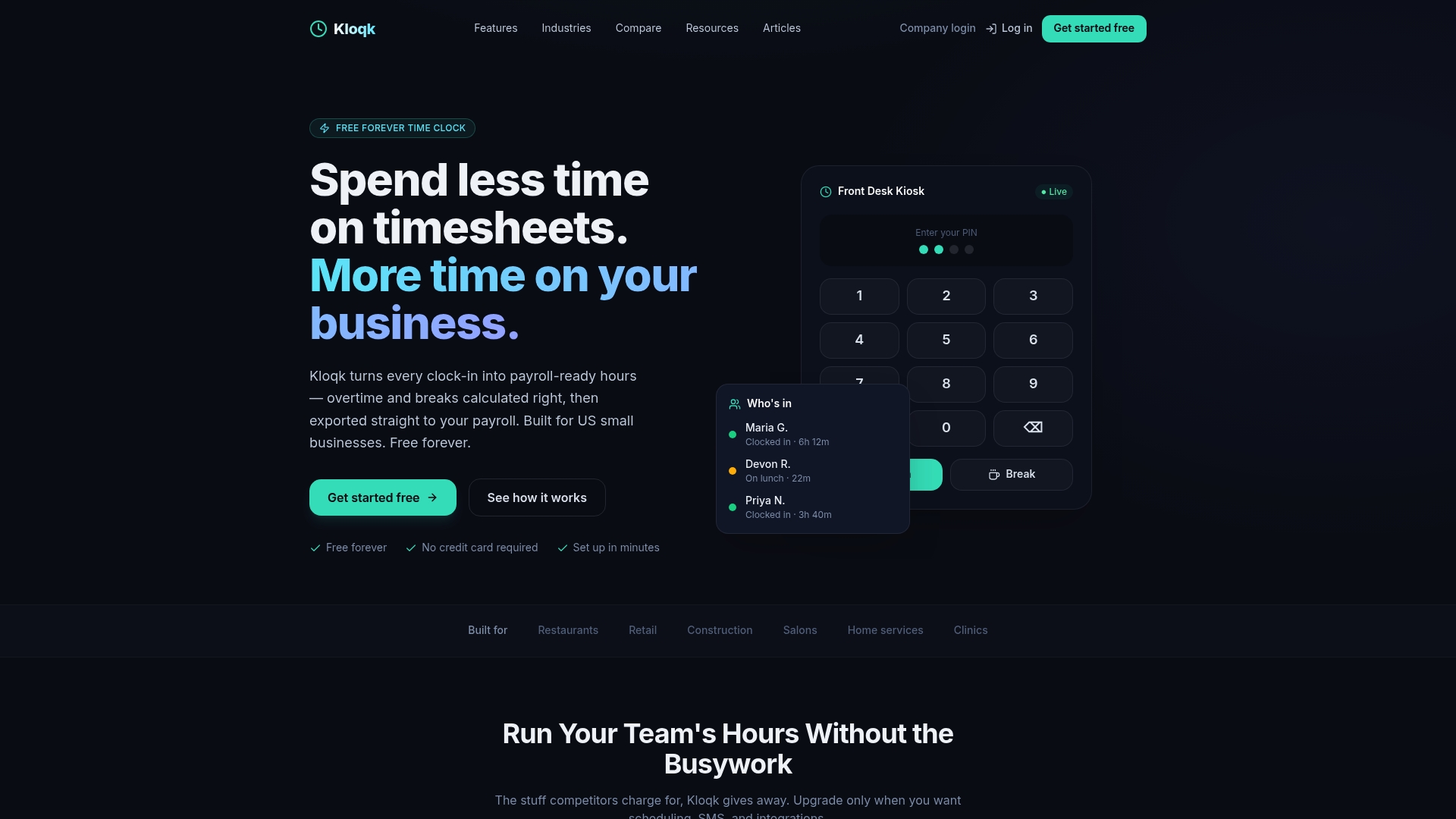
To get going: create a free account, open the SMS settings described in this guide, and run through the pre-launch checklist before asking employees to rely on it. Check the free time clock features page to see what’s included before you start.
FAQ
What do I need before setting up an SMS time clock?
You need admin access to your time clock platform, an SMS provider account with a dedicated outbound number, and a plan for employee opt-in and verification. Gathering the account SID, auth token, and webhook URL in advance prevents setup delays.
How do employees opt in and verify their number for SMS clocking?
Employees typically confirm consent through a signed form, a reply text, or an in-app confirmation, which you should document with a date and method. After that, most systems send a one-time verification code or require an employee ID in the first message before accepting future punches.
What happens if an employee texts STOP?
Texting STOP opts the employee out of future messages, and they won’t receive or be able to send time clock texts until they text START again. Managers should plan a quick re-enrollment process and keep a record of both the opt-out and the re-opt-in.
How do I fix SMS messages that aren’t being delivered?
Start by checking your provider credentials and webhook configuration for errors, since a mismatched SID or auth token is the most common cause. If the setup looks correct, carrier-level blocking may be the issue, in which case your provider’s delivery logs can help you dispute it with the carrier, a process described in the FCC’s rules on text blocking.
Does Kloqk support SMS-based clock-ins?
The platform includes photo verification, GPS geofencing, and payroll-ready exports that work alongside mobile and kiosk punching, as detailed on the time tracking features page. These tools support the same verification and logging practices this guide recommends for an SMS setup.
Sources
- Federal Communications Commission FCC-23-107 Second Report and Order
- SMS Manager / Twilio prerequisites and configuration notes
Recommended
Sources
Every figure on this page traces to one of these. Primary law and government sources are listed first.
Written by
Marcus ReyesPayroll & Timekeeping Specialist
Marcus covers payroll accuracy, timesheets, and time tracking, the unglamorous mechanics that keep paychecks correct and audits painless.
Keep Reading
Track Hours the Easy Way
Kloqk is a free time clock that handles punches, breaks, overtime, and payroll-ready reports.
Start free