Kiosk Lockdown Mode for Android Tablets: How to Lock a Device to One App

Kiosk lockdown mode locks a tablet to one app, or a short list of approved apps, so nobody can open settings, browse the web or wander off the screen you set up. For a business, the most common use is a wall-mounted time clock that employees tap to clock in and out. On Android, a true lockdown needs a company-owned device set up as a dedicated device, plus the app you want to show. If that app is a time clock, Kloqk’s free time clock kiosk app for iPad and Android tablets gives you the app side of the job at no cost.
TL;DR
- Kiosk lockdown mode pins a device to one app (single-app) or a few approved apps (multi-app) and disables the status bar, home button and settings while it runs.
- On Android it is built on lock task mode, which is available from Android 5.0 and is controlled by a device policy controller, not by the app alone.
- Lockdown works on company-owned, fully managed devices. A personal phone with a work profile cannot be put into kiosk mode.
- Always set an admin exit method before you mount the tablet, and test it on one device first.
- For a time clock, the tablet only needs one app, so single-app mode is the simplest fit.
Table of Contents
- What kiosk lockdown mode actually does
- Single-app or multi-app: which one fits a time clock
- What you need before you start
- How to lock an Android tablet to one app
- How to exit kiosk mode
- Common problems and fixes
- Why lockdown is only half of a good time clock
- What a time clock kiosk costs you
- Where each kind of business uses a locked tablet
- Our view
- Start with a free kiosk
- FAQ
- Sources
What kiosk lockdown mode actually does
Think of a tablet as a shop window. Normally anyone who walks up can open the app drawer, change the Wi-Fi, install a game or switch to email. Lockdown mode closes all of those doors and leaves exactly one open.
Android’s developer documentation calls its version lock task mode. While it is active, users typically can’t see notifications, open apps that aren’t on the allowlist, or return to the home screen unless the home screen is on the allowlist. The status bar, the Home and Overview buttons and the lock screen are disabled too.
The words you will see for the same idea include kiosk mode, app lockdown, dedicated device mode and single-app mode. They all describe a device that does one job and cannot be repurposed by whoever is standing in front of it.

Lockdown mode is not the same as the Android “Lockdown” button
Android also has a feature called Lockdown in the power menu. It is a different thing. Lockdown on a phone turns off biometrics, trusted devices and lock screen notifications so that only a PIN or password opens the device. It protects a personal phone. It does not lock a tablet to an app. Since Android 15, it also disables USB data access while still allowing charging, though some devices may not have the feature if the manufacturer did not update it.
If you searched for a way to lock a tablet to one app for your team, the kiosk kind is the one you want.
Single-app or multi-app: which one fits a time clock
In single-app mode the device launches one app full screen, and users can’t close or minimize it. In multi-app mode the device shows a simple launcher with a short list of approved apps.
| Single-app | Multi-app | |
|---|---|---|
| What the user sees | One app, full screen | A small launcher with approved apps |
| Typical use | Time clock, self-service check-in, survey, menu board | Staff tablet with a task app, messaging and clock-in |
| Setup effort | Lowest | Higher: you choose and test every allowed app |
| Risk of misuse | Lowest | Depends on the apps you allow |
A shared time clock has one job: record who arrived and who left. Single-app mode fits that job, and it leaves the fewest ways for a bored employee or a customer to change anything. Choose multi-app only if the same tablet must also run, say, a task checklist.
Google’s guidance for dedicated devices describes the same pattern: a designated kiosk app launches automatically at boot, runs full screen and is pinned so users can’t leave it.
What you need before you start
Most failed lockdown attempts come from a missing requirement, not a missing setting. Check these first.
- A company-owned tablet. Google describes dedicated devices as company-owned devices for a single use case. A tablet that an employee also uses personally is the wrong candidate. If you are weighing personal phones against a shared tablet for clocking in, our piece on a BYOD time clock policy covers what to write down.
- Android 5.0 or later. Android Enterprise’s dedicated device management supports Android 5.1 (Lollipop) and later devices, and lock task mode itself starts at 5.0.
- Full device management. A device that only has a work profile for personal-device use can’t be locked into kiosk mode. The tablet has to be enrolled as fully managed, which in practice means setting it up from a factory reset or from the first-boot screen.
- A device policy controller. This is the management software that holds the policy: which app is allowed, which buttons are hidden and how you get out. The app you show doesn’t do this job on its own, unless it is built to.
- Power and a mount. A tablet that is always on needs a steady charger, a stand or wall mount, and a Wi-Fi signal that reaches the spot where you mount it. A dead zone is the most common reason a kiosk stops syncing.
How to lock an Android tablet to one app
The exact screens depend on the management tool you use, but the sequence is the same everywhere.
Step 1: Prepare the tablet
Update Android, connect to the business Wi-Fi, and remove anything you don’t want on it. Install the app you plan to show and sign in once. For a time clock, that means setting up your location and team first, so the screen the employees see is the right one on the first day.
Step 2: Enroll it as a fully managed device
Enroll the tablet so your management tool owns it as a dedicated device. Google’s documentation notes that the designated app is chosen in the policy, where the admin sets the app’s install type to kiosk. Don’t skip enrollment by trying to lock a personal-profile device. It won’t hold.
Step 3: Choose single-app and pick the app
Create a kiosk policy, select the single-app option and choose your time clock. Turn on the lockdown settings that apply to a public-facing screen: hide the status bar and notifications, disable the physical buttons you don’t need, and block factory reset, safe boot and screen capture. Google’s dedicated-device examples recommend exactly those kinds of restrictions.
Step 4: Set the exit method
This is the step people leave until after the tablet is bolted to the wall. Set an admin exit method, such as a PIN or password, before you push the policy. Keep that code with the owner or manager, not on a sticky note beside the screen.
Step 5: Test on one device
Push the policy to a single tablet. Reboot it and confirm the app relaunches by itself. Try to swipe up, tap the corners, pull down the status bar and open settings. Then try your exit method. Only when all of that behaves as intended should you repeat the setup on the other devices.
Step 6: Mount it and watch the first week
Put the tablet at a height and angle that works for a quick tap, in sight of a manager if possible. Check on it after the first shift change. If the screen sleeps, the app crashes or the network drops, you want to see that while the exit code is still in your head.
How to exit kiosk mode
A lockdown you can’t leave is a brick. Plan the way out as carefully as the way in.
- Pause or exit with the admin code. Most setups let an admin enter a PIN or password on the device to pause the kiosk for maintenance.
- Release it remotely. If the tablet is connected, an admin can usually send a release or change the policy from the management console.
- Remove the policy. To end lockdown permanently, remove the kiosk policy from the device.
- Mind the connection. A tablet that loses contact with its management server can stay locked, and recovering it then needs the recovery key or a local exit code. Keep the Wi-Fi stable and record the recovery details when you enroll.
If you build or configure lock task mode yourself, Android’s documentation has one warning worth repeating: don’t start it while the device is locked, because the user might not be able to unlock it. Start it after the device is unlocked, from the app’s lifecycle callback.
If a tablet seems stuck, check the network first, then force a policy sync from the console, then use the local exit code on the device.
Common problems and fixes
- The app closed and the tablet shows the home screen. The app wasn’t set to relaunch after a crash or reboot. Set the kiosk app to start automatically and test with a reboot.
- Employees can still pull down the notification bar. The status bar restriction wasn’t applied. Re-check the policy and confirm the tablet has synced.
- The policy won’t apply. The device is probably enrolled with a work profile rather than as fully managed. Factory reset it and enroll again.
- The tablet is locked and won’t talk to the console. Check Wi-Fi and power, force a sync, and use the local exit code.
- Someone unplugs the tablet. Use a locked mount or enclosure. Software lockdown doesn’t stop a person from taking the plug out.
Why lockdown is only half of a good time clock
Lockdown keeps the screen from being misused. It doesn’t keep the hours honest. A locked tablet will still record a punch from whoever taps it, so the same coworker can clock in a friend who is stuck in traffic. That is buddy punching, and it is a separate problem from device security.
The time clock app is where that gets handled. Kloqk’s free time clock includes photo verification at clock-in, so a punch comes with a picture of the person at the screen. If your crew clocks in from job sites instead of a wall tablet, GPS geofencing on the GPS time clock page ties a punch to a location. You can read how both work together on our buddy punching page.
The pairing works well: the lockdown protects the device, and the app protects the timesheet.
Does the app need to be installed at all?
Not always. Some teams run the clock in a browser on the tablet, in which case a browser-based kiosk setup is a lighter option. Our guide to Chrome kiosk mode for a time clock walks through it for Chrome, iPad and Android, and our article on whether employees need an app to clock in explains how each choice affects your team.
What a time clock kiosk costs you
The tablet and a mount are your main cost. On the software side, Kloqk’s Free plan covers the core time clock, including payroll-ready timesheets, overtime and break calculations, photo verification and kiosk punching. The Pro plan is $29 per month per location and the Premium plan is $59 per month per location, which add things like scheduling, PTO and integrations. The current plan details are on the pricing page.
If you want to see what happens after the punch, our guide on how to track employee hours covers the process from clock-in to payroll, and the overtime tracking software page shows how overtime and break rules are applied by state.

Where each kind of business uses a locked tablet
The same setup shows up in a few places, and the details change a little in each.
- Restaurants and salons. A tablet by the back door or the staff room. Foot traffic is constant, so lockdown matters more than anything fancy: no one should be able to open a browser between shifts.
- Construction and field crews. A tablet in the site trailer, or phones for crews in the field. Lockdown suits the trailer. For the field, location-based punching and a clear policy do more. See our construction time clock setup and mobile clock-in job site guide.
- Clinics and offices. A tablet at reception for staff, kept apart from any patient-facing screen.
- Franchises and city departments. Many locations with the same setup. Write the enrollment steps once, label each tablet and keep one owner for the exit codes at each site.
For a plain-language picture of the whole arrangement, see how a time clock kiosk works and the time clock kiosk definition.
Our view
Most small businesses don’t need an IT department to run a time clock kiosk. They need one tablet, one app and a screen nobody can wander away from.
That is how we think about Kloqk. The core time clock is free: unlimited employees, overtime and break calculations, photo verification and payroll exports, with no cost to start. Lockdown protects the tablet, and the free features protect the hours that end up on payroll.
If you grow into scheduling, PTO or more locations, the paid plans are there. You don’t have to buy them to get an accurate, payroll-ready timesheet.
Saad
Start with a free kiosk
If you are setting up a tablet to clock people in, start with the app, then lock the tablet to it. Kloqk’s Free plan includes kiosk punching for iPad and Android tablets, photo verification and payroll-ready timesheets, with no price to start. Set up your team on the free time clock kiosk page, and compare plans on the pricing page when you need more.
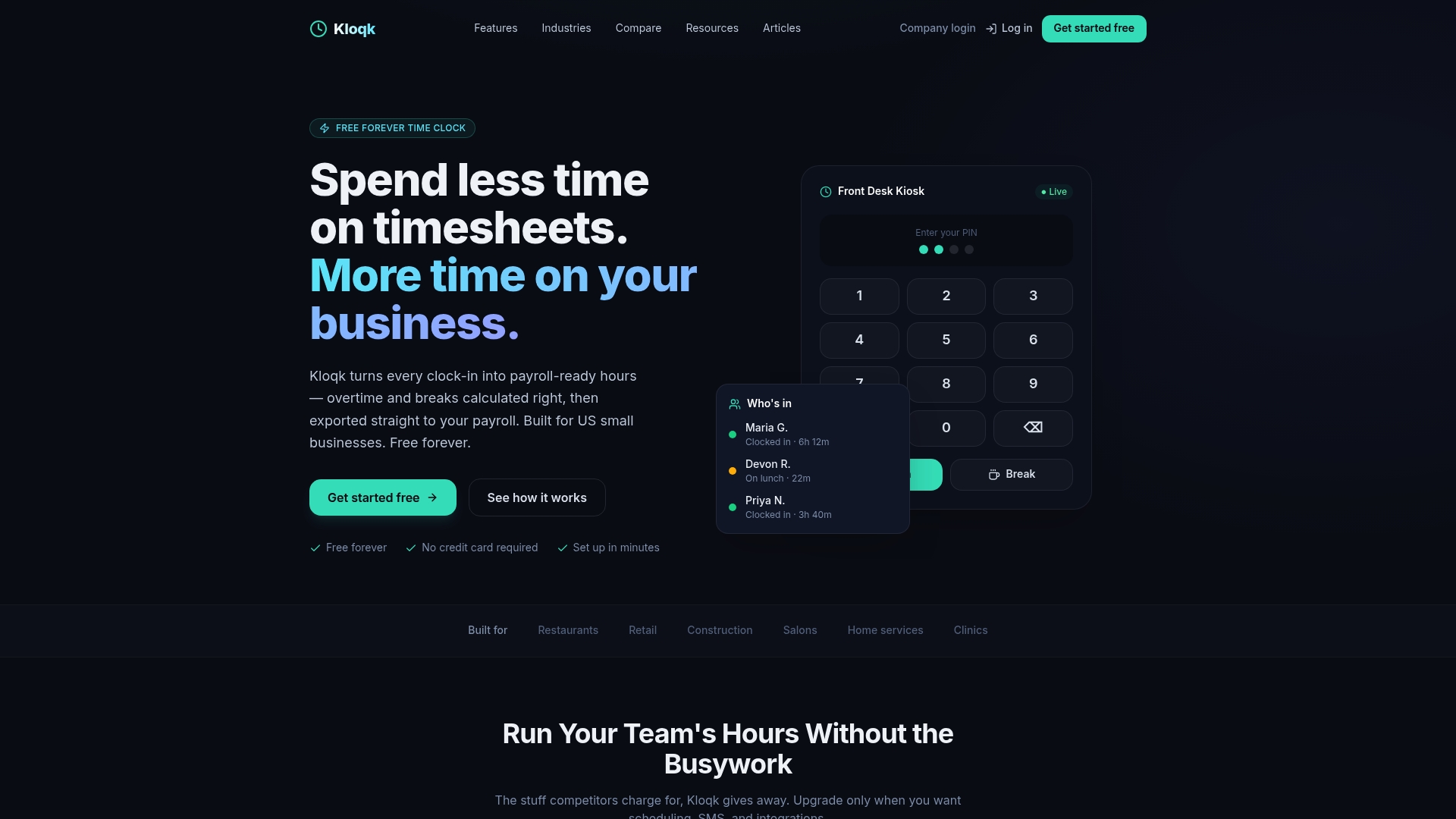
When you are ready to roll out, enroll one tablet first, test the exit code and the reboot, and then copy the setup to your other locations.
FAQ
How do I put a tablet in kiosk mode?
Enroll the tablet as a company-owned, fully managed device, then create a kiosk policy in your management tool, choose single-app and select your app. Set an exit PIN, push the policy to one tablet, reboot it and test before you mount it. A tablet with only a personal work profile can’t be locked this way.
Can I lock a tablet to one app without special software?
Android has a basic built-in pinning feature, but it is easy for a determined user to undo and it doesn’t survive restarts the way a managed kiosk does. For a shared time clock that employees tap all day, a managed single-app lockdown is the dependable choice.
How do I come out of kiosk mode?
Use the admin exit code on the device, release it from the management console, or remove the kiosk policy. If the tablet has lost its connection to the console, check the Wi-Fi first and keep the recovery details you recorded at enrollment.
What is a kiosk application?
A kiosk application is the one app a locked device is built to show. On Android, Google says the designated kiosk app launches automatically at boot, runs full screen and is pinned so users can’t leave it. For a time clock, the kiosk app is the clock-in screen.
Sources
- Lock task mode, Android Developers
- Dedicated device management, Android Enterprise Help
- Example policies: dedicated devices, Android Management API
- What is Lockdown mode, Android Central
- Lockdown mode in Android 15, Android Authority
Recommended
Sources
Every figure on this page traces to one of these. Primary law and government sources are listed first.
Written by
Kloqk teamKloqk
Written by the people who build Kloqk's time clock, timesheets and payroll exports. Prices and laws link to the source we checked, with the date we checked it.
Keep Reading
Track Hours the Easy Way
Kloqk is a free time clock that handles punches, breaks, overtime, and payroll-ready reports.
Start free