Audit Ready Construction Time Clock Setup for Supervisors (WH-347)

The best construction time clock setup pairs a mobile app as your baseline with an optional kiosk or portable clock for crews who share phones or work without one. This combination gives you GPS verification, photo check-ins, and payroll-ready exports in a single workflow. Once you pick your deployment mix, the checklist below walks you from account creation to your first clean payroll export.
TL;DR:
- Using a mobile app for GPS verification and photo check-ins is ideal for crews with high phone ownership and moderate trust levels.
- Deploying kiosks or portable clocks is better for unreliable or shared devices, especially on sites with theft risk or poor phone coverage.
- Confirm geofence boundaries are tight and site-specific, and require photo verification at both clock-in and clock-out to meet audit standards.
- Map job codes to payroll classifications from the start and conduct a pilot with one crew to catch errors early before full deployment.
- Regularly review timestamped, GPS-verified records and manual corrections to ensure compliance with Davis-Bacon certified payroll requirements.
Table of Contents
- Step-By-Step Setup Checklist From Account to Payroll Export
- Mobile App, Kiosk, or Portable Clock: Choosing Your Setup
- Setting Up GPS Geofences and Photo Verification Correctly
- Mapping Your Setup to Certified Payroll (WH-347) Requirements
- Fixing Common Setup and Sync Problems Fast
- Planning Your Rollout Timeline and Budget
- What We’ve Learned From Small Contractors Setting This Up
- Why Setup-First Thinking Beats Feature Chasing
- Getting Started With Kloqk’s Free Time Clock
- FAQ
- Sources
Step-By-Step Setup Checklist From Account to Payroll Export
Setting up a construction time clock is a sequence of small, specific decisions. Skip one and you end up reclassifying hours by hand weeks later. Work through these steps in order, and resist the urge to add every job site at once.
- Create your account and set company time rules. Define your workweek start day, overtime thresholds, rounding rules, and pay period length before adding a single worker.
- Build job sites and job codes. Set up each active site as its own location, then create job codes that match your cost categories (framing, electrical, cleanup) so hours roll up correctly later.
- Map job codes to payroll fields. Align each code to the labor classification and pay rate your payroll system or bookkeeper expects, especially if you run prevailing-wage work.
- Add workers with correct classifications. Enter each worker’s job title, wage classification, and hourly rate, and collect any required documentation like I-9 forms or union status before their first punch.
- Configure clock methods and permissions. Decide which workers use the mobile app, which use a shared kiosk or portable clock, and set manager permissions for who can edit or approve time.
- Set fallback behavior for no signal. Confirm the app or device caches punches offline and syncs automatically once connectivity returns, so a dead zone on site never means a missing punch.
- Configure your payroll export format. Match column headers and classification labels to your payroll provider’s import template or your own CSV structure.
- Run a test export before go-live. Export a sample pay period, check that hours, breaks, and overtime calculate correctly, and fix any mapping errors now rather than after a real payroll run.
- Pilot with one crew for one shift. Watch for missed punches, GPS accuracy issues, or confusion at the kiosk, and correct those before rolling out site-wide.
- Review the pilot log and adjust. Fix job code mismatches, rate errors, or permission issues, then expand to your full crew once the pilot data looks clean.
Our free time clock walks through this exact sequence, and a detailed mobile clock-in setup guide covers the job-site configuration step in more depth.
Pro Tip: Run your test export using a fake worker with deliberately odd hours (a late clock-in, a missed break, overtime) so you can confirm every edge case calculates correctly before real payroll depends on it.
Mobile App, Kiosk, or Portable Clock: Choosing Your Setup
Every construction crew has a different mix of phone access, site stability, and turnover, and that mix should drive your hardware decision more than price alone.
A mobile app wins on adoption and cost. Workers already carry a phone, onboarding takes minutes, and you avoid buying hardware. The trade-off is control: you depend on each worker’s phone having battery, signal, and the app installed correctly. For crews with high phone ownership and moderate trust, the app alone is often enough.
A kiosk or portable clock wins where phones are unreliable or shared. Subcontractor crews that rotate workers, sites with a theft risk for personal electronics, or teams where a foreman prefers one shared checkpoint all benefit from a dedicated device.
- Adoption versus control: apps are faster to roll out; kiosks give supervisors a single physical checkpoint to monitor.
- Durability versus cost: a portable clock built for job sites costs more upfront but survives dust, rain, and drops better than a shared phone.
- Power source matters: solar and rechargeable battery units work on sites without reliable outlets, while AC-powered kiosks suit trailers or enclosed job offices.
- Weatherproofing: outdoor-mounted clocks need a rated housing, especially on exposed framing or excavation sites.
- Connectivity: look for a system that works online-first but caches punches offline and syncs automatically once signal returns, since many sites have dead zones.
- Physical security: mount kiosks where a supervisor can see them, and use tamper alerts or locked housings if theft or vandalism is a realistic concern.
Many small contractors start with the app for their core crew and add a single kiosk at a trailer or gate for subcontractors and visiting workers. That hybrid setup usually covers both ends without overbuying hardware.
Setting Up GPS Geofences and Photo Verification Correctly
Verification settings are where most audit-readiness problems start, because a geofence that is too loose or a photo policy nobody explains to workers creates data you cannot defend later.
Size your geofence to the actual work area, not an arbitrary radius. A tight residential lot might need one geofence; a large commercial site with a staging yard, parking area, and active work zone often needs separate geofences for each, so a punch from the parking lot does not read as a punch from the work zone. Set boundaries generous enough to avoid false rejections near structures that block GPS signal, but tight enough that a worker cannot clock in from home.
Decide between single check-in GPS and continuous verification. A single location check at clock-in and clock-out is lighter on battery and privacy but only proves location at two moments. Continuous verification gives you a stronger audit trail but uses more battery and raises privacy questions workers will ask about, so most small contractors use continuous checks only on sites with a documented time-theft history.
- Set photo verification frequency: require a photo at clock-in and clock-out at minimum, since that captures both ends of the shift without becoming intrusive.
- Post clear signage: let workers know on day one that clock-ins include a photo and location check, and keep that notice posted at the kiosk or covered in onboarding.
- Store verification evidence with the punch: export files should include a timestamped GPS reading and a photo reference alongside each entry, not as a separate file.
- Limit location collection to work hours: disable tracking outside clock-in and clock-out windows so you are not collecting location data you do not need.
Our job site time clock feature ties GPS proof directly to each job site address, and our GPS time clock tools include geofencing and photo verification at no cost on the free plan.
Pro Tip: Keep geofence radii and photo requirements consistent across all your sites, since inconsistent rules are one of the first things an auditor or a disputing employee will point to.
Mapping Your Setup to Certified Payroll (WH-347) Requirements
If any of your projects involve federal funding, your time clock setup needs to produce records that satisfy Form WH-347, the standard certified payroll form for Davis-Bacon-covered construction. The form requires a daily report covering employee names, labor classifications, daily hours worked, hourly rates, deductions, and fringe benefits, all certified by an authorized company officer.

Setting job codes and classifications to match WH-347 language from day one saves significant cleanup later. If your form lists a worker as “Electrician” and your time clock has them coded as “Elec Helper,” you create a mismatch an auditor will flag immediately.
Contemporaneous timestamps carry more weight than hours entered from memory at the end of the week. A punch logged the moment a worker arrives on site, backed by GPS and a photo, stands up far better to scrutiny than a supervisor reconstructing hours on Friday afternoon.
- Match job code names to WH-347 classification language so exports require no relabeling before submission.
- Keep daily, not weekly, punch records since the form requires a daily breakdown, not a weekly total.
- Retain original timestamped records, not summarized spreadsheets, as your primary evidence.
- Build an audit packet per pay period containing the certified payroll form, the raw punch export, and any correction notes.
- Note every manual correction with a reason and the name of who approved it, since unexplained edits are a common audit red flag.
Davis-Bacon guidance on certified payroll reporting also recommends retaining original, contemporaneous time records for at least three years after contract completion, so build that retention window into your document storage plan from the start. Our prevailing wage tracking guide covers how to structure job codes for this kind of reporting.
Fixing Common Setup and Sync Problems Fast
Most setup issues fall into two buckets: a sync problem, where data exists but hasn’t reached your dashboard, or an input error, where the data itself is wrong. Telling the two apart quickly saves hours of chasing the wrong fix.
- Check for sync versus input error first. If a punch is missing entirely, check device connectivity logs before assuming the worker forgot to clock in.
- Correct misclassified hours with a visible edit trail. Change the job code or classification, but leave a note explaining the correction rather than deleting the original entry.
- Recover offline punches by checking device cache. Most apps store punches locally and sync once signal returns, so confirm the device reconnected rather than re-entering hours manually.
- Validate recovered timestamps against device clocks. A punch that synced late should still carry its original capture time, not the sync time.
- For kiosk power failures, switch to the mobile app temporarily. Have a backup plan so a dead kiosk battery doesn’t stop the whole crew from clocking in.
- Collect logs before contacting vendor support. Note the worker’s name, approximate punch time, device type, and whether the device was online, since that speeds up any support ticket significantly.
Planning Your Rollout Timeline and Budget
A low-disruption rollout starts small. Pick one crew of five to ten workers, run a two-week pilot, and track punch capture rate, classification accuracy, and how many corrections you make per week.
- Budget staff time, not just subscription cost: expect a few hours for initial account setup and a short training session per crew, not a full day.
- One-time hardware costs apply only if you add a kiosk or portable clock, while the mobile app itself requires no hardware purchase.
- Recurring costs depend on your plan: our Free plan covers core time tracking, while Pro runs $29 per month per location and Premium runs $59 per month per location for added features like scheduling and PTO.
- Watch for hidden costs: admin time cleaning up early classification errors, phone data usage on sites with weak WiFi, and occasional hardware replacement for portable clocks.
- Estimate ROI simply: compare hours spent resolving payroll disputes and preparing audit packets before and after rollout, since that gap is usually where the time savings show up fastest.
What We’ve Learned From Small Contractors Setting This Up
Construction crews that get the most out of a time clock setup tend to do one thing differently: they pilot with a single crew before touching their full roster. That one habit prevents almost every classification error and geofence complaint we hear about during onboarding.
Photo verification stops buddy punching without adding a cost, geofencing catches job-site boundary disputes before they become arguments, and payroll-ready exports remove the Sunday-night spreadsheet cleanup. During a pilot, track your punch capture rate and your classification error rate week over week. Supervisors typically see the biggest time savings not during setup itself but a few pay periods in, once corrections drop off and the export becomes close to a one-click task.
Why Setup-First Thinking Beats Feature Chasing
Most advice on this topic focuses on comparing features: geofencing versus biometrics, app versus kiosk, this integration versus that one. That comparison matters less than most supervisors think. A system with every advanced feature still produces bad data if job codes are named inconsistently or if nobody pilots before full rollout.
The setup sequence itself is the differentiator, not the feature list. Contractors who map job codes to payroll classifications before adding workers, who pilot with one crew before scaling, and who treat every manual correction as something to document rather than quietly fix, end up with records that survive an audit without extra work later.
What’s overrated: chasing the system with the longest feature list. What’s underrated: the discipline of a two-week pilot and consistent naming conventions across job codes and classifications. If you prioritize one thing from this guide, prioritize the pilot. Everything else, including your choice of hardware, becomes easier to get right once you have clean data from a small test run to learn from.
Saad
Getting Started With Kloqk’s Free Time Clock
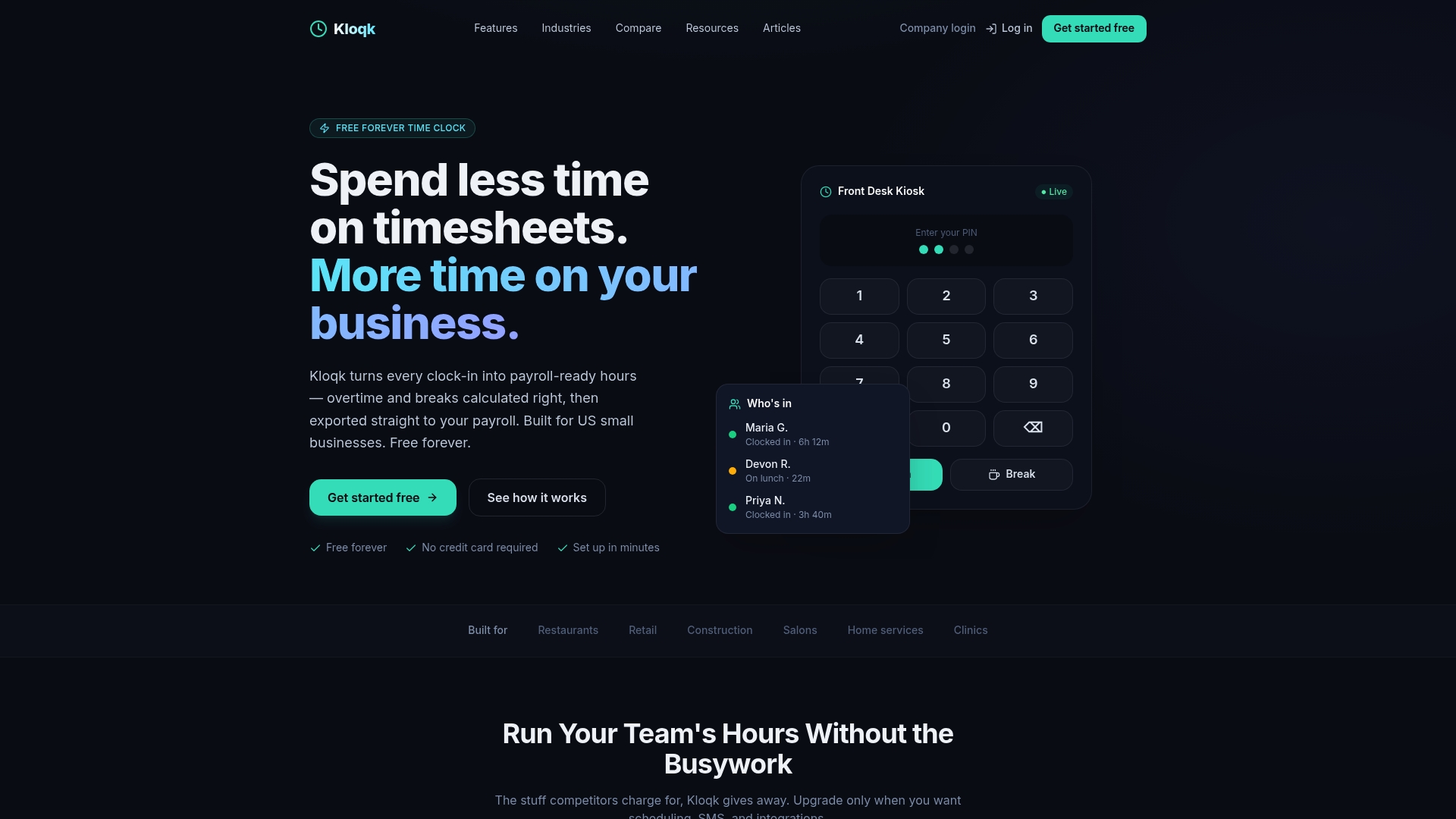
If your crews work across multiple addresses, our remote time tracking tools apply the same geofencing and photo checks to workers moving between sites during the day. For contractors managing subcontractor scopes alongside their own crew, a clear contractor scope of work template helps keep job code naming consistent with what you agreed to on paper.
- Start with the Free plan for your core crew and run a two-week pilot before adding every job site.
- Check our construction features page for setup resources specific to job site crews.
FAQ
What is the best time clock app for construction contractors?
The best option depends on your crew size and site conditions, but look for GPS geofencing, photo verification, and payroll-ready exports as baseline requirements. Our free time clock includes all three at no cost, which matters most for small contractors watching software spend closely.
How do I keep track of hours worked as a contractor?
Use a time clock app or kiosk that captures a timestamped, GPS-verified punch at clock-in and clock-out rather than relying on memory or paper logs. Contemporaneous digital records hold up far better in a payroll dispute or certified payroll audit than hours reconstructed after the fact.
What is the 7 minute rule for employees?
The 7-minute rule refers to a common rounding practice where punches within 7 minutes of a scheduled shift start or end round to that scheduled time, while punches beyond 7 minutes round to the next quarter hour. Rounding rules vary by state and policy, so confirm your time clock’s rounding settings match the rule you intend to apply.
How do I set my clock to the correct time?
Most time clock apps and kiosks sync automatically to network time once connected to WiFi or cellular data, so manual time setting usually is not required. If a device shows the wrong time, check its network connection first, since that resolves the issue in most cases without any manual adjustment.
Recommended
Sources
Every figure on this page traces to one of these. Primary law and government sources are listed first.
Written by
Marcus ReyesPayroll & Timekeeping Specialist
Marcus covers payroll accuracy, timesheets, and time tracking, the unglamorous mechanics that keep paychecks correct and audits painless.
Keep Reading
Track Hours the Easy Way
Kloqk is a free time clock that handles punches, breaks, overtime, and payroll-ready reports.
Start free