Stop Buddy Punching: Free Selfie Clock In Setup for Small Business HR

Yes, selfie clock-in stops buddy punching when it’s paired with a timestamp and a location check, not used alone. Photo-only systems can still be beaten by a phone handed off to a coworker. Add GPS or an enrolled face template, and you get a record that’s genuinely hard to fake. Some time clock tools build photo verification, geofencing, and payroll-ready exports into their free plans, making them practical starting points for testing this out.
TL;DR:
- Pairing GPS and facial recognition with selfies ensures a record that is difficult to fake or dispute, especially for remote or mobile teams.
- Setting up selfie clock-in requires choosing suitable devices, requesting permissions at onboarding, and establishing clear policies before full deployment.
- Privacy policies must clearly inform employees about data collection, restrict access, and specify retention limits to stay compliant and maintain trust.
- Early troubleshooting focuses on permissions issues, support ticket tracking, and testing various devices and shift types during a short pilot.
- The system becomes most cost-effective and justified for larger teams, multiple shifts, or dispersed sites, where traditional clock-in methods are less reliable.
Table of Contents
- How Does Selfie Clock-In Actually Work?
- How Do You Set Up Selfie Clock-In?
- What Policies Make Selfie Clock-In Fair and Reliable?
- What Privacy and Legal Steps Should You Take First?
- What Are the Most Common Rollout Problems?
- When Selfie Clock-In Is Worth It, and When It’s Overkill
- Try Selfie Clock-In Free With Kloqk
- Sources
- FAQ
How Does Selfie Clock-In Actually Work?
Every selfie clock-in system runs on the same three ingredients: a photo, a timestamp, and (ideally) a location signal. What separates a basic tool from a serious one is how it handles the identity check itself.
There are two distinct approaches, and the difference matters for how much admin work you’ll do later:
- Photo verification simply snaps a picture at punch time and stores it for a human to review later. It’s fast to set up but relies on someone actually looking at the photos.
- Facial recognition compares the punch-time photo against an enrolled template and flags mismatches automatically, cutting down on manual review.
Neither approach works well in isolation. A photo without a location lock can be defeated if someone uploads an old picture from another device, and even facial matching benefits from a second data point. Pairing the photo with GPS and a timestamp creates a record that’s far harder to dispute or manipulate than a standalone image.
In practice, most admin review workflows boil down to spotting a handful of red flags: a photo taken outside the geofence, a face that doesn’t match the enrolled template, a punch logged seconds apart from another employee’s, or a blurry or dark image that looks like it was rushed. Tools like Kloqk’s GPS time clock surface these exceptions automatically so managers aren’t scrolling through hundreds of photos every pay period.
How Do You Set Up Selfie Clock-In?
Setup takes less time than most managers expect, but the order you do things in matters.
- Pick your device model. A shared kiosk (tablet mounted at the entrance) works well for restaurants and retail where staff clock in at one location. A personal-device flow fits construction crews and field teams who start work at scattered sites.
- Request permissions at first launch, not mid-shift. Camera and location permissions should be prompted the moment an employee installs the app, so nobody’s blocked from clocking in on day one.
- Choose your enrollment method. A one-time enrollment photo or biometric template speeds up every future punch because the system matches against that template instead of requiring a human to eyeball each image.
- Set your admin toggles. Decide whether every punch requires a selfie or only the first punch of the day, and whether any roles (like salaried supervisors) are exempt.
- Lock in retention settings before your first real punch. Decide how long photos and templates are stored, and who can access them.
Pro Tip: Run enrollment during a slow shift, not opening rush. Employees who fumble with camera permissions in front of a line of customers tend to blame the app instead of their phone settings.
Systems like AttendFirst’s check-in flow show how this looks in practice: when the selfie toggle is on, the app opens the camera and sends the photo and GPS coordinates together in one action, so employees never have to juggle two separate steps.
What Policies Make Selfie Clock-In Fair and Reliable?
A selfie clock-in program lives or dies on how clearly you communicate it, not on the technology itself. Employees who feel surveilled without explanation push back. Employees who get a plain, written explanation almost never do.
Start with notice. Add a short paragraph to your handbook explaining what’s captured (a photo, timestamp, and location), who can see it, and why it exists (accuracy and fair pay, not surveillance). Then build a few operational habits around it:
- Set a weekly review cadence for flagged punches instead of letting exceptions pile up for a month.
- Define what happens when a selfie is rejected: does the employee get an automatic prompt to retry, or does it route to a supervisor?
- Use geofencing for remote or multi-site teams, since pairing identity checks with location closes the gap where a phone gets handed to someone else on-site.
- For in-person locations where GPS adds less value, spot-check a sample of photos each pay period instead of reviewing every single one.
Build in a fallback path too. Not every employee’s phone camera will cooperate every day, and some workers may have accessibility needs that make photo capture harder. A manual override with supervisor sign-off keeps the system fair without opening the door to routine abuse.
Pro Tip: Write your rejection-handling rule down before launch, not after the first dispute. “Two failed attempts routes to a supervisor” is a policy. Figuring it out live in front of an upset employee is not.
What Privacy and Legal Steps Should You Take First?
Photo and biometric data carry more legal weight than a punch clock number ever did, so a few guardrails belong on your checklist before rollout, not after.
- Require a documented employee notice and a written policy that spells out what’s collected and why.
- Limit access to punch photos and templates to payroll and HR staff only, not the whole management chain.
- Publish a short retention schedule (how long photos and templates are kept, and when they’re deleted) and stick to it.
- Check your state’s biometric or data-protection statutes before enabling facial-matching features, and loop in counsel if you’re unsure how your state classifies a face template.
- Where possible, favor on-device matching or hashed templates over storing raw biometric data, which keeps you exposed to less risk if a device or account is ever compromised.
None of this requires a legal department. It requires a decision made once, written down, and followed consistently.
What Are the Most Common Rollout Problems?
Most selfie clock-in headaches trace back to permissions, not the software itself. Camera and location access denied at first launch is the single biggest cause of failed punches, so fixing that early saves you a flood of support tickets later.
A short pilot exposes these issues fast:
- Pick one site or one shift team, not your whole staff, for the first two weeks.
- Track three numbers: the rate of failed photo captures, any buddy-punch incidents your audits catch, and how many support tickets mention clock-in trouble.
- For camera permission denials, walk the employee through their phone’s app settings rather than reinstalling the app, which usually doesn’t fix a permissions block.
- For browser-based kiosks, check whether the browser itself is blocking camera access at the site level, a common issue on older tablets.
- Log every rejected or flagged punch with its photo attached, since that record becomes your evidence if a payroll dispute comes up weeks later.
A short pilot covering morning shifts and a mix of device types will surface almost every permission and compatibility problem you will encounter, well before you commit to a full rollout.
Guidance on structured onboarding windows, like 121 Group’s 30-day process framework, offers a useful model for pacing a rollout without overwhelming staff in week one.
When Selfie Clock-In Is Worth It, and When It’s Overkill
If you run a crew of five people in one location and you already know everyone’s face at the door, selfie clock-in probably solves a problem you don’t have. It earns its place once you cross into larger hourly teams, multiple shifts, or mobile job sites where nobody’s watching the door.
The biggest mistake I see is treating the photo as the whole solution. A picture with no location check just tells you someone’s face showed up somewhere. Pair it with geofencing and you get proof of where. That combination is what actually kills buddy punching, not the selfie alone. If you’re on the fence, a short pilot answers the question faster than any debate in a staff meeting will.
Saad
Try Selfie Clock-In Free With Kloqk
Some time clock tools offer photo verification at every clock-in, GPS geofencing, and payroll-ready exports at no cost, features many other tools charge extra for. That combination is exactly what stops buddy punching: a selfie tied to a timestamp and a location, exported straight into hours you can run payroll from without touching a spreadsheet.
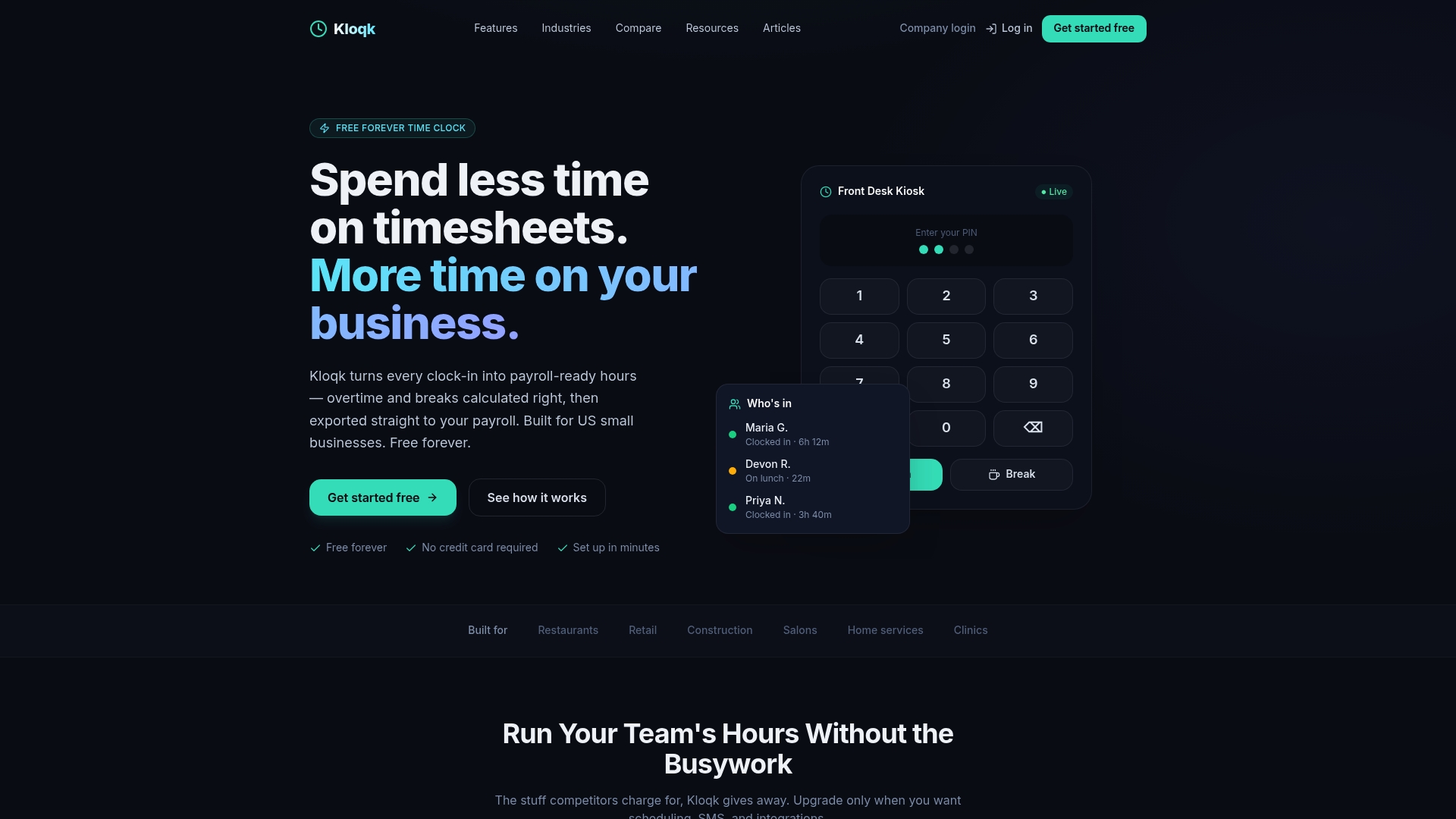
You can start with the free plan and run the two-week pilot outlined above on one site or shift team before rolling it out further. If you need scheduling, PTO tracking, or onboarding tools down the line, the Pro plan runs $29 per month per location and Premium runs $59 per month per location, both listed on the pricing page. Before you flip the selfie toggle on, run through the privacy checklist above: written notice, limited access, and a retention schedule you’re comfortable defending. Then set up your photo clock-in and see how it holds up against a real shift.
Sources
- How facial recognition technology works: a simple guide
- GPS, selfie and QR attendance check-in for employees | AttendFirst Docs
- Attendance Checkr Face Recognition Attendance, Sessions, Analytics
FAQ
What Is the Best Free App for Clocking In and Out?
Kloqk offers a free time clock with unlimited employees, overtime and break calculations, and payroll exports, with no per-seat fee. Photo verification and GPS geofencing are included in the free plan, which is unusual since many competitors put those features behind a paywall.
How Do I Set a Timer When Taking a Selfie for Clock-In?
Most selfie clock-in apps don’t need a manual timer. The app opens the camera automatically when an employee taps to clock in, captures the photo, and attaches the timestamp and GPS data in one motion, as seen in AttendFirst’s check-in flow.
What Is a Facial Clocking-In System?
A facial clocking-in system compares a punch-time photo against an employee’s enrolled face template to confirm identity automatically, rather than relying on a manager to review each image. It works on standard smartphones, pairing identity verification with location to close proxy-punch gaps without special hardware at every site.
What Is the 7-Minute Rule for Employee Time Tracking?
The 7-minute rule is a rounding convention some payroll systems use where punches close to a scheduled time round to that scheduled time, while punches farther away round to the next full increment. It’s a payroll rounding practice, not a legal requirement, so check your state’s wage rules before applying it, since some states restrict rounding that consistently favors the employer.
Recommended
Sources
Every figure on this page traces to one of these. Primary law and government sources are listed first.
Written by
Marcus ReyesPayroll & Timekeeping Specialist
Marcus covers payroll accuracy, timesheets, and time tracking, the unglamorous mechanics that keep paychecks correct and audits painless.
Keep Reading
Track Hours the Easy Way
Kloqk is a free time clock that handles punches, breaks, overtime, and payroll-ready reports.
Start free