6 Overtime Alert Setup Steps That Catch Rule Errors for Small Businesses

Create a new overtime alert in your time system’s Alerts or Notifications area, confirm that your company’s overtime calculation rules are turned on, set a threshold for when employees are approaching or have exceeded overtime, and choose recipients and delivery methods. That combination is what produces automated manager notifications before payroll surprises happen.
TL;DR:
- Confirm overtime rules, workweek boundaries, break settings, and time records before trusting alerts; incorrect inputs can prevent triggers or misstate hours.
- For most covered, nonexempt employees, overtime begins after 40 hours in a workweek; a lower approaching threshold only creates an earlier warning.
- Set separate alert scopes by location when state rules differ; one companywide weekly threshold can miss daily overtime requirements or count hours in the wrong workweek.
- Assign a backup recipient and verify personal notification settings, since administrator settings alone do not ensure delivery; escalation can notify another manager if needed.
- Test alerts with simulated time records for both accurate overtime calculation and successful delivery, then review active rules quarterly and after payroll or scheduling changes.
Table of Contents
- Step-by-step setup: create the overtime alert
- Verify prerequisites: are your overtime rules actually active?
- Choosing triggers, thresholds, and how often alerts fire
- Recipients and delivery: who gets the alert and how
- Test and audit your alerts before trusting them
- Troubleshooting common problems and quick fixes
- Integration of alerts with payroll systems for automatic adjustments
- Handling different overtime rules for multiple states or locations
- Examples of common use cases for overtime alerts in small businesses
- Customization options for overtime thresholds: legal limits vs. company policy
- What admins should prioritize when using overtime alerts
- How Kloqk helps you get overtime alerts running
- FAQ
- Sources
Step-by-step setup: create the overtime alert
Most time tracking platforms follow a similar path for building an alert, even when the menu names differ slightly. Here’s the sequence to follow in your own admin dashboard.
- Navigate to Alerts or Notifications in your settings menu and select Create new alert.
- Give the alert a clear internal name, such as “Approaching 40hr Weekly OT” or “Daily OT Exceeded, Kitchen Staff,” so anyone reviewing the list later understands its purpose without opening it.
- Set the scope: company-wide, a specific department, a workgroup, or an individual employee. Narrower scope reduces noise but requires more alerts to maintain.
- Choose the trigger type, either “approaching” overtime or “exceeded” overtime, and enter the numeric threshold and the period it applies to (daily or weekly).
- Pick the schedule: immediate delivery the moment the threshold is hit, or a daily summary sent at a set time.
- Save and enable the alert, then confirm it shows as active in your alerts list.
A general three-step pattern sits underneath all of this: enable the calculation rules first, define the trigger and threshold second, then specify recipients and delivery last. Skipping the first step is the most common reason a newly created alert never fires, since the system needs an active overtime rule to measure against before any threshold means anything.
Once the alert is saved, it’s worth opening it again a day later to confirm the settings held. Some platforms reset scope or schedule fields if a required dependency, like a workgroup assignment, changes after the alert was created.
Verify prerequisites: are your overtime rules actually active?
An alert is only as good as the calculation it watches. Before trusting any notification, confirm the following:
- Overtime calculation rules are enabled for the company or for the specific group the alert covers.
- Your workweek definition and pay-period alignment are set correctly, since a misaligned workweek can split hours across two periods and undercount overtime.
- Break rules and any state-specific overtime overrides are configured, because unpaid breaks that are miscoded as worked time will throw off every threshold calculation downstream.
- Underlying time records are accurate and complete, since alerts depend entirely on the data feeding them.
If the underlying overtime calculation rule isn’t enabled or configured properly, alerts will not trigger even if the alert itself is correctly defined, according to Department of Labor guidance on hours recordkeeping. This dependency explains most “the alert never fired” support tickets.
Accurate records aren’t just an internal convenience. The Fair Labor Standards Act requires employers to retain time cards and the records used to compute wages for at least two years, and payroll records for at least three. An alert system built on incomplete or poorly retained records won’t just miscalculate overtime, it can leave a compliance gap if your records are ever reviewed. For a deeper look at how alert accuracy ties into payroll outcomes, see our piece on how overtime alerts prevent overpayment.
Choosing triggers, thresholds, and how often alerts fire
“Approaching” alerts give managers a window to adjust schedules before overtime happens, which is useful when labor budgets are tight. “Exceeded” alerts work better as a record-keeping and payroll-accuracy check, confirming that hours already worked are captured correctly.
- An approaching alert set slightly below the standard 40-hour weekly threshold gives a buffer before reaching overtime.
- A daily threshold, where your state or company policy uses one, catches overtime building up before the week even ends.
- Immediate delivery suits urgent, individual-level alerts; a daily summary suits company-wide monitoring where real-time pings would just create clutter.
Align every trigger with the employee’s actual defined workweek. A trigger that doesn’t match the pay-period start day will count hours across the wrong window and produce false positives or missed overtime.
Pro Tip: Start with daily summaries for broad scopes and reserve immediate alerts for individuals or small teams where a fast response actually changes the outcome.
Recipients and delivery: who gets the alert and how
An alert that nobody sees is worse than no alert at all, since it creates a false sense of coverage. Route each alert deliberately.
- Assign recipients by manager, by role, or through a custom list for alerts that don’t map cleanly to the org chart.
- Add a backup recipient for every alert so coverage doesn’t disappear when a manager is out.
- Compare delivery channels: email is easy to archive and review later, push notifications work for real-time awareness on a phone, and SMS suits urgent, time-sensitive cases where a missed email could mean a missed shift swap.
- Confirm recipients have their own notification preferences turned on, since enabling an alert on the admin side doesn’t automatically mean a recipient’s profile is set to receive it.
Group routing with an escalation step, where a second recipient is notified if the first doesn’t acknowledge within a set window, closes the gap where alerts get created and then quietly ignored.
Test and audit your alerts before trusting them
A new alert should never go live untested. Run through this checklist first, then repeat it periodically.
- Build a sandbox or simulated timesheet that hits the exact threshold you configured and confirm both the calculation and the notification fire correctly.
- Check that the alert triggers only for employees inside its defined scope and stays silent for everyone excluded from it.
- Review your full list of active alerts for duplicates or overlapping rules, and confirm which rule takes precedence when two apply to the same employee.
- Document the test, including the date, the scenario used, and the result, so future audits don’t start from zero.
Practitioner guidance recommends a quarterly review of active alerts, paired with a quick smoke test after any payroll or scheduling change, to catch configuration drift before it causes a missed notification.
Pro Tip: Test both halves separately: does the system correctly flag the period as overtime, and does the recipient actually receive and can act on the notification?
Troubleshooting common problems and quick fixes
- Alerts not firing: re-check that overtime calculation rules are active and that the employee’s record actually falls inside the alert’s defined scope.
- Managers not getting notifications: verify their contact information is current and that their personal notification preferences are switched on for that alert type.
- Too many alerts: convert immediate triggers to daily summaries, or tighten the threshold so only meaningful cases generate a notification.
- Conflicting alerts: consolidate duplicates and confirm which rule the system evaluates first when a company-wide rule and a group-level rule overlap.
A mature alerts framework typically separates criteria, programs, notification routing, and processing schedules into distinct configuration areas, and most conflicts trace back to a group-level rule silently overriding a company-wide one.
Integration of alerts with payroll systems for automatic adjustments
Overtime alerts work best when they connect directly to the system calculating pay, rather than living as a standalone notification layer. When an alert’s underlying overtime calculation feeds straight into payroll, hours flagged as overtime carry the correct multiplier into the pay run without a manual re-entry step.
This matters most at the boundary between time tracking and payroll processing. If your alert system and your payroll export are separate tools that don’t share calculation logic, an employee can trigger an “exceeded” alert that the payroll export never reflects, creating a mismatch that only surfaces after paychecks go out. Checking that your overtime rules, your alert thresholds, and your payroll export all reference the same underlying hours calculation closes that gap.

For small businesses running lean admin teams, this integration also reduces the manual review burden. Instead of a manager cross-checking an alert against a separate payroll spreadsheet, the payroll-ready export already reflects the adjusted hours, and the alert simply confirms the adjustment happened as expected. Payroll records built this way also stay aligned with the retention requirements for wage computation records under the FLSA, since the same dataset that triggered the alert is the one archived for payroll purposes.
Where your time tracking and payroll tools are separate products, confirm the export format and schedule line up with your pay period before relying on alerts as your only check. A weekly alert summary paired with a biweekly payroll run, for example, needs a clear process for reconciling the two cadences.
Handling different overtime rules for multiple states or locations
A single overtime threshold rarely works for a business operating across more than one location. Overtime pay requirements under the FLSA set the federal floor, generally one and one-half times the regular rate after 40 hours in a workweek for covered, nonexempt employees, but state rules can layer additional requirements on top, including daily overtime thresholds in states that use them.
For admins managing staff across state lines, the practical fix is scoping alerts by location or by a location-tagged workgroup rather than applying one company-wide threshold everywhere. A location in a state with a daily overtime rule needs its own alert configured against that daily threshold, separate from locations where only the weekly 40-hour rule applies.

This is also where break rules and local overrides matter most, since a break policy that’s compliant in one state may not be in another, and an overtime calculation that ignores that difference will misfire alerts in both directions. Our overtime tracking feature page covers how state-specific break rules factor into calculation settings, which is worth reviewing before finalizing multi-location alert scopes.
Keep in mind that overtime pay requirements cannot be waived by agreement between employer and employee, a point the DOL’s compliance reference guide makes directly. Alerts help you catch approaching overtime, but they don’t change the underlying obligation to pay for hours actually worked, regardless of what a schedule or a verbal agreement intended.
Examples of common use cases for overtime alerts in small businesses
A restaurant running tight labor margins on a Friday night shift is a common case: an approaching alert set at 38 hours lets a shift manager swap a closing shift before a server crosses into overtime, instead of discovering it on the next payroll run. The same logic applies to a construction crew nearing the end of a project, where an exceeded alert on a specific workgroup flags hours that need a supervisor’s sign-off before the week closes.
Clinics and salons with part-time and full-time staff mixed on the same schedule often use scoped alerts to separate the two groups entirely, since a part-time employee picking up extra hours needs different threshold handling than a full-time employee already close to 40 hours. Retail businesses with seasonal staffing spikes tend to rely more on daily summary alerts across the whole location during peak weeks, switching to immediate, individual-level alerts the rest of the year when overtime is rarer and worth a faster response.
Across all of these, the common thread is matching the alert’s scope and urgency to how the business actually schedules people, rather than applying one generic threshold everywhere and hoping it fits.
Customization options for overtime thresholds: legal limits vs. company policy
The starting point for any threshold is the legal floor: 40 hours in a workweek under the FLSA for most covered, nonexempt employees, with some states layering daily thresholds or other requirements on top. That floor is not adjustable, but a company policy threshold set below it, such as an alert at 36 or 38 hours, is a business choice meant to create an earlier warning window.
The distinction matters when documenting your configuration: a 38-hour “approaching” alert is a policy decision for operational planning, while the 40-hour “exceeded” calculation underneath it reflects the actual legal threshold that determines pay. Keeping these two numbers clearly separate in your alert names and documentation avoids confusion later when someone reviews the configuration.
Automated alerts are an administrative convenience, not a substitute for the underlying obligation. They should never be used to discourage employees from reporting overtime, since the legal requirement to pay for hours actually worked remains in place regardless of what any alert threshold is set to.
What admins should prioritize when using overtime alerts
Accuracy matters more than a quiet inbox. Suppressing alerts to reduce noise defeats the purpose; tightening thresholds or routing does the same job without hiding a real compliance signal. Keep rule logic simple, document every test, and audit on a schedule rather than waiting for a problem to surface.
Saad
How Kloqk helps you get overtime alerts running
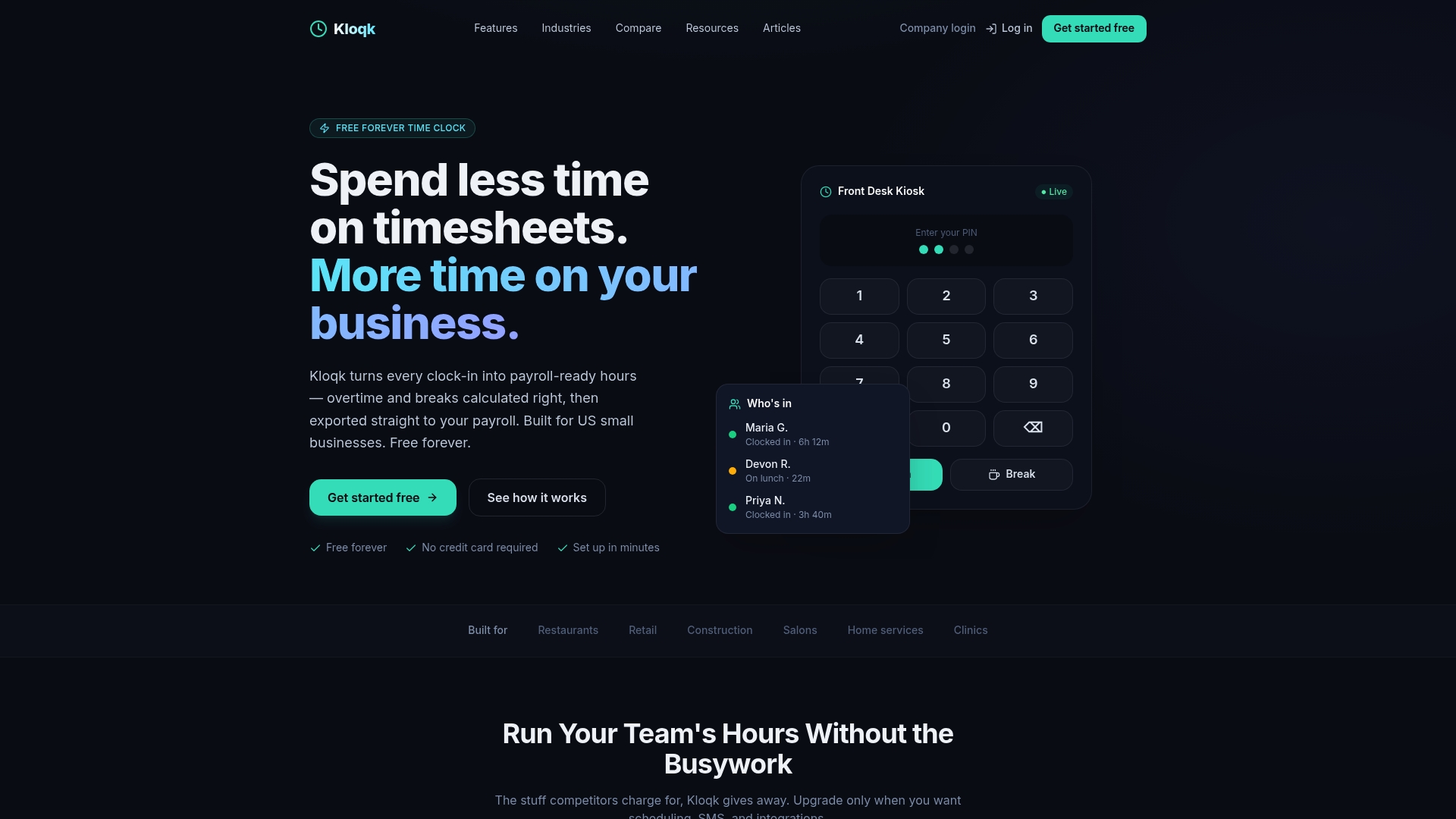
We built overtime calculations, break rules, and alerting into the free tier of our time tracking platform, so setup doesn’t require a paid add-on to get accurate manager notifications working.
- Overtime and break calculations come standard, with no separate charge for the core alerting logic.
- GPS-based features for distributed teams are covered on our remote time tracking page.
- Compare the Free, Pro, and Premium plans to see which fits your team size and whether scheduling or PTO add-ons make sense later.
If you’re configuring alert triggers for the first time, a practical guide to workflow trigger automation offers useful background on how trigger logic generally works, which carries over well to setting overtime thresholds. Start free and build your first alert today.
FAQ
What is the first step in setting up overtime alerts?
Open the Alerts or Notifications section of your time tracking platform and create a new alert, then confirm your company’s overtime calculation rules are active before setting a threshold. Without active calculation rules, the alert has nothing to measure against and will not fire.
How do I choose between an approaching and an exceeded alert?
An approaching alert, often set a few hours below the legal or policy threshold, gives managers time to adjust a schedule before overtime happens. An exceeded alert fires after the threshold is crossed and works better as a payroll-accuracy check than a prevention tool.
Why isn’t my overtime alert sending notifications?
Check that the underlying overtime calculation rule is enabled for the employee’s group, since alerts depend on that rule being active to trigger at all. Also confirm the recipient’s personal notification preferences are turned on, as enabling an alert does not automatically enable a recipient to receive it.
How often should I review or audit my overtime alerts?
A quarterly review of active alerts, along with a quick test after any payroll or scheduling change, catches duplicate or conflicting rules before they cause a missed notification. Documenting each test’s date and result makes the next audit faster.
Does Kloqk include overtime alerts in its free plan?
Our free plan includes overtime calculations and break tracking as part of the core time tracking platform, with no separate charge for those features. Visit our pricing page for the full plan comparison and current details.
Recommended
Sources
Every figure on this page traces to one of these. Primary law and government sources are listed first.
- 1. U.S. Department of Laborprimary
- 2. wolterskluwer.com
- 3. docs.oracle.com
- 4. clawbase.to
Written by
Dana WhitfieldHR Compliance Lead
Dana writes about wage-and-hour law, FLSA overtime, and leave compliance for U.S. small businesses, translating dense regulations into plain steps owners can act on.
Keep Reading
Track Hours the Easy Way
Kloqk is a free time clock that handles punches, breaks, overtime, and payroll-ready reports.
Start free