7 Smart Import Steps to Stop Gusto Timesheet Errors

Import hours into Gusto by going to Pay → Run payroll, selecting the correct pay period, and choosing Import payroll data to upload your spreadsheet through Smart Import. Use Smart Import for a one-off CSV upload; use a connected time-tracking integration if you run payroll on a recurring cadence. Either way, the import overwrites whatever is already sitting in that payroll run, so review every row before you submit.
TL;DR:
- Gusto’s Smart Import supports over two dozen file types, auto-map most columns, and requires review of employee, hours, and dates before finalizing.
- Proper employee mapping depends on matching names, IDs, and avoiding duplicates, especially for high-turnover workforces to prevent hours misallocation.
- Using direct time-tracking integrations reduces manual corrections, preserves pay classifications, and improves compliance compared to CSV uploads.
- Always verify overtime, tips, and break categories manually, and confirm hours and employee details are correct before submitting payroll.
- Maintaining consistent employee identifiers and closing timesheets before import minimizes errors and streamlines payroll processing.
Table of Contents
- Gusto Timesheet Import: Uploading a Spreadsheet With Smart Import
- Why Employee Mapping Determines Whether Hours Land Correctly
- Should You Use an Integration Instead of a CSV Upload?
- Troubleshooting Checklist Before You Submit Payroll
- An Admin’s View: Small Habits That Prevent Big Import Errors
- Kloqk: Export Payroll-Ready Hours to Cut Import Friction
- Official Gusto Documentation and Integration Resources
- Sources
Gusto Timesheet Import: Uploading a Spreadsheet With Smart Import
Smart Import is the fastest legitimate path from a spreadsheet to a finished payroll run, and it’s built to tolerate messy files. It auto-maps most column layouts, so you rarely need to reformat anything before uploading. Here’s the exact sequence:
- Sign in to Gusto and go to Pay → Run payroll.
- Select the pay period you’re processing.
- Click Import payroll data, then choose Smart Import.
- Drag your file into the upload window or browse to select it.
- Let Gusto auto-map the columns, then review the mapping screen.
- Check the preview: employee names, total hours per person, and date ranges.
- Click Import to pull the data into the active payroll run.
Smart Import accepts more than two dozen file types, including .csv.xls.xlsx.txt.numbers, and .ods, so you don’t have to convert a Numbers export just to make it play nice with the tool. It also handles column matching automatically in most cases, which is a bigger deal than it sounds. Manually mapping 40 rows of employee data by hand is where most Friday-afternoon payroll runs go sideways.
Before you click that final Import button, glance at three things on the review screen: does every employee who worked appear on the list, do the total hours look plausible against what you’d expect for that period, and do the date ranges match the pay period you selected. A typo in a date range is an easy way to import last period’s hours into this one.
Pro Tip: Keep a dated copy of your original spreadsheet before every import, and if you’re not confident about the file’s accuracy, run it through an off-cycle payroll first as a dry run. You can review the totals without actually cutting checks, then delete the off-cycle run once you’ve confirmed the numbers.
Why Employee Mapping Determines Whether Hours Land Correctly
Mapping failures are the number one reason a Gusto timesheet import produces missing or misallocated hours, and it almost always comes down to identifiers that don’t match exactly. Gusto tries to match rows in your file to employees already in your account using name, payroll ID, or email, depending on what your spreadsheet includes. If your CSV lists “Bob Martinez” and Gusto has “Robert Martinez” on file, that row won’t map, and Bob’s hours will either sit unmapped or get dropped from the run entirely.
Before you upload anything, do this prep work:
- Export your current employee roster from Gusto so you’re working from the same names and spelling Gusto already has on file.
- Normalize name formatting across your source system and your export, including middle initials, suffixes, and hyphenated last names.
- Populate payroll IDs (often the last four digits of an SSN) if your time-tracking system supports a matching field.
- Remove duplicate entries and archived or terminated employees from the file before uploading.
- Flag contractors separately since they typically flow through a different Gusto workflow than W2 hourly staff.
Mapping failures usually show up as either unmapped rows sitting outside the payroll table or hours that appear against the wrong employee. Both are fixable in the review screen: click into the flagged row, manually select the correct employee from the dropdown, and confirm the hours attach before you finalize. Multi-pay-schedule companies (weekly for hourly staff, biweekly for salaried) need extra care here, since a file built for one schedule can silently misfire against the other.
Pro Tip: If you manage a workforce with high turnover, rebuild your name-matching list every quarter. Stale rosters are the single most common cause of repeat mapping errors.

Should You Use an Integration Instead of a CSV Upload?
CSV uploads work, but they’re a blunt instrument. A spreadsheet only knows total hours. It doesn’t inherently know whether those hours were straight time, overtime, or a shift differential, which means Gusto has to infer classification from whatever columns and labels you provide. A direct integration solves this differently: apps connecting through Gusto’s Time Tracking API send classified, shift-level data, so regular and overtime hours arrive already tagged instead of getting reconstructed after the fact.
That distinction shows up in fewer corrections later. Integrations typically deliver:
- Fewer employee mapping mismatches, since the connection is set up once and reused every pay period.
- Preserved pay classifications (regular, overtime, double time) instead of a single lump hours total.
- Less manual cleanup per payroll run, since you’re not re-mapping columns every time.
- Better audit trails for compliance, since shift-level data is timestamped at the source.
CSV uploads still make sense for legacy system exports, a one-off correction, or any tool that simply doesn’t offer a Gusto integration. If you’re running payroll for the same team every two weeks off the same time-tracking software, though, connecting it directly is worth the setup time.
Setup generally follows the same pattern across apps: connect the app in Gusto’s App Directory, match your employee roster between the two systems, then approve and close timesheets in the source app before each payroll run. That last step matters more than it seems. Integration docs are explicit that you must approve and close timesheets in the source app before hours will export correctly, since Gusto only pulls finalized data.
Troubleshooting Checklist Before You Submit Payroll
Run through this before you hit submit on any payroll that included an import, whether from a CSV or an integration:
- Check for unmapped rows. Anyone flagged as unmatched needs a manual employee selection before their hours count.
- Confirm overtime and special pay classifications. Verify tips, shift differentials, and overtime appear correctly and match your configured wage settings.
- Scan for zeroed or overwritten hours. Re-importing a file can silently replace previously entered positive hours with zero if that employee shows as blank in the newer file.
- Fix errors the right way. A wrong total usually calls for a manual edit inside the payroll table rather than a full re-import, which risks overwriting other correct entries.
- Save your records. Keep the original import file and a note of any manual adjustment for your own audit trail.
One detail catches even experienced admins: supplemental pay items like tips and break penalties don’t always sync automatically even through a working integration. Treat every automated sync as a first draft, not a finished payroll, and validate those categories manually before you submit. Our guide on fixing payroll errors from manual timesheets walks through the same review habits in more depth if you’re seeing recurring discrepancies.
An Admin’s View: Small Habits That Prevent Big Import Errors
Three habits fix most Gusto timesheet import problems before they happen: lock your name formatting to one standard across every system you use, require payroll IDs on every timesheet export regardless of source, and never export from a time-tracking app until that pay period is actually approved and closed. Skipping that last step is the single most common reason integrations “fail” when the integration itself is working fine.
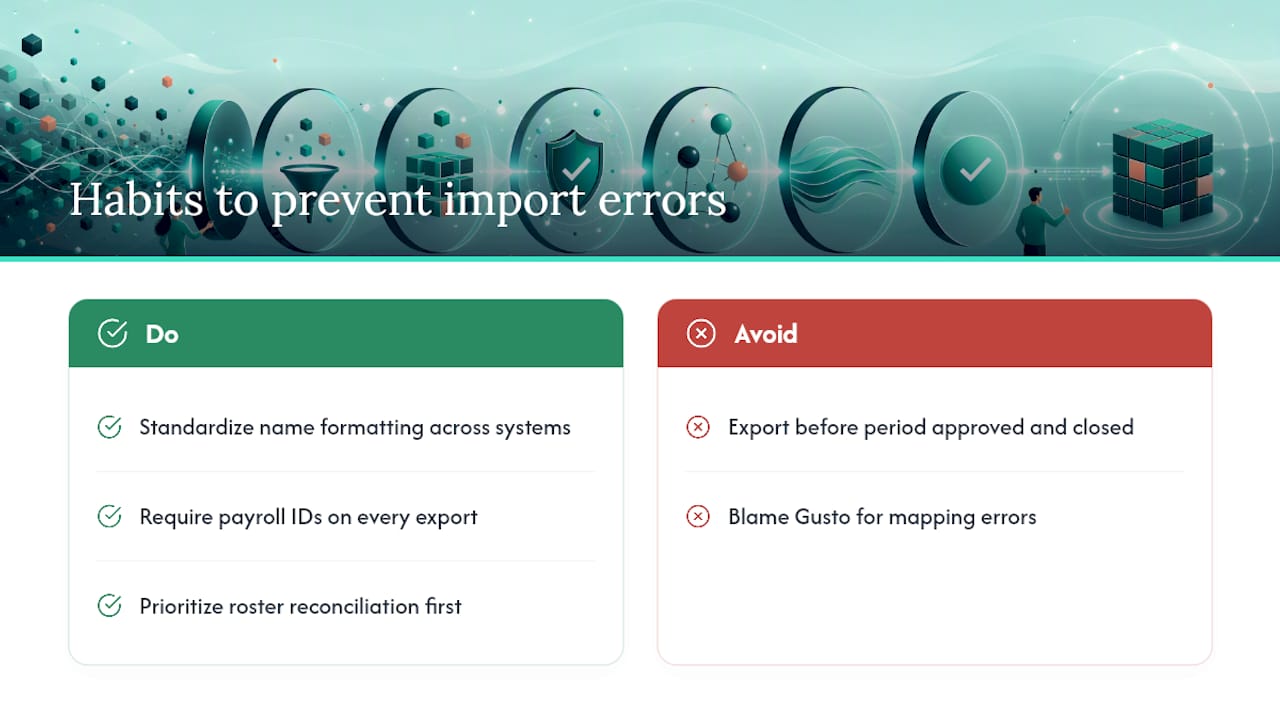
Conventional advice treats mapping errors as a Gusto problem. They’re usually a data hygiene problem upstream of Gusto entirely. Clean, payroll-ready timesheet exports with consistent employee identifiers cut the cleanup work down to almost nothing, because there’s nothing left to reconcile by the time the file reaches Gusto.
Prioritize the roster reconciliation step over everything else. Every other troubleshooting step on this page exists to catch what a clean roster would have prevented in the first place.
Saad
Kloqk: Export Payroll-Ready Hours to Cut Import Friction
Kloqk is built to eliminate the exact cleanup work this article just walked through. It exports hours already formatted for payroll, with overtime and break calculations done automatically and employee records structured to match cleanly against your Gusto roster.
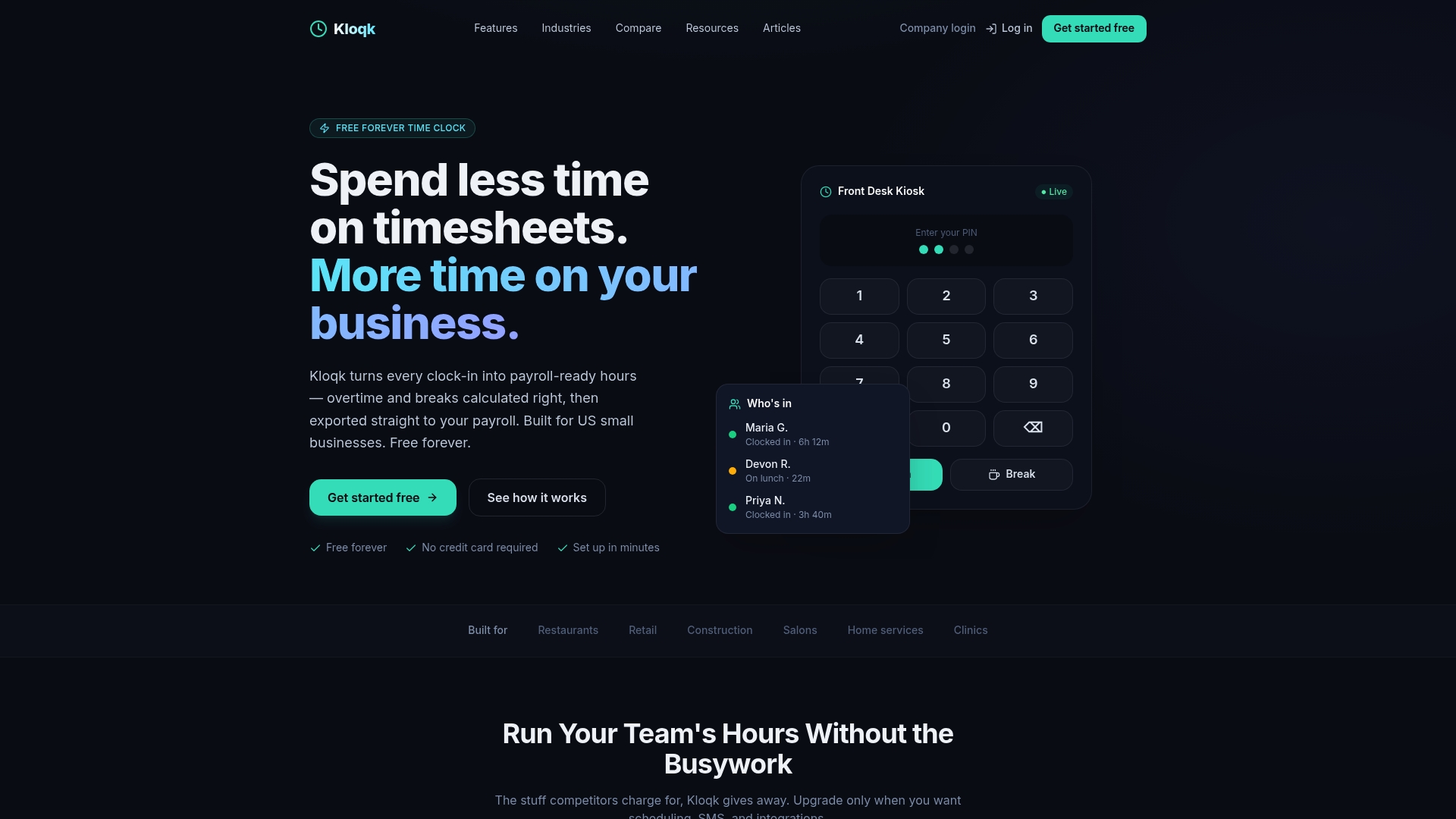
A few specifics that matter when you’re the one running the import: photo verification on every clock-in means the hours in your export reflect who actually worked, not a buddy punch. GPS geofencing locks clock-ins to the job site, which matters if you manage crews across multiple locations or want to prevent time theft before it ever reaches a payroll file. Overtime rules are calculated against federal and state thresholds automatically, so classified hours arrive ready instead of needing a manual recheck.
For restaurants and construction crews running weekly or biweekly payroll, that translates into fewer unmapped rows, fewer manual corrections, and a faster path from clock-out to a submitted payroll run. Set up free employee time tracking and generate your next export directly from clean, payroll-ready data.
Official Gusto Documentation and Integration Resources
- Run payroll with Smart ImportGusto Help Center
- Syncing time-tracking dataGusto developer docs
- Integrate with 7shiftsGusto Help Center
- Import from and export to Gusto with QuickBooks TimeQuickBooks Support
- How overtime pay is calculated under U.S. lawSalary Atlas
Sources
- Run payroll with Smart Import Gusto Help Center
- Syncing time-tracking data Gusto developer docs
- Import from and export to Gusto with QuickBooks Time QuickBooks Support
- Integrate with 7shifts Gusto Help Center
Recommended
Sources
Every figure on this page traces to one of these. Primary law and government sources are listed first.
Written by
Marcus ReyesPayroll & Timekeeping Specialist
Marcus covers payroll accuracy, timesheets, and time tracking, the unglamorous mechanics that keep paychecks correct and audits painless.
Keep Reading
Track Hours the Easy Way
Kloqk is a free time clock that handles punches, breaks, overtime, and payroll-ready reports.
Start free