Avoid ADP Timesheet Rejections: CSV Column Reference for Payroll Admins

Run your time system’s ADP or “Export to Payroll” report, confirm the Company Code and each employee’s File Number (Accounting Package Person ID) are set, assign a 6-digit Batch ID, then download the file. The output is a CSV built to ADP’s Timesheet Import layout, with columns for Reg Hours plus Hours 3 Code/Amount pairs for leave types. The column-by-column breakdown is below. That’s the whole move in one line.
TL;DR:
- Ensuring the Company Code, Employee File Numbers, and leave type mappings are correct before export reduces the majority of ADP import failures.
- Exporting a small test batch helps identify errors such as incorrect IDs or unmapped leave codes, saving time before full payroll submission.
- Confirming the Batch ID, employee File Numbers, and hours totals in the CSV post-export prevents common rejection causes like duplicate submissions or format issues.
- Most import errors originate from upstream data problems like missing IDs or incorrect mappings, not from the CSV format itself.
- Using reliable time tracking tools like Kloqk improves data accuracy upfront, which simplifies the ADP export process and prevents payroll discrepancies.
Table of Contents
- What to Configure Before You Export ADP Timesheets
- How Do You Export Timesheets to ADP Step by Step?
- What Columns Does the ADP Timesheet Import CSV Use?
- Why Do ADP Timesheet Imports Fail?
- How Kloqk Helps You Prepare Clean ADP Exports
- What Payroll Admins Get Wrong About ADP Exports
- Get Payroll-Ready Timesheets Before You Ever Touch ADP
- Sources
What to Configure Before You Export ADP Timesheets
Most failed ADP timesheet exports fail before anyone clicks “export.” The file itself is straightforward. The setup behind it is where things break, usually because one required field was never populated in the source system.
Before you run anything, confirm these five items exist and are correct:
- ADP Company Code is entered as a company-level custom field in your time system. This code has to match what’s configured on the ADP side, or the whole batch bounces.
- Accounting Package Person ID (ADP File Number) exists for every employee you’re including. This is the field ADP uses to match a row of hours to an actual person, so a blank or mistyped one means that employee’s hours go nowhere, or worse, land on someone else’s record.
- Leave Type Accounting Package IDs are mapped for every time-off category you track. These show up as one-letter Hours 3 Codes, and each type (vacation, sick, personal) needs its own code before export.
- Admin permissions are set so you can actually select pay periods and filter by timesheet status. Not every login has access to the export report, so check this before payroll day, not during it.
- Batch ID is ready to assign. Most systems expect a 6-digit value, and several will auto-populate it using a YYMMDD date format, but you should know your system’s convention rather than assume it.
Missing any one of these is the single most common reason an export to payroll interface rejects or silently drops rows. Walk through this list once per pay period until it becomes muscle memory.
How Do You Export Timesheets to ADP Step by Step?
Once the setup above is confirmed, the actual export takes a few minutes. Here’s the sequence, in order.
- Open the export report. In most systems this lives under Company → Reports, or under Human Resources > Payroll > Export to Pay Interface. Look for anything labeled “ADP” or “Export to Payroll.”
- Set your date range or pay period. Pick the exact period you’re running payroll for, and filter to include only approved or locked timesheets. Exporting unapproved hours is a fast way to send incorrect pay data downstream.
- Verify Company Code and Batch ID. Confirm the Company Code matches ADP’s records, and either enter or confirm a Batch ID for this run. If your system auto-generates one, glance at it anyway.
- Check employee File Numbers. Spot-check a handful of Accounting Package Person IDs, especially for anyone recently hired, rehired, or moved between locations, since those are the records most likely to have a stale or missing ID.
- Confirm leave type mappings. Make sure every time-off category used in this period has a Hours 3 Code assigned. An unmapped leave type either drops from the file or errors out the batch.
- Run the export and save the CSV. Download the file and store a copy somewhere retrievable. Deltek’s documentation on this workflow specifically recommends holding onto the exported file until the ADP import is confirmed complete, and only then clearing it from your outbox to avoid accidental resubmission.
- Run post-export checks. Open the CSV and confirm the Batch ID appears correctly, the column headers are intact, and at least one sample row has the right File Number and a Reg Hours total that matches what you’d expect for that employee.
- Print or archive a copy. Keep a saved or printed version for your audit trail. Payroll disputes happen months later, and having the original export on hand saves a lot of back-and-forth.
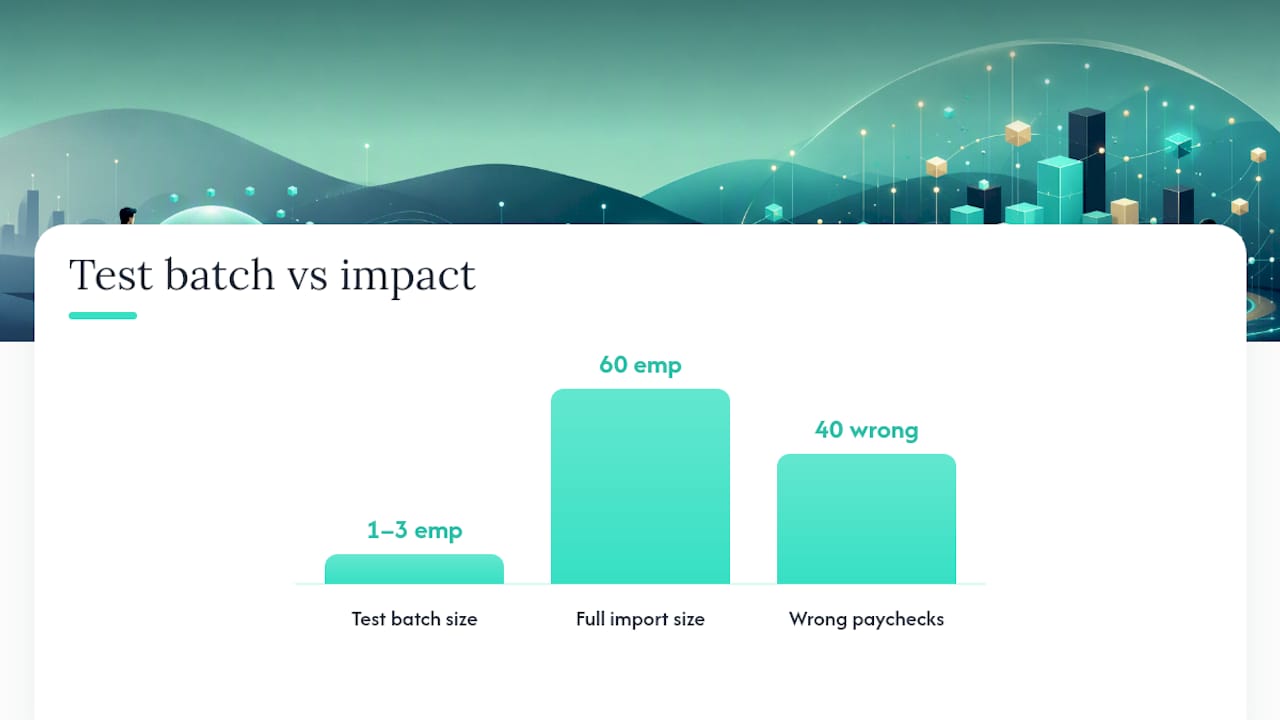
Pro Tip: Run a test batch of one to three employees before processing your full payroll file. It takes an extra five minutes and catches a bad Person ID or an unmapped leave code before it turns into 40 wrong paychecks instead of one.
That small-batch habit is echoed across vendor documentation for a reason: catching a mapping error in a 3-person test file costs you nothing. Catching it after a 60-person import fails costs you the rest of your afternoon.
What Columns Does the ADP Timesheet Import CSV Use?
The exported file follows ADP’s Timesheet Import layout, and getting familiar with each column is the fastest way to catch a problem before you upload anything.
| Column | Field | What it contains |
|---|---|---|
| A | Company Code | Must exactly match the Company Code configured in ADP |
| B | Batch ID | 6-digit identifier tracking this import batch, prevents duplicate submissions |
| C | File Number | Employee’s ADP File # (Accounting Package Person ID); required for matching |
| D | Employee Name | Used for human verification only; ADP actually resolves by File Number |
| E | Temp Rate | Frequently left blank on export; ADP can accept a value if one is supplied |
| F | Reg Hours | Total worked hours for the period (confirm whether overtime is folded in) |
| G | OT Hours | Often blank; some systems will populate separate overtime hours here |
| H+ | Hours 3 Code / Amount | One-letter leave codes paired with hours; multiple pairs are allowed |
This structure is well documented in ClickTime’s ADP export reference, which walks through each field and its behavior in more depth. One detail worth flagging: some source systems don’t calculate overtime as a separate figure, so all worked hours land in Reg Hours while OT Hours stays empty. That’s not a bug. It’s a design choice some vendors make, and it matters when you’re reconciling totals.
Column order and delimiter formatting matter more than people expect. If ADP rejects a file outright, check the headers and column sequence first. That’s the most common culprit, ahead of anything involving the actual hours data.
Why Do ADP Timesheet Imports Fail?
A handful of issues cause the vast majority of rejected imports, and most of them trace back to something in the prerequisite checklist above.
- Missing required fields. A blank Company Code, Accounting Package Person ID, or Leave Type Accounting Package ID will cause a reject almost every time.
- Duplicate imports. If a batch gets submitted twice, check your Batch ID history in both the source system and ADP’s import log before resubmitting.
- Mismatched hours. If overtime shows up folded into Reg Hours when ADP expects it split out, reconcile before you import, not after.
- CSV formatting errors. Wrong column order, stray delimiters, or non-UTF-8 encoding will all break an otherwise correct file. Open it in a plain text editor, not just a spreadsheet program, to catch invisible formatting issues.
- Vendor-specific rejections. If ADP flags a field your source system doesn’t fully support, capture the exact rejection message and check it against your Company Code, Person ID, or leave mapping before assuming the file itself is broken.
| Symptom | Likely cause | Fix |
|---|---|---|
| Entire batch rejected | Wrong or missing Company Code | Confirm the code matches ADP’s configuration |
| One employee’s hours missing | Blank or incorrect File Number | Update the Accounting Package Person ID |
| Leave hours not appearing | Unmapped leave type | Assign a Hours 3 Accounting Package ID |
| Duplicate hours in ADP | Same Batch ID reused, or resubmitted file | Check import logs before resending |
If none of these explain the rejection, that’s when it’s worth contacting ADP Support directly, since some import rules are product-specific to whichever ADP platform you’re running, whether that’s Workforce Now or another package.
How Kloqk Helps You Prepare Clean ADP Exports
The cleanest ADP import starts before you ever open the export screen. It starts with accurate time data going in. Kloqk gives small businesses free payroll-ready time tracking, with overtime calculated automatically, break tracking built in, photo verification on clock-ins, and GPS geofencing to catch time theft before it becomes a payroll headache.
A practical Kloqk-to-ADP workflow looks like this:
- Confirm your mapping fields (Company Code, File Numbers, leave codes) inside Kloqk before running anything.
- Export a small test batch of one to three employees and check it against the CSV column reference above.
- Review the file for correct Reg Hours totals and proper leave code pairs.
- Only then run the full export and hand it off for ADP import.
For deeper detail on export mechanics, how payroll exports work covers mapping fields in more depth, and the timesheet template guide is useful if you need to validate hours by hand before trusting an export.
What Payroll Admins Get Wrong About ADP Exports
Most guidance on this topic treats the CSV format as the hard part. It isn’t. The format is fixed and documented. The actual failure point is almost always upstream, in a Person ID that was never entered for a new hire, or a leave code someone forgot to map three months ago and never noticed because nobody used that leave type until now.

The conventional advice to “double check your export before importing” is technically correct and mostly useless, because nobody knows what to check for. A real checklist beats a vague warning every time. Run a small test batch, verify Company Code and File Numbers against actual ADP records, and confirm leave mappings before you touch the full payroll file. That habit alone would eliminate most of the rejected imports payroll admins deal with.
If there’s one thing to prioritize above the rest, it’s data hygiene at the source. A clean CSV export can’t fix a time system that never had accurate Person IDs or leave codes to begin with. Fix the upstream data, and the export becomes the easy part it was always supposed to be.
Saad
Get Payroll-Ready Timesheets Before You Ever Touch ADP
Every step in this guide assumes your source data is already accurate, but that’s the part most time systems get wrong. Kloqk is built to solve that upstream, with free employee time tracking that calculates overtime automatically, tracks breaks, and verifies clock-ins with photos so you’re not chasing down bad hours the night before payroll runs.
For restaurants, construction crews, and retail teams with staff clocking in from multiple locations, GPS-based time tracking and geofencing catch time theft before it ever reaches an export file. That means fewer surprises when you reconcile Reg Hours against what your team actually worked. Household employers and caregivers managing smaller payrolls face the same accuracy problem, and tools like CareTracker’s nanny time tracking apply the same logic to that setting.
Some time tracking software offer export features at no cost, including overtime calculations, break tracking, and payroll exports that in other products may require payment. Set up your team’s profiles, run a test clock-in, and see what a payroll-ready export actually looks like before your next pay period.
Sources
Recommended
Sources
Every figure on this page traces to one of these. Primary law and government sources are listed first.
Written by
Marcus ReyesPayroll & Timekeeping Specialist
Marcus covers payroll accuracy, timesheets, and time tracking, the unglamorous mechanics that keep paychecks correct and audits painless.
Keep Reading
Track Hours the Easy Way
Kloqk is a free time clock that handles punches, breaks, overtime, and payroll-ready reports.
Start free