How Payroll Exports Work: A Guide for HR Professionals

A payroll export is a structured data file that pulls employee work hours, absences, pay codes, and earnings from your workforce management system and delivers them to your payroll software for processing. The file typically arrives in CSV, TXT, or Excel format and contains everything the payroll engine needs: employee identifiers, total hours worked, overtime, PTO, shift allowances, and pay type codes. Getting this transfer right is the difference between paychecks that go out on time and a correction cycle that eats your week.
Key data categories in a standard payroll export file include:
- Employee information: names, employment numbers, and contract types
- Hours worked: regular, overtime, and any shift differentials
- Absences and PTO: coded by type so the payroll system applies the correct rate
- Payroll codes: identifiers that map each time entry to the right compensation rule
- Allowances and deductions: mileage, bonuses, or other pay items outside base wages
Standard vs. customized payroll exports: which one do you need?
Standard payroll exports use predefined templates that cover the basics: work hours, absences, and pay codes. They get the job done for straightforward set up, but they come with a catch. Manual adjustments are often required after generation, such as reordering columns or converting timestamps from UTC to the employee’s local time zone, because the standard format rarely matches every payroll provider’s exact requirements.
Customized exports solve that problem by tailoring the output file to your specific payroll system and company rules. They can handle complex overtime policies, unique absence categories, and multi-rate compensation structures right out of the gate. The tradeoff is setup time: a customized export requires upfront configuration, but once it’s running, you can schedule it to run automatically at a set date and time each pay cycle.
When customization is worth it:
- Your payroll provider requires a non-standard column order or field format
- Your company uses multiple overtime tiers or shift allowance rules
- Employees work across time zones and the standard UTC output creates errors
- You have absence types the standard template doesn’t recognize
What to set up before you run your first export
The quality of a payroll export is only as good as the data behind it. Before you generate anything, verify these configurations are in place:
- Payroll codes: every activity, absence, and day off needs a payroll system code assigned. Missing codes produce blank fields or zeros in the export, which your payroll provider will reject or misread.
- Work time flags: each activity and absence must be flagged correctly as contract time, work time, and paid time. These flags control what gets counted toward compensation.
- Multiplicators: create compensation multiplicators for each pay tier, such as 1.5x for overtime or 2x for holidays, and build definition sets that specify when each rate applies.
- Employee records: names, employment numbers, contract types, and part-time percentages must match exactly what’s in the payroll system. A mismatch causes import failures.
- Schedule accuracy: the export sees what the resource planner sees. Meetings or personal activities not tied to a scheduled shift won’t appear, so planners need to understand what gets captured.
- Review and approval workflow: establish who approves timesheets before export runs, and set a hard deadline so late entries don’t slip through.
Pro Tip: Verify all payroll data within your time-tracking system before exporting. Catching discrepancies at the source is far easier than tracing them back after the file has been imported into payroll.
Step-by-step payroll export process
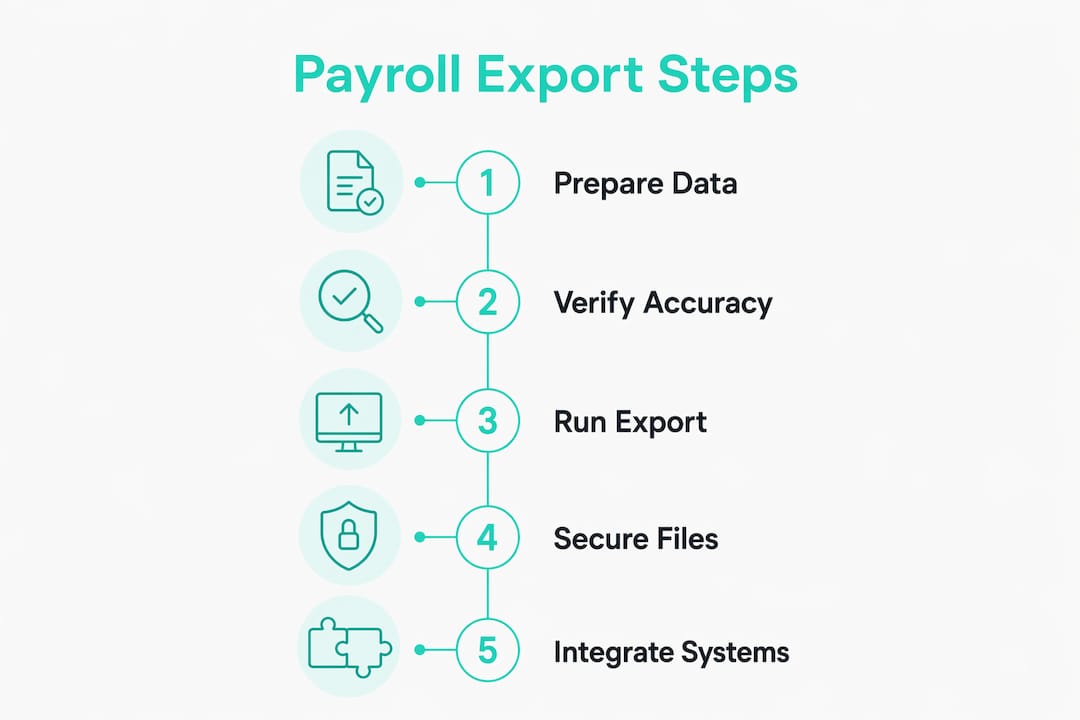
The standard export workflow follows five core steps. Each one is a checkpoint, not just a task.
-
Verify payroll code mappings. Confirm every activity and absence type in your workforce management system has the correct corresponding code for your payroll provider. Unmapped codes are the single most common cause of import failures.
-
Select the pay period and employees. Choose the date range and filter by employee, branch, or department as needed. Double-check the period boundaries, especially around month-end or holidays where cutoffs shift.
-
Validate and approve timesheets. Review all time entries for completeness. Flag missing punches, unapproved overtime, or absence entries that don’t align with scheduled shifts. Approve the finalized timesheets before generating the file.
-
Generate and download the export file. Run the export in the format your payroll vendor requires, whether that’s a CSV for ADP, a TXT for Paychex, or an XLSX for a custom provider. Save the file immediately; do not open it directly in Excel if it contains fields like Social Security numbers, since Excel strips leading zeros from numeric fields unless you use the import wizard with Text formatting.
-
Import into the payroll system and confirm. Upload the file to your payroll provider and verify the import completed without errors. Once confirmed, mark the batch as processed. That status change locks the period and prevents any retroactive edits that would cause reconciliation problems downstream.
Routines that keep export data accurate over time
A one-time setup isn’t enough. Payroll rules change, employees change, and a configuration that was correct in january can produce errors by july if nobody updates it.
- Annual multiplicator review: update definition sets every year to reflect bank holidays, new shift allowance rates, and any changes to overtime compensation thresholds required by law or union agreements.
- Sync payroll codes after provider changes: if your payroll provider adds, modifies, or removes codes, update the corresponding mappings in your workforce management system immediately. Stale codes cause silent errors that only surface at import.
- Add new person periods for contract changes: when an employee changes contract type, shifts to part-time, or gets a rate adjustment, create a new person period in the system rather than editing the existing record. This preserves historical accuracy for past pay periods.
- Lock exported periods: once a pay period has been exported and confirmed, lock it to block retroactive schedule changes that would invalidate the submitted data.
- Run exports twice per cycle: run a first pass to verify data accuracy, then run the final export once everything checks out to mark timesheets as paid.
- Coordinate across teams: HR, payroll, and scheduling teams each own a piece of the data. Build a shared calendar with export deadlines so no one is waiting on someone else’s approvals.
Manual exports vs. automation: what actually changes
Manual payroll exports carry real costs that compound quietly: hours spent on repetitive checks, payroll mistakes that require corrections, security exposure from emailing files containing SSNs and salary data, and scaling pain when a process built for 50 employees breaks at 200. The risk isn’t hypothetical. Sensitive data traveling through unsecured email is a compliance liability under most data privacy frameworks.
Automation removes the manual handoff entirely. Time and attendance data flows directly from your workforce management system into your payroll engine via encrypted API connections, with validation rules that catch discrepancies before the payroll run. Automated systems can also detect month-over-month changes, flagging new absences, rate changes, or contract updates so nothing slips through. The payroll export process for retail teams, for example, can benefit significantly from automating hour exports to cut processing time and reduce data errors.

Security and compliance during payroll exports
Payroll files contain some of the most sensitive data in any organization: Social Security numbers, bank details, salary figures, and deduction records. Treating them like ordinary spreadsheets is where most compliance problems start. Use encrypted file transfer protocols rather than email attachments, restrict access to export functions by role, and maintain an audit log of every export generated, who ran it, and when.
From a compliance standpoint, your export configuration must reflect current federal and state labor law. Overtime thresholds, break pay rules, and minimum wage rates change, and an outdated multiplicator definition will produce underpayments that trigger wage claims. Review your settings whenever the Department of Labor updates FLSA thresholds or your state passes new wage legislation.
Connecting payroll exports to accounting and ERP systems
Payroll data doesn’t stop at the payroll engine. Most organizations need the same figures to flow into their general ledger, ERP, or accounting software for cost allocation and financial reporting. The cleanest approach is a standardized general ledger export generated automatically after each payroll run, delivered to the finance system via SFTP or a direct API connection. This closes the loop between HR data, payroll processing, and financial reporting without manual re-entry at each handoff point.
For organizations using platforms like Workday or similar HCM systems, certified integration layers can sync employee pay data bidirectionally, keeping compensation records current across every connected system. The key requirement is that field mappings between the payroll system and the ERP use identical identifiers, since a mismatch in employee ID format between systems is enough to break the entire reconciliation.
Troubleshooting common payroll export errors
Most export failures trace back to a small set of root causes. Knowing them saves hours of back-and-forth with your payroll provider.
- Import rejection due to missing codes: check that every time entry type has a valid payroll code assigned. A zero or blank in the pay code field is usually the culprit.
- Corrupted SSN or ID fields: opening a CSV directly in Excel before importing strips leading zeros. Use the Excel import wizard and set affected columns to Text format.
- Time zone mismatches: standard exports use the exporting user’s time zone. If your employees work in a different zone, verify the timestamps before submitting or switch to a customized export that outputs in the employee’s local time.
- Duplicate entries: if an absence type was entered twice on the same day, the most recently added entry is what gets exported. Audit overlapping absences before running the final file.
- Employee record mismatches: employment numbers or names that differ between your workforce management system and your payroll provider will cause the import to fail or create ghost records. Run a reconciliation check quarterly.
How often should you run payroll exports?
Export frequency follows your pay schedule. Weekly payroll means weekly exports; biweekly means exports every two weeks. The timing matters as much as the frequency. Run your validation pass at least two days before the payroll provider’s submission deadline so you have time to fix errors without rushing.
For organizations with variable schedules or high employee turnover, such as restaurants or construction crews, tracking part-time hours accurately throughout the period is what makes the export clean at the end. Errors don’t appear at export time; they accumulate during the pay period from missed punches, unapproved overtime, or schedule deviations that nobody corrected. Build your export schedule backward from the submission deadline and set internal approval cutoffs that give you enough buffer to catch problems before they become paycheck errors.
How Kloqk turns clock-ins into payroll-ready exports
Kloqk is a free employee time tracking app built for small U.S. businesses that need payroll-ready data without the administrative overhead. It calculates overtime automatically, tracks breaks, and generates exports your payroll provider can use directly. GPS geofencing and photo verification at clock-in keep your time data clean before it ever reaches the export stage, which means fewer corrections and faster payroll runs. For teams spread across job sites, Kloqk’s multi-location time clock consolidates all hours into one place, ready to export at the end of every pay period.
Key Takeaways
A payroll export transfers employee time, absence, and pay code data from your workforce management system into your payroll software, and the accuracy of that transfer depends entirely on how well the source data is maintained.
| Point | Details |
|---|---|
| Lock exported periods | Mark each batch as processed after submission to prevent retroactive edits that cause reconciliation errors. |
| Map payroll codes precisely | Every activity and absence needs a valid code; missing or stale codes are the most common cause of import failures. |
| Validate before exporting | Catch discrepancies in the time-tracking system first; errors found after import take far longer to fix. |
| Automate when possible | API-based integration removes manual file handling, reduces human error, and keeps sensitive payroll data out of unsecured email. |
| Update settings annually | Review multiplicators, overtime rates, and holiday definitions each year to stay aligned with current labor law. |
Recommended
Sources
Every figure on this page traces to one of these. Primary law and government sources are listed first.
Written by
Marcus ReyesPayroll & Timekeeping Specialist
Marcus covers payroll accuracy, timesheets, and time tracking, the unglamorous mechanics that keep paychecks correct and audits painless.
Keep Reading
Track Hours the Easy Way
Kloqk is a free time clock that handles punches, breaks, overtime, and payroll-ready reports.
Start free