Paychex Time and Attendance: Options and Setup Guide
Paychex time and attendance means one of two things: Paychex Flex Time, the add-on Paychex sells that feeds hours straight into Paychex payroll, or any separate time clock that exports a Payroll Upload file Paychex Flex can import. Both get hours into payroll. They differ in cost, setup and hardware.
Kloqk is the second kind. It's a free time clock that builds the Paychex Payroll Upload file from your approved timesheets, so you keep Paychex for payroll and change only how hours are collected.
If you run payroll on Paychex and you're tired of retyping hours from paper cards or a spreadsheet, this guide covers what Paychex offers, what the import file has to carry, the mistakes that cause payroll errors, and how the export works step by step.
TL;DR
- Paychex Flex Time is Paychex's own time and attendance product. Its page lists web punch, a mobile app, a kiosk app with facial verification, and biometric iris and fingerscan time clocks. Paychex doesn't publish a price on that page; you request a quote.
- You don't have to use Paychex's clock. Any time clock that produces Paychex's Payroll Upload file can feed Paychex Flex.
- The file needs your Paychex client ID, a worker ID that matches each person in Paychex, and hours under earning names that match your Paychex account exactly.
- The usual errors: earning names that don't match, salaried staff sent with 40 regular hours, raises that start mid-period, and rounding that shortchanges people.
- Kloqk's core time clock is free for unlimited employees at one location, and the Paychex export is free.
Does Paychex have a time clock?
Yes. Paychex sells time and attendance under the Paychex Flex name. According to the Paychex time and attendance page, Paychex Flex Time includes these punch options: "Web Punch, Mobile App, Kiosk App with Facial Verification, Biometric Iris and Fingerscan Time Clocks." So when people search for a Paychex biometric time clock or a Paychex iris time clock, that's the hardware they mean, and Paychex lists it on its own site.
The same page lists more than punching:
- Scheduling, including a visual scheduler, templates and shift swapping
- Overtime rules and approaching-overtime alerts
- Time off accruals and requests, which employees can submit from the Paychex time clock app
- Geolocation and geofencing
- Job costing, labor distribution and reporting
Paychex describes it as fully integrated with Paychex Flex payroll, which is the main reason to buy it. Hours don't leave the Paychex system, so there's no file to move. Paychex also says its AI assistant reminds employees to submit time, prompts managers to approve it and flags discrepancies before payroll runs.
What does the Paychex time clock cost?
Paychex doesn't post Paychex time clock cost on its time and attendance page. The page sends you to a "Request Pricing" form, so the price is by quote and will depend on your headcount and the options you pick. If you're comparing, ask the rep for the per-period software price and the hardware price separately, since a biometric terminal and a phone app are very different line items.
Can you use a different time clock with Paychex?
Yes. Paychex Flex can import hours from a file, and plenty of time and attendance software produces that file. This is the usual path when you want a Paychex alternative for timekeeping while keeping Paychex for payroll, taxes and filings.
The trade-off is simple. With Paychex Flex Time the hours are already inside Paychex. With a separate time clock, someone downloads a file at the end of each payroll period and uploads it to Paychex Flex. That's one extra step per payroll, usually a couple of minutes, in exchange for choosing your own hardware, your own break rules and your own price.
A few reasons small businesses go this way:
- Hardware they already own. A tablet on the wall works as an employee time clock. There's no terminal to buy.
- Cost. Some time clock apps are free or priced per location rather than per person.
- Features Paychex doesn't match for their state. For example, break rules written for a specific state's law, or daily overtime handled the way their state counts it.
- More than one payroll provider in the family of businesses. A clock that exports to Paychex, Gusto, ADP and QuickBooks covers all of them.
If you came here looking for a Paychex QuickBooks integration, that's a different job: it moves payroll totals into your books after payroll runs. This article is about getting hours into Paychex before payroll runs.
Paychex Flex Time vs a separate time clock vs paper
Here's how the three common setups compare for a small business payroll on Paychex.
| Paychex Flex Time | Separate time clock with a Paychex export | Paper time cards | |
|---|---|---|---|
| How hours reach Paychex | Already inside Paychex Flex | Payroll Upload file you import each period | Typed in by hand |
| Price | By quote from Paychex | Varies by vendor; some are free | Cards and a punch clock |
| Hardware | Web, mobile app, kiosk app with facial verification, biometric iris and fingerscan clocks (per Paychex) | Depends on vendor; often any tablet or phone | Mechanical punch clock |
| Overtime | Overtime rules built in | Calculated by the time clock, sent as overtime hours | Added up by hand |
| Paid time off | Accruals and requests built in | Sent in the file or entered in Paychex, your choice | Tracked separately |
| Typing errors | None between clock and payroll | None if earning names and worker IDs match | Common |
| Extra step per payroll | Approve timesheets | Approve timesheets, download, upload | Total every card, then type |
| Switching payroll later | Clock goes with Paychex | Keep the clock, change the export | No change |
To be fair to Paychex: if you want one vendor, one login and one support number, Flex Time is the cleaner setup, and the biometric options matter if buddy punching is a real problem at your site. A separate clock wins on cost and flexibility. Paper only wins on the day the internet is down.
How does the Paychex Payroll Upload file work?
The Payroll Upload file is a payroll import file: a plain text file with one row per person per earning, which Paychex Flex reads and turns into the hours for that payroll. Your time clock builds it; you upload it in Paychex Flex; the hours land on each employee's check before you submit payroll.
Paychex's own import help sits inside the logged-in Paychex Flex account, so we haven't reproduced its menu steps here. If you've never imported a file, ask your Paychex payroll specialist to confirm file import is turned on for your account and to show you where the upload button is. It's a one-time question.
What matters on the time clock side is that the file carries the right data, in the right names, for the right people.
What data does the file have to carry?
- Client ID. Your Paychex client ID tells Paychex which company the file belongs to. It's on your Paychex paperwork and in your Paychex Flex account.
- Worker ID. Each person's ID in the file has to match their worker ID in Paychex. If the time clock has a different number for someone, their hours won't land, or worse, they land on someone else.
- Earnings code or name. Each row says what kind of pay it is: regular, overtime, vacation, sick. The name has to match an earning set up in your Paychex account, character for character.
- Hours. Regular and overtime hours split per person, since overtime is paid at a different rate.
- Paid time off. Vacation pay and sick pay hours, if you track them in the time clock.
- Rate, where it changes. If someone got a pay rate change part way through the period, the hours before and after need to be paid at different rates.
Salaried employees are the special case. Paychex already pays their salary from its own employee setup, so the file shouldn't send their regular hours again. For non-exempt salaried staff, what the file does need to carry is any overtime they worked.
What are the most common Paychex import mistakes?
Most payroll mistakes with an import file come from a handful of mismatches. None of them are hard to fix once you know to look.
1. Earning names that don't match
If your Paychex account calls it "Vacation" and the file says "PTO", Paychex has no idea where to put those hours. Same with "Sick" vs "Sick Pay". Before the first export, open your Paychex earnings list and copy the names exactly into the time clock. Do it once and it stays right.
2. Salaried staff sent with 40 regular hours
A time clock that treats everyone the same will send a salaried manager's 40 hours as regular hours. Depending on how that person is set up in Paychex, that can mean paying them twice for the same week. Salaried employees who are owed overtime are a separate question: under federal rules their regular rate is "computed by dividing the salary by the number of hours which the salary is intended to compensate" (29 CFR 778.113), and overtime is paid on top of that. Our overtime laws guide covers who's exempt and who isn't.
3. A raise that starts mid-period
Say someone moves from $17 to $18.50 an hour on day 6 of a biweekly payroll. If the file sends all 80 hours at one rate, they're either underpaid for the second half or overpaid for the first. Overtime gets messier: when an employee works at two or more rates in one workweek, federal rules say "his regular rate for that week is the weighted average of such rates" (29 CFR 778.115). The fix is a time clock that knows when the new rate started and splits the hours at that date.
4. Rounding that only goes one way
Hours rounding is allowed under federal rules. Recording start and stop times "to the nearest 5 minutes, or to the nearest one-tenth or quarter of an hour" is acceptable, as long as it averages out so people are paid for the time they actually worked (29 CFR 785.48). Rounding that always favors the employer doesn't average out. Pick one rule, apply it both directions, or skip rounding and pay to the minute. You can check a week by hand with the time card calculator.
5. Exporting before timesheets are approved
The file is only as good as the timesheets behind it. A missed clock-out turns into a 16-hour day, and that overtime goes straight to Paychex. Approve timesheets first, fix the missed punches, then export.
6. Editing the file in a spreadsheet
Opening a payroll upload file in a spreadsheet program and saving it can quietly change number formats, like dropping leading zeros from worker IDs. If something needs fixing, fix it in the time clock and export again.
How do you export hours from Kloqk to Paychex Flex?
Here's the whole flow. The first export takes a few minutes of setup; after that it's the same two clicks every payroll period.
- Enter your Paychex client ID once. Go to Settings > Payroll > Payroll provider and type in your Paychex client ID. You won't need to enter it again.
- Match worker IDs. Make sure each employee in Kloqk carries the same worker ID they have in Paychex.
- Decide how to handle paid time off. Either type the earning names your Paychex account uses (for example "Vacation" and "Sick") so paid time off goes into the file under those names, or leave paid time off out if you'd rather enter it in Paychex yourself.
- Check pay rates. Each employee page has a pay history. If a raise should have started on an earlier date, a new pay rate can start on that earlier date, and Kloqk splits the hours at the right rate.
- Approve timesheets for the period. Fix missed punches first. Unpaid break and lunch minutes come off worked time before overtime is counted, so check the break column too.
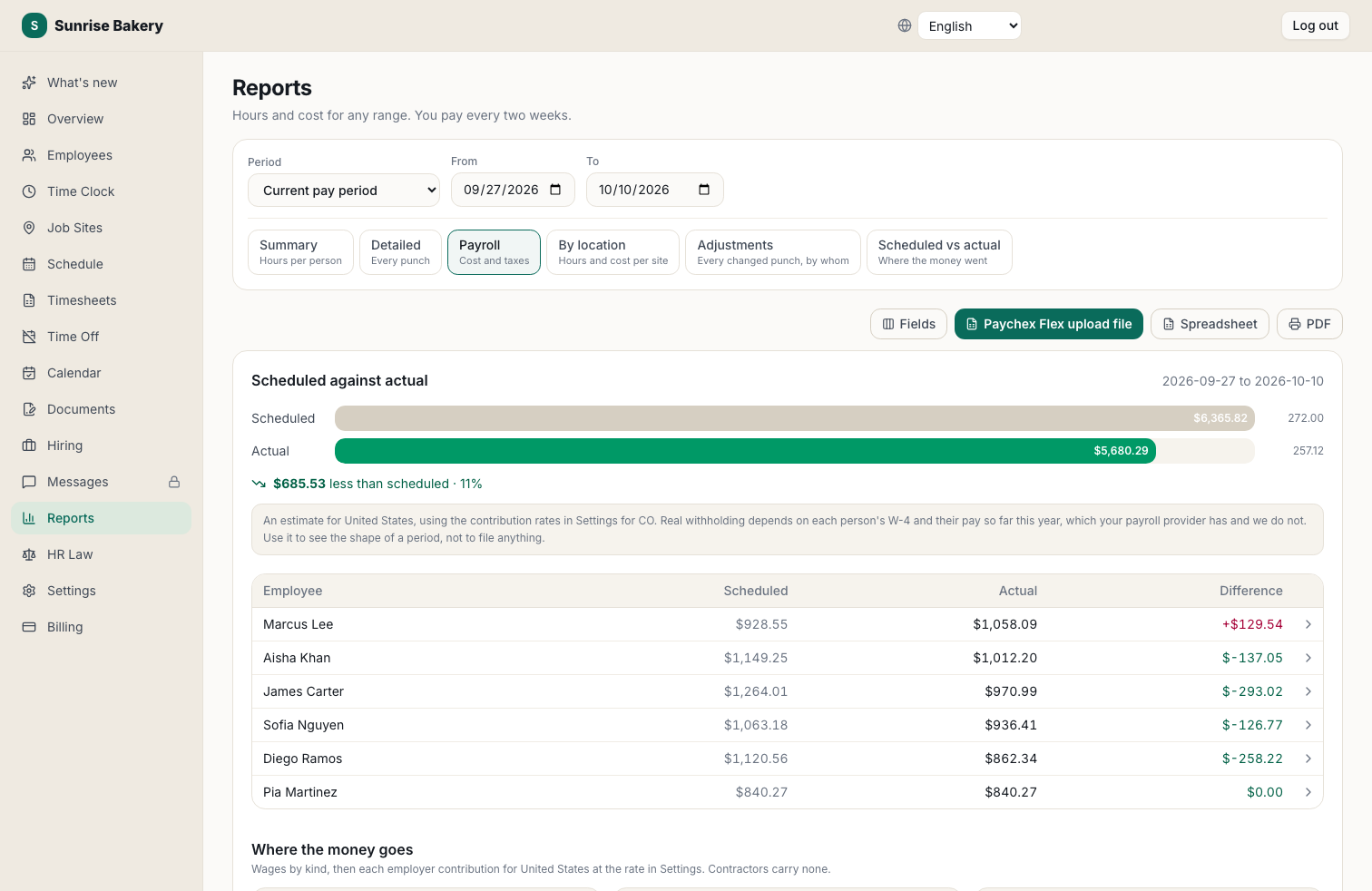
- Open Reports > Payroll. This produces the Payroll Upload file that Paychex Flex imports as it is.
- Upload the file in Paychex Flex and review the hours there before you submit payroll.
The full feature page for this export is at Kloqk's Paychex time clock.
What does Kloqk put in the file?
- Regular and overtime hours per person
- Paid time off under the names your Paychex account uses, or nothing, if you chose to leave it out
- Hours split at the right rate when a raise starts part way through the pay period
- Only overtime for salaried staff, because Paychex pays their salary from its own setup
- Contractors marked
Overtime follows federal or state rules, including daily overtime for California and others. Our overtime tracking page explains how it's counted, and the overtime calculator will check any week by hand. Overnight shifts count on the day they start, breaks included, which matters for daily overtime (more on that in which day overnight shift hours count on).
How does Kloqk handle the time clock side?
Kloqk's job is collecting clean hours so the Paychex file is right the first time. Any tablet or phone becomes the time clock, and staff punch with a 4-digit PIN. There's an optional photo at each punch, and a "Hide names on the time clock" setting that shows only the PIN pad. For a shared clock on the wall, see the time clock kiosk page.
Breaks are where a lot of payroll errors start, so Kloqk spends real effort on them. Under Settings > Payroll > Breaks & lunch you write break rules as sentences, like "Shifts of 6 hours or more get 2 × 10 min, paid", starting from your state's preset or a common policy. Each day's break and lunch time shows on the timesheet split into paid and unpaid, so you can see why the hours are what they are before you export. State rules are summarized in our meal and rest break laws guide.
What Kloqk doesn't do: it doesn't run payroll, file taxes or replace Paychex. It's the time clock in front of it. If you ever change providers, the same timesheets export to QuickBooks, Gusto, ADP or CSV, and those exports are free too.
What does it cost?
The core time clock is free for unlimited employees at one location. Scheduling, time off, documents, hiring and the careers page are free as well. Pro is $29 per location per month and Premium is $59 per location per month; the plans are on the pricing page. Since the price is per location, a 12-person shop and a 40-person shop at one address pay the same.
Paychex time clock setup checklist
Whichever route you take, run through this before your first payroll on the new system:
- Get your Paychex client ID from your Paychex account or specialist.
- Pull your list of earnings from Paychex and note the exact names for regular, overtime, vacation and sick.
- Export your worker list from Paychex and match worker IDs in the time clock.
- Mark salaried and contractor workers correctly.
- Enter current pay rates, with the right start date for any recent raise.
- Set your payroll period (weekly, biweekly) to match Paychex.
- Run one period in parallel with your old method and compare totals person by person.
- Confirm with Paychex that file import is turned on before the first real upload.
The parallel run is the step people skip and regret. One period of double-checking catches a mismatched earning name before it turns into a correction run.
If you want to try the export against your own Paychex account, you can set up Kloqk free, put a tablet on the wall, and have payroll ready timesheets by the end of your next pay period.
Frequently Asked Questions
Does Paychex have a time clock?
Yes. Paychex Flex Time is Paychex's time and attendance product. Its page lists web punch, a mobile app, a kiosk app with facial verification, and biometric iris and fingerscan time clocks, all integrated with Paychex Flex payroll.
How much does the Paychex time clock cost?
Paychex doesn't publish a price on its time and attendance page. It asks you to request pricing, so the cost is by quote and depends on your headcount and the hardware and options you choose.
Can I use a different time clock with Paychex Flex?
Yes. Paychex Flex can import hours from a payroll file, so any time clock that produces Paychex's Payroll Upload file works. You download the file after approving timesheets and upload it in Paychex Flex before you submit payroll.
What has to be in a Paychex payroll upload file?
Your Paychex client ID, a worker ID for each person that matches Paychex, and hours under earning names that match your Paychex account exactly, such as regular, overtime, vacation and sick. Salaried staff should carry only overtime, since Paychex already pays their salary.
Is Kloqk's Paychex export free?
Yes. Kloqk's core time clock is free for unlimited employees at one location, and exports to Paychex, QuickBooks, Gusto, ADP and CSV are free. Paid plans are $29 or $59 per location per month.
Sources
Every figure on this page traces to one of these. Primary law and government sources are listed first.
- 1. Cornell Legal Information Instituteprimary
- 2. paychex.com
Written by
Marcus ReyesPayroll & Timekeeping Specialist
Marcus covers payroll accuracy, timesheets, and time tracking, the unglamorous mechanics that keep paychecks correct and audits painless.
Keep Reading
Track Hours the Easy Way
Kloqk is a free time clock that handles punches, breaks, overtime, and payroll-ready reports.
Start free