A free time clock that sends hours to Paychex Flex
Staff clock in on any tablet. At the end of the period, download one file and import it into Paychex Flex as it is.
Start free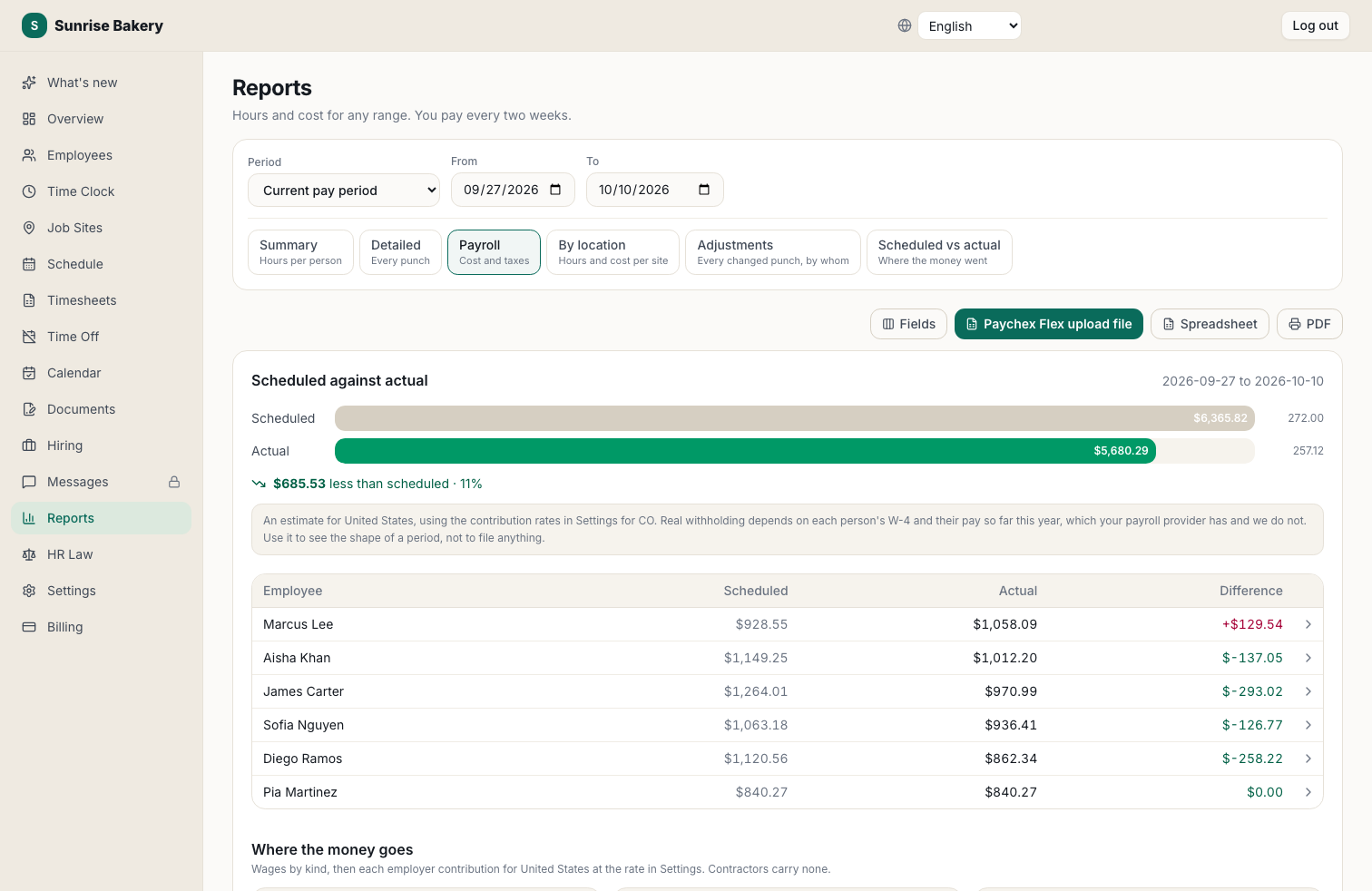
The Payroll Upload File, Ready to Import
Reports, Payroll gives you the file Paychex Flex takes as it is, with your client ID on every row. No retyping hours.
Paid Time off Under Your Names
Vacation and sick pay go into the file under the names your Paychex account uses. Or leave them out if you enter time off in Paychex yourself.
Raises and Salaries Handled
A raise that starts part way through a period is split at the right rate. Salaried staff get only their overtime in the file, because Paychex pays their salary from its own setup.
Overtime by Your State's Rules
Regular and overtime hours per person, worked out on whole workweeks with your break rules applied, so the file matches what you owe.
Check Before You Send
See each period's pay before you export it: hours, overtime and an estimate of what the period costs.
Not on Paychex?
The same hours export to QuickBooks, Gusto, ADP or a spreadsheet.
Frequently asked questions
Does Kloqk work with Paychex?
Yes. Kloqk produces Paychex Flex's Payroll Upload file. Enter your Paychex client ID once in Settings, Payroll, and download the file from Reports, Payroll at the end of each period.
Do I need Paychex's own time and attendance product?
No. Any time clock that produces the Payroll Upload file can feed Paychex Flex. Kloqk's time clock is free for unlimited employees at one location.
How are vacation and sick hours sent to Paychex?
Under the names your Paychex account uses for them, which you type once in Settings. If you would rather enter time off in Paychex yourself, tick the box to leave it out of the file.
What happens with salaried employees?
Paychex pays their salary from its own setup, so the file carries only their overtime, not their hours.
Explore more
How hours get from the time clock into Paychex Flex
Paychex Flex accepts a Payroll Upload file: one row per person per kind of pay, carrying your Paychex client ID, the worker, the earning and the hours. Kloqk builds that file from the punches, so the period's hours go into Paychex without anybody retyping them.
- In Settings, Payroll, choose Paychex Flex as your payroll provider and enter your client ID.
- Type the names your Paychex account uses for vacation and sick pay, or tick the box to leave paid time off out of the file.
- At the end of the period, open Reports, Payroll and download the Paychex Flex upload file.
- Import it in Paychex Flex. Your Paychex payroll specialist can confirm file import is turned on for your account.
What the file gets right that retyping gets wrong
Overtime on whole workweeks. A two-week pay period that starts mid-week still has its overtime worked out on full weeks, so a 44-hour week split across two periods is not quietly paid as straight time. See overtime laws by state for the rules Kloqk applies.
Breaks by your rules. Unpaid lunch and the unpaid part of a long break come off the hours before they reach the file. The overtime and break tracking page shows how.
A raise part way through the period. Hours before the new rate starts and hours after it go in separately, each at its own rate.
Salaried staff. Paychex pays a salary from its own setup, so the file carries only a salaried person's overtime. Sending their hours as well would pay them twice.
Paychex's own time and attendance, or a separate clock?
Paychex sells its own time and attendance, priced by quote. A separate time clock that produces the Payroll Upload file does the same job of getting hours into payroll. Kloqk's is free for unlimited employees at one location, runs on any tablet or phone, and keeps the hours if you ever change payroll provider: the same timesheets export to QuickBooks, Gusto, ADP or a spreadsheet. For more on the choice, read Paychex time and attendance.