Offline Time Clock Mode: Managers, Verify Punches Before Payroll

Offline time clock mode, also called store-and-forward, lets a device record employee punches locally when it loses its network connection, then upload them once connectivity returns. The data isn’t lost, but it isn’t live either. The first thing a manager should do when a clock drops offline is confirm those stored punches actually synced and match reality before running payroll.
TL;DR:
- Offline mode can disable punch sequencing, so double IN punches may pass unnoticed and fingerprint enrollment or device setting changes may be unavailable.
- Brief power interruptions rarely erase buffered punches, but extended hardware failure or a reset before syncing can put them at risk; verify promptly.
- After reconnection, check same day sync confirmation and compare device and server logs; use photo or GPS evidence to investigate missing or duplicated punches.
- Before payroll closes, apply a documented rule for timestamp drift and require manager approval for punches far outside scheduled shifts; payroll should review corrected timesheets.
Table of Contents
- How offline mode works: triggers and what changes on the device
- How devices store and protect offline punches
- How to tell a clock is offline
- What happens when connectivity returns
- Restore connectivity: a practical troubleshooting checklist for admins
- Manager’s reconciliation playbook
- Why treating offline punches as first-class events reduces payroll risk
- How Kloqk handles offline punches, verification, and payroll exports
- FAQ
- Sources
- Vendor docs and implementation guides for device-specific steps
How offline mode works: triggers and what changes on the device
A time clock usually switches into offline mode for one of a few reasons: a network outage, a firmware or device registration problem, or a misconfigured Wi-Fi or ethernet setting. Once the connection drops, the clock can’t reach the server that normally approves each punch, so it falls back to a simpler mode built just to capture the basics.
What changes for the person punching in:
- Punch logic, the server-side check that suggests whether the next punch should be an IN or OUT, becomes unavailable, so the device may accept any punch type without validating sequence.
- Features that need a live connection, like fingerprint enrollment or changing device settings, typically can’t run while offline.
- Basic punching still works: employees can clock in and out, and the device stores each event for later.
Not every device handles this the same way. Some hardware models and firmware versions are built only for store-and-forward and never attempt real-time validation, even when connected, so it’s worth checking your device’s firmware notes if punch behavior looks inconsistent.
How devices store and protect offline punches
Most dedicated time clock hardware keeps an onboard buffer or encrypted local database that holds punches until the device can reach the server again. That local storage is what makes offline mode usable at all: without it, a dropped connection would simply mean lost punches.

A brief power blip rarely causes data loss, since the buffer persists through short outages, but extended hardware failure or a device reset before syncing can put stored punches at risk.
Standard protections built into these systems include:
- Encryption of the local punch database, so stored data isn’t readable if the device is tampered with.
- Write-ahead logging, which records each punch before confirming it, reducing the chance a crash erases unsaved entries.
- Sequential or timestamped storage, so punches can be replayed in order once the connection returns.
None of this replaces a manual check. Treat the buffer as a safety net, not a guarantee, especially after any outage longer than a few hours.
How to tell a clock is offline
Spotting an offline device quickly keeps small sync issues from turning into payroll headaches. Check these in order:
- Look at the device screen itself: many clocks display an explicit “offline” message or icon when they lose connection.
- Check your admin portal for a corresponding alert. Implementation guides for systems like Dayforce show an ‘Offline Clock’ notification that flags the exact device and timestamp.
- Watch for missing punch logic in practice. If a device lets an employee punch IN twice in a row without flagging it, or refuses new fingerprint enrollments, that’s a strong signal it’s running in offline mode.
- Review the device status page for a history of connection drops, which helps you spot a pattern rather than a one-off glitch.
Relying on admin-portal notifications instead of manually walking the floor to check each clock is the faster way to catch this at scale.
What happens when connectivity returns
Once a device reconnects, it transmits its queued punches to the server, either in one batch or as a short stream, and the system should log a sync confirmation or status flag showing the upload completed. That confirmation is what tells you the punches are no longer sitting only on the device.
The risk at this stage is duplication. Reliable systems assign each punch a unique, idempotent identifier so the server can recognize and reject a punch it already processed, rather than guessing based on timestamps alone, which can misfire when clocks drift by even a minute.
If punches look missing or doubled after a sync:
- Pull the device’s local log and compare it against the server’s receipt log for that device.
- Cross-reference photo or GPS data tied to the punch, if your system captures it, to confirm the employee was actually present at that time.
- Flag any punch that appears on one log but not the other for manual review before payroll locks.
Pro Tip: Check sync status the same day a device comes back online, not at the end of the pay period, so a reconciliation problem doesn’t surface after payroll has already run.
Restore connectivity: a practical troubleshooting checklist for admins
Getting a clock back online is usually a short list of checks, done in this order:
- Confirm the network itself is up: check the ethernet cable or Wi-Fi SSID and password, and verify the router or modem is powered and passing a DHCP address.
- Power cycle the router or modem if other devices on the same network are also struggling to connect.
- Reboot the time clock itself, then confirm its firmware version and device registration are current and correct.
- Check the clock’s local time and date settings. A clock with the wrong time can cause sync and punch-matching problems even after connectivity is restored.
- Open the admin portal and review the device’s upload logs. If punches still haven’t synced, force a resend or re-register the device.
- If logs show repeated upload failures after these steps, escalate to vendor support with the device’s log export in hand.
Pro Tip: Keep a simple log of outage start and end times for each device. It turns a vague “the clock was down for a while” into a specific window you can match against missing punches.
Manager’s reconciliation playbook
Before payroll closes, match every device’s upload log against the timesheet it produced. Where photo verification or GPS data is available, use it to confirm disputed or borderline punches rather than taking a raw timestamp at face value. Outlier punches, meaning anything far outside a scheduled shift, should require a manager’s sign-off before they count toward hours paid.
Set a tolerance rule in advance, such as how many minutes of timestamp drift you’ll accept without a correction, so each manager isn’t deciding the threshold on the fly. Document the process for manual corrections so changes are traceable later.
| Reconciliation step | What to check | Who signs off |
|---|---|---|
| Log match | Device log vs. server receipt | Payroll admin |
| Outlier review | Punches outside scheduled shift | Manager |
| Evidence check | Photo or GPS match to punch time | Manager |
| Final approval | Corrected timesheet before export | Payroll admin |
Features like photo verification, geofencing, and payroll exports exist specifically to speed up this kind of check, turning a manual log comparison into something closer to a quick scan.
Why treating offline punches as first-class events reduces payroll risk
Offline punches get treated as an afterthought until they cause a payroll dispute. A clear, written reconciliation step, done the same way every pay period, prevents the ad-hoc corrections that erode employee trust and slow down payroll approval. The real tension is speed versus accuracy: a rushed sync check to hit a deadline is how errors slip through. Build the five-minute verification into the schedule, not around it.
Saad
How Kloqk handles offline punches, verification, and payroll exports
We built our time clock to treat a dropped connection as a normal event, not an emergency. Punches recorded while a device is offline sync back automatically, and we pair that with photo verification and GPS geofencing so a manager reviewing a questionable punch has more than a timestamp to go on.
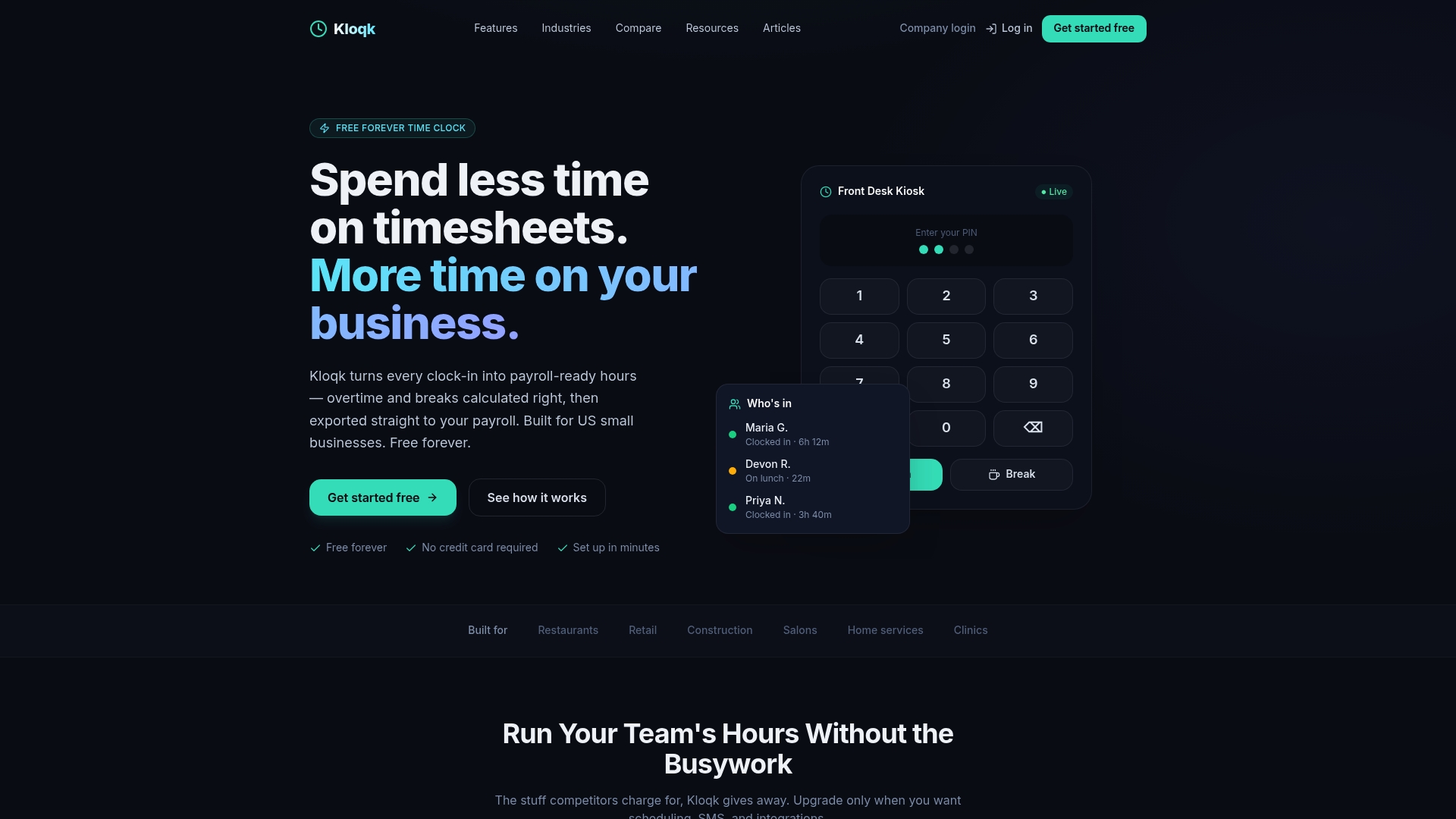
Once punches are reconciled, our overtime and break calculations turn them into payroll-ready hours automatically, and our payroll export carries that data straight into your next pay run. These core time-tracking features, along with our employee time tracking tools, are free with no limit on team size.
- Offline punches sync automatically and surface in the dashboard once the device reconnects.
- Photo and GPS verification provide managers evidence to confirm a punch, not just a time stamp.
- Overtime, break rules, and payroll exports run on the same reconciled data, with no manual re-entry.
Check our pricing to see what’s included free and what the Pro and Premium tiers add for scheduling and PTO.
FAQ
How do I turn on offline mode?
Offline mode usually isn’t a setting you switch on. It activates automatically when a device loses its network connection, and punches continue to be recorded locally until the connection returns.
How do I go from offline to online?
Restore the network connection first, whether that means fixing Wi-Fi credentials, power cycling the router, or reconnecting an ethernet cable, then reboot the clock if it doesn’t reconnect on its own. Once online, check the admin portal for a sync confirmation showing queued punches uploaded successfully.
Is there a free online time clock?
Yes. Our Free plan includes core time clock features with no published price, covering payroll-ready timesheets, overtime and break calculations, and photo verification at no cost.
How do I get the clock to show when my phone is off?
A phone that’s fully powered off can’t record a punch, since the app needs the device running to capture the timestamp and any GPS or photo data. If the concern is losing connectivity rather than power, store-and-forward still records the punch locally and uploads it once the phone reconnects.
Sources
Vendor docs and implementation guides for device-specific steps
Recommended
Sources
Every figure on this page traces to one of these. Primary law and government sources are listed first.
Written by
Marcus ReyesPayroll & Timekeeping Specialist
Marcus covers payroll accuracy, timesheets, and time tracking, the unglamorous mechanics that keep paychecks correct and audits painless.
Keep Reading
Track Hours the Easy Way
Kloqk is a free time clock that handles punches, breaks, overtime, and payroll-ready reports.
Start free