One Pay Period to Fix Payroll: Store Time Clock Setup for Managers

Pick a tablet or wall terminal, install a time clock app on it, turn on location and identity checks, run one full pay period as a pilot, then connect the exports to payroll. That sequence, in that order, is the whole job. Everything else in this guide is the detail that keeps you from redoing any of those five steps twice.
TL;DR:
- Using GPS geofencing and photo verification together significantly reduces buddy punching and enhances audit trail integrity.
- Ensuring devices are on a dedicated, secure network and testing offline punch recording is critical for reliable payroll data.
- Regularly exporting, reviewing, and securely storing punch data for at least three years complies with legal recordkeeping requirements.
- Starting with a single store’s full pay period pilot helps identify configuration issues before scaling operations.
- A free time clock app like Kloqk provides essential features and can be fully effective without immediate paid upgrades.
Table of Contents
- How Do I Choose Hardware for a Store Time Clock?
- Step-by-Step: Installing and Registering the Time Clock App
- Which Authentication Method Stops Buddy Punching?
- Getting the Network and Payroll Connections Right
- Rolling Out Without Breaking Payroll
- What Are the FLSA Basics for Time Clock Records?
- What Actually Moves the Needle in a Small Store
- Get a Store Time Clock Running With Kloqk
- Primary Sources and Helpful Reads
- Sources
- FAQ
How Do I Choose Hardware for a Store Time Clock?
Most stores land on one of two options: a consumer tablet running a dedicated app, or a purpose-built terminal. A tablet costs less upfront and is easy to swap or replace, but it needs a case, a mount, and a kiosk lock so employees can’t wander into Safari or delete the app. A dedicated terminal costs more but arrives ready to bolt to a wall, with a longer service life and fewer moving parts to break.
Mounting matters more than owners expect. Set the screen at 48 to 60 inches from the floor so both a six-foot stock clerk and a shorter cashier can tap it without stretching. In a stockroom or kitchen, use a tamper-evident mount and a case rated for dust and grease. On the sales floor, a slim wall arm near the break room or back door usually works fine.
- Power: a wall outlet is simplest; Power over Ethernet works if you already run network drops nearby.
- Keep one spare charged tablet on hand for outages or a cracked screen.
- Minimum spec: a current-generation Android or iOS tablet with a working front camera for photo verification, and Wi-Fi that reaches the mount location at full strength.
Step-by-Step: Installing and Registering the Time Clock App
Once you know where the device lives, the actual install takes less time than picking the mount did.
- Download the time clock app from the App Store or Google Play on the tablet you’ve mounted, or unbox the dedicated terminal and power it on.
- Log into your employer dashboard on a computer or phone and generate a setup code for a new terminal.
- Enter that code on the device, name the terminal after its location (“Front Counter” beats “Tablet 2”), and assign it to the correct store or department.
- Turn on single-app kiosk mode, or enroll the device in a mobile device management (MDM) tool, so employees can’t exit the clock-in screen.
- Grant the permissions the app asks for: camera access for photo verification, location access for geofencing.
- Confirm the device’s time zone and let it sync to network time before anyone clocks in.
- Have one employee run a test punch, then check the admin dashboard to make sure that punch shows up with the right timestamp and location.
Locking the device down early avoids a surprisingly common headache: someone accidentally closes the app or opens a browser, and the “time clock” becomes a general-purpose tablet within a week. A single-app kiosk profile also makes remote troubleshooting far easier, since you know exactly what state the device should be in.
Pro Tip: Ship devices pre-enrolled in your MDM tool before they reach the store. Setting them up centrally and shipping them “ready to mount” cuts the on-site work down to plugging in and scanning one code.
Which Authentication Method Stops Buddy Punching?
A PIN alone is the fastest way to clock in, and also the easiest to abuse. One employee can punch in a coworker who’s still in the parking lot, and nothing on the record shows it happened. Adding a badge speeds up the process and creates a cleaner audit trail, but it still doesn’t prove who actually pressed the button. Photo verification closes that gap: the app snaps a picture at the moment of the punch, which makes buddy punching visible instead of just possible.
GPS geofencing or network-based location checks add a second layer by restricting where a punch can happen at all. A radius of roughly 100 to 300 feet around the store usually works well for a single location without blocking employees who step outside briefly for deliveries.
- Get written consent before collecting photos or biometric data, and store only what you need for verification.
- Delete or archive old photo punches on a schedule rather than keeping them indefinitely.
- For most small stores, PIN plus photo verification, or badge plus geofence, is the practical default. It’s fast enough for a lunch rush and still catches the fraud that a bare PIN misses.
Getting the Network and Payroll Connections Right
A time clock is only as good as the data that comes out of it, and that depends on the network setup behind it. Put terminals on reliable Wi-Fi, restrict them to outbound HTTPS traffic only, and, if your router supports it, place them on their own network segment or VLAN. That isolation keeps a terminal from being a weak point on your broader store network and makes troubleshooting simpler when something does go wrong, according to IT planning guidance for tablet-based clock rollouts.
Most modern apps capture punches locally and sync them once connectivity returns, so a dropped Wi-Fi signal during a busy Saturday shouldn’t lose a single punch. Test that behavior deliberately during your pilot by turning off Wi-Fi for a few minutes and confirming the punch appears once the device reconnects.
When you’re ready to move hours into payroll, most systems export as CSV or Excel. Before you trust the file, check that it maps correctly:
- Employee IDs match your payroll system exactly, not just by name.
- Pay rates and overtime flags carry over without manual reentry.
- Time zones on the export match the store’s actual time zone, not the device’s factory default.
- Run a full reconciliation for one pay period, comparing exported hours against manual notes, before you turn off any backup timekeeping method.
Pro Tip: Confirm your location and labor-level mappings in the software before the first terminal goes live. Fixing a mismatched store assignment after employees have already punched in for two weeks is far more work than getting it right on day one.
Rolling Out Without Breaking Payroll
Run a pilot before touching your whole staff. One store, one full pay period, a representative mix of full-time and part-time employees. That single cycle will surface almost every configuration problem you’d otherwise discover mid-payroll for the entire team.
- Train employees on the basics: how to clock in and out, how break punches work, and what to do if they forget to punch.
- Set a missed-punch policy in writing, including who has authority to approve a correction and how it gets logged.
- Check devices weekly during the pilot: charging cables intact, app updated, camera lens clean, and screen free of the grease film that accumulates fast near a kitchen or stockroom.
- After the pilot, reconcile at least two pay periods against your old timekeeping method and ask staff what felt confusing before expanding to every location.
A short internal clocking policy that spells out grace periods and correction steps saves you from relitigating the same question with every new hire.
What Are the FLSA Basics for Time Clock Records?
None of the hardware and app decisions matter if your recordkeeping doesn’t hold up. The Department of Labor requires employers to keep full payroll records for at least three years, and the underlying documents used to compute wages, like time cards and schedules, for at least two years. Export your punch data regularly and store it somewhere separate from the app itself.

Rounding punch times to the nearest 5, 10, or 15 minutes is allowed, but only if the practice doesn’t systematically shortchange employees over time. The DOL’s guidance on hours worked makes clear the burden is on the employer to prove the rounding evens out fairly, so document your rounding rule in writing.
Break rules matter too. Short rest breaks of about 20 minutes are generally paid time, while a genuine meal break of 30 minutes or more can be unpaid, but only if the employee is fully relieved of duty during it.
- Save every punch export, not just the payroll summary.
- Note every manual correction, with a date, a reason, and who approved it.
- Review your rounding policy annually, especially if your app’s default rounding setting changed.
What Actually Moves the Needle in a Small Store
Most of the setup work above is mechanical. The part that actually saves a manager’s time is narrower: payroll-ready exports that don’t need a spreadsheet cleanup pass, and anti-fraud features that stop arguments before they start. A store that adds photo verification and geofencing usually sees fewer disputed hours within the first pay period, simply because there’s a visual record instead of a he-said-she-said conversation.
The honest gap in most setup advice is that it treats the technical install as the finish line. It isn’t. The real test is whether your exports still make sense on payday six months from now. Start with one terminal, get it right, then expand.
Saad
Get a Store Time Clock Running With Kloqk
A free time clock solution offers a way to run every step in this guide without paying for features that competitors usually gate behind a paywall, including a core time clock, unlimited employees, overtime and break calculations, photo verification, and payroll-ready exports, along with GPS geofencing and biometric-style checks built into the free framework.
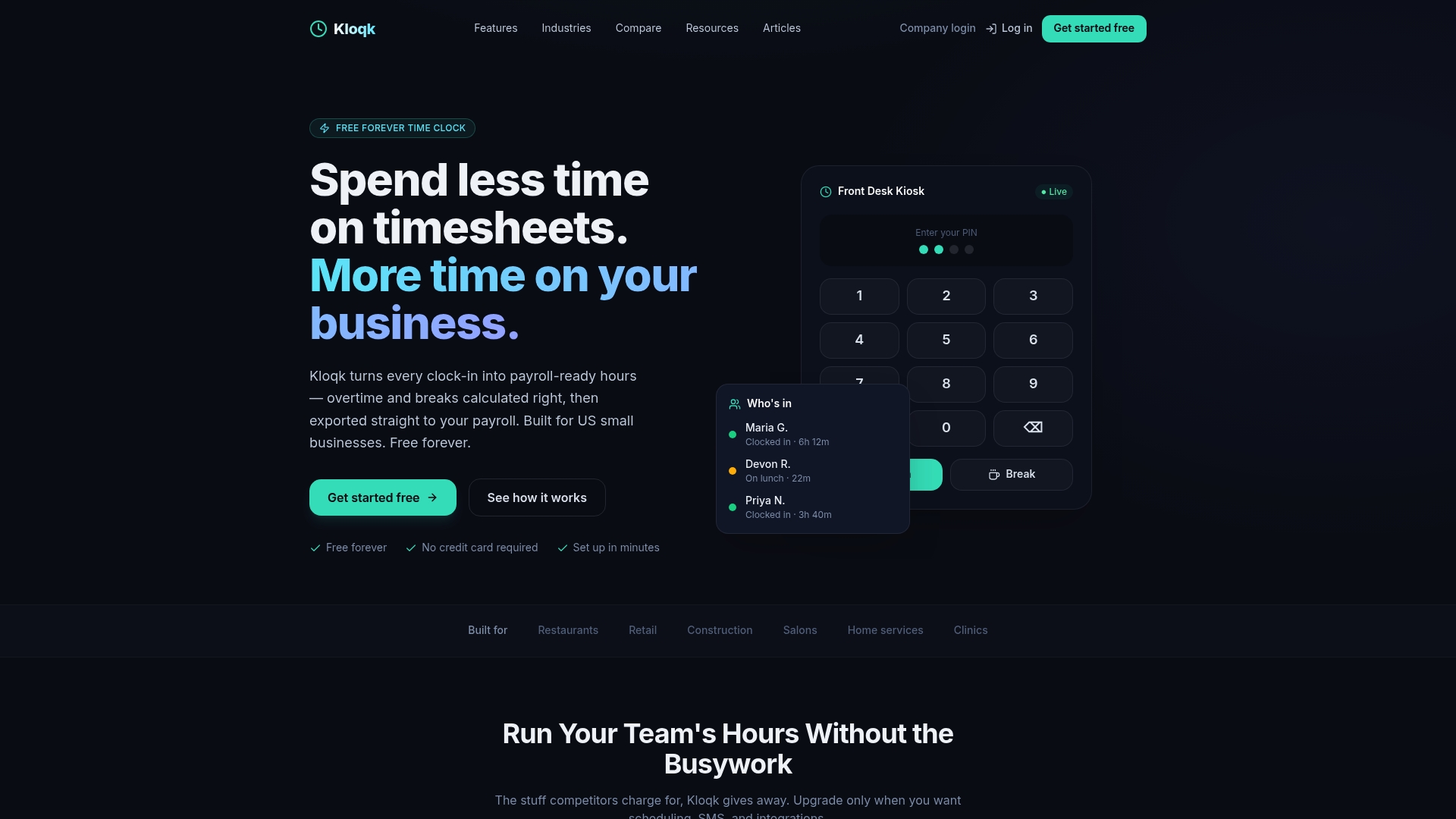
If you’ve followed the setup steps above, the next move is simple: sign up, install Kloqk on one tablet or terminal, and run your pilot pay period exactly as described. Once you’re ready to add scheduling, PTO tracking, or hiring tools, the Pro plan runs $29 per month per location and Premium runs $59 per month per location, but nothing about running the free version well requires an upgrade. Check the retail-specific setup notes for mounting and device guidance suited to a sales floor, or start directly from the pricing page to activate your first terminal today.
Primary Sources and Helpful Reads

For the legal details, see the Department of Labor’s recordkeeping fact sheet and its hours worked guidance. For rollout mechanics, the tablet time clock IT planning guide covers pilot and network setup in more depth. For missed punches, see Kloqk’s missed-punch policy guide.
Sources
- Fact Sheet #21: Recordkeeping Requirements under the Fair Labor Standards Act (FLSA) | U.S. Department of Labor
- elaws, FLSA Hours Worked Advisor
- Enterprise UKG Tablet Time Clock Rollout: IT Planning Guide
FAQ
How Do I Reset the Clock on My Time Clock Device?
Most apps let you reset the device time from the admin dashboard by reassigning or re-registering the terminal, which forces it to resync with network time. If the device itself shows the wrong time, check its operating system’s date and time settings and confirm automatic time zone syncing is turned on.
How Do I Set Up My Time Clock for the First Time?
Download the app, log in or create an account, and enter the setup code from your web dashboard to register the device as a terminal. From there, assign it to a location, enable kiosk mode, and grant camera and location permissions before running a test punch.
How Do I Manually Set the Time if Automatic Sync Fails?
Go into the device’s own operating system settings, turn off automatic time zone detection temporarily, and set the correct local time and date by hand. Once you’ve confirmed the correct time, turn automatic syncing back on so it self-corrects going forward.
How Long Do I Need to Keep Time Clock Records?
Federal law requires payroll records to be kept for at least three years, while supporting wage computation documents like time cards need to be kept for at least two years. Exporting punch data regularly and storing it outside the app itself is the simplest way to stay covered.
What Does Kloqk Cost to Set Up a Store Time Clock?
Kloqk’s core time clock, including payroll exports, overtime calculations, and photo verification, is free with no published price limit on employees. Paid upgrades for scheduling, PTO, and hiring tools are available on the Pro plan at $29 per month per location or Premium at $59 per month per location.
Recommended
Sources
Every figure on this page traces to one of these. Primary law and government sources are listed first.
- 1. U.S. Department of Laborprimary
- 2. U.S. Department of Laborprimary
- 3. ukg.cloudapper.ai
Written by
Marcus ReyesPayroll & Timekeeping Specialist
Marcus covers payroll accuracy, timesheets, and time tracking, the unglamorous mechanics that keep paychecks correct and audits painless.
Keep Reading
Track Hours the Easy Way
Kloqk is a free time clock that handles punches, breaks, overtime, and payroll-ready reports.
Start free