Avoid Rejected Payroll Imports, 6 Steps to Make Payroll Ready Timesheets

Payroll-ready timesheets are time records that have been reviewed, approved, locked, and formatted to match your payroll system’s import requirements. The fastest way to check your own status: run a flagged-entries report or check outstanding approvals for the current pay period right now. If either list isn’t empty, your timesheets aren’t ready yet.
TL;DR:
- Payroll-ready timesheets must have approved, locked, and properly formatted data, with exact mapping to payroll system templates to avoid rejections.
- Manual methods often cause errors due to missed punches, formula mistakes, or lack of audit trails, which small businesses can prevent with structured workflows.
- Implementing automated approval chains, period locking, and mapping features in software like Kloqk ensures consistency and reduces last-minute scrambling before payroll.
- Correct mapping requires using payroll IDs, aligning earnings codes, and standardizing date formats; testing small batches prevents widespread rejection.
- Building payroll-ready processes early, testing months in advance, and utilizing integrated tools significantly improve accuracy and compliance during payroll runs.
Table of Contents
- What Payroll-Ready Timesheets Mean in Practice
- Why Manual Time Tracking and Spreadsheets Commonly Break Payroll
- How to Build a Repeatable Payroll-Ready Workflow
- What Features and Controls Should You Require?
- How Do You Map Timesheets to a Payroll System Without Rejections?
- How Kloqk Handles Payroll-Ready Setup
- A Payroll Manager’s Honest Take on “Payroll-Ready”
- Get Payroll-Ready Timesheets Without Paying for Basic Features
- Helpful Resources for Approvals and Payroll Exports
- Sources
- FAQ
What Payroll-Ready Timesheets Mean in Practice
A clean-looking report isn’t the same thing as a payroll-ready timesheet. A report can look tidy and still fail on import if the columns don’t match what your payroll engine expects, or if hours are still sitting in an editable, unapproved state.
Payroll-ready data has to clear a few specific checkpoints:
- Complete, validated fields: employee ID, clock-in and clock-out times, the date worked, and the correct earnings code for every entry.
- Approved status: a manager or supervisor has signed off on the hours, not just glanced at them.
- Locked records: once approved, the period is closed to edits unless someone goes through an audited unlock process.
- Mapped formatting: the file’s structure matches your payroll provider’s exact import template, including column order and date formats.
That last point trips up more small businesses than any other. A spreadsheet can be perfectly accurate and still get rejected on upload because the payroll system expects “EmpID” in column three and got a name in column one instead. Mapping payroll data at the point of capture rather than fixing it during crunch week is what separates a smooth pay period from a scramble.
Why Manual Time Tracking and Spreadsheets Commonly Break Payroll
Most payroll errors don’t come from bad math. They come from process gaps that spreadsheets and paper timesheets simply can’t close on their own. Three failure patterns show up again and again in small businesses:
- Missed punches turn into disputes. An employee forgets to clock out, someone estimates the hours a week later, and now you’re relitigating a shift nobody remembers clearly.
- Spreadsheet errors compound quietly. A dragged formula, a rounding rule applied inconsistently, or a copy-paste that shifts one row out of alignment. None of it throws an error message. It just pays someone the wrong amount.
- There’s no audit trail. When a state labor auditor or a disgruntled employee asks who approved a shift and when, “I think Dave signed off on it” isn’t an answer you want to give.
Each of these is fixable with the right structure, but spreadsheets don’t force that structure. They just record whatever you type into them, mistakes included.
How to Build a Repeatable Payroll-Ready Workflow
Getting timesheets payroll-ready isn’t a one-time cleanup. It’s a sequence you run every single pay period, in the same order, until it’s automatic. Here’s the version that actually holds up:
- Capture accurately. Require verified digital punches, enforce employee ID entry at clock-in, and build in mandatory break tracking so you’re not reconstructing meal periods from memory later.
- Configure before you capture. Set overtime rules, earnings codes, and pay rates in the system before the pay period starts, not after hours are already logged.
- Review flagged exceptions early. Missing punches, manually edited rows, and rate mismatches should surface automatically, and you want to see them days before payroll runs, not hours before.
- Approve and lock. Route hours through an approval chain, and once a manager signs off, lock the period so the data becomes immutable. Submit, review, approve, lock: that four-step structure is what makes an export defensible later.
- Map and export. Match your payroll provider’s import template exactly: employee IDs, earnings codes, and date/time formatting all have to line up.
- Audit any corrections. If something needs fixing after the fact, reopen it only through an audited unlock, and log the change. Never silently edit a locked record.
Pro Tip: Run this entire checklist a full pay period before you actually need it for live payroll. Testing the workflow once with real (but non-final) data catches mapping errors before they cost anyone a paycheck.
The best practice here is straightforward: resolve every flagged entry first, then export from the reviewed dataset. Export should always be the last step, never something you do while flags are still open.
What Features and Controls Should You Require?
When you’re evaluating any timesheet system, whether you’re buying software or configuring one you already have, a handful of controls separate the tools that actually protect payroll from the ones that just log hours.
Look for these specifically:
- Automated overtime and break calculations that account for state-specific rules, since overtime thresholds vary by jurisdiction and a flat national rule will eventually miscalculate someone’s pay.
- Multi-level approval chains with period locking and notifications at each stage, so nobody can quietly push through unapproved hours.
- Audit logs and edit history on every record, including a clear trail for any unlock action taken on a previously locked period.
- Configurable export templates that map directly to common payroll engines instead of forcing you to reformat a CSV by hand every cycle.
- Exception flags for edited rows, missing punches, and GPS or photo verification mismatches, so problems surface before approval instead of after.
Locking periods after final approval and generating notifications at each approval stage aren’t nice extras. They’re the difference between a system you can defend in an audit and one you’re hoping nobody ever questions.
How Do You Map Timesheets to a Payroll System Without Rejections?
Whether you run ADP, Gusto, QuickBooks, or another payroll engine, the mapping principles are identical, and getting them wrong is the single most common reason exports bounce back.
- Use payroll IDs, not names. Free-text name fields cause duplicate-record errors the moment two employees share a first name or a nickname gets typed differently across pay periods.
- Align earnings codes and rate buckets before the first export, so regular, overtime, and PTO hours land in the correct columns automatically.
- Standardize date, time, and timezone formatting across every entry, especially if you have remote or multi-location staff clocking in from different time zones.
- Apply one consistent rounding policy everywhere, rather than letting different managers round differently.
- Test with a small batch first. Export a handful of records, confirm they import cleanly, and keep a versioned backup of every export file you generate.
Timesheet parsing tools that normalize varied input formats into a payroll provider’s exact column structure can save real hours when your business mixes paper timesheets, spreadsheets, and digital punches in the same pay period. If you’re specifically exporting to ADP, reviewing the exact CSV column requirements before your first live export will save you a rejected file and a delayed pay run.
How Kloqk Handles Payroll-Ready Setup
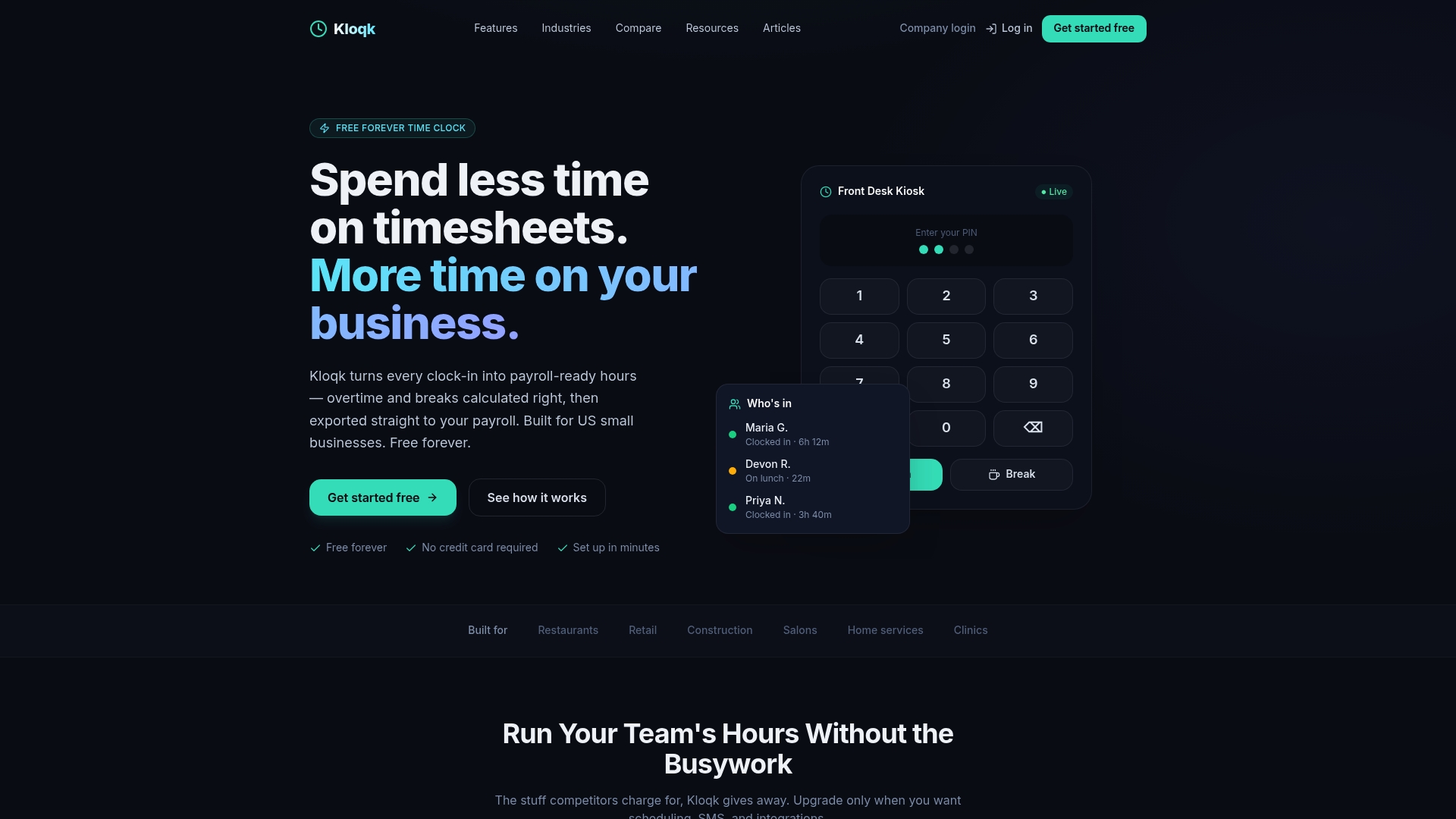
Kloqk builds every stage of that checklist directly into its free time-tracking platform, so small business owners aren’t stitching together separate tools for capture, approval, and export.
- Capture controls: photo verification and GPS geofencing cut down on buddy punching and reduce exception flags at the source.
- Payroll math: overtime rules and break tracking run automatically inside the free plan, matching federal and state labor requirements without manual formula work.
- Approval routing: managers can set up approver chains and auto-submit rules so hours don’t sit waiting for someone to remember to review them.
- Period locking: once approved, records lock, and any correction requires a logged, audited unlock rather than a quiet edit.
- Export mapping: payroll exports are built to match common payroll import formats, so the file you generate is the file your payroll provider actually accepts.
That combination, verified capture through locked export, is what turns a time clock into an actual payroll-ready pipeline instead of a glorified punch log.
A Payroll Manager’s Honest Take on “Payroll-Ready”
Most small businesses treat payroll-ready as a cleanup task they do the night before pay run, and that’s exactly backward. The businesses that never scramble treat it as a standing configuration: earnings codes set once, approval chains that run themselves, exports tested before they’re needed live. Run the review checklist a full pay period ahead of any go-live, not the week of. If you’re evaluating your current setup against Kloqk’s approval workflow or checking how integration actually saves HR time in practice, that comparison is worth ten minutes before your next pay period, not after a rejected export costs you one.
Saad
Get Payroll-Ready Timesheets Without Paying for Basic Features
Some platforms offer full payroll-ready workflows including capture, approval, locking, and export mapping, without charging extra for overtime calculations, break tracking, or payroll exports that other platforms may treat as premium add-ons.
For restaurants and construction crews specifically, photo verification and GPS geofencing catch time-theft issues before they ever reach an approval queue, and remote crews get the same protection through dedicated remote tracking tools. If you’re mixing input formats across job sites or shifts, pairing your export process with automated exception detection can catch mismatches before they hit your payroll provider.
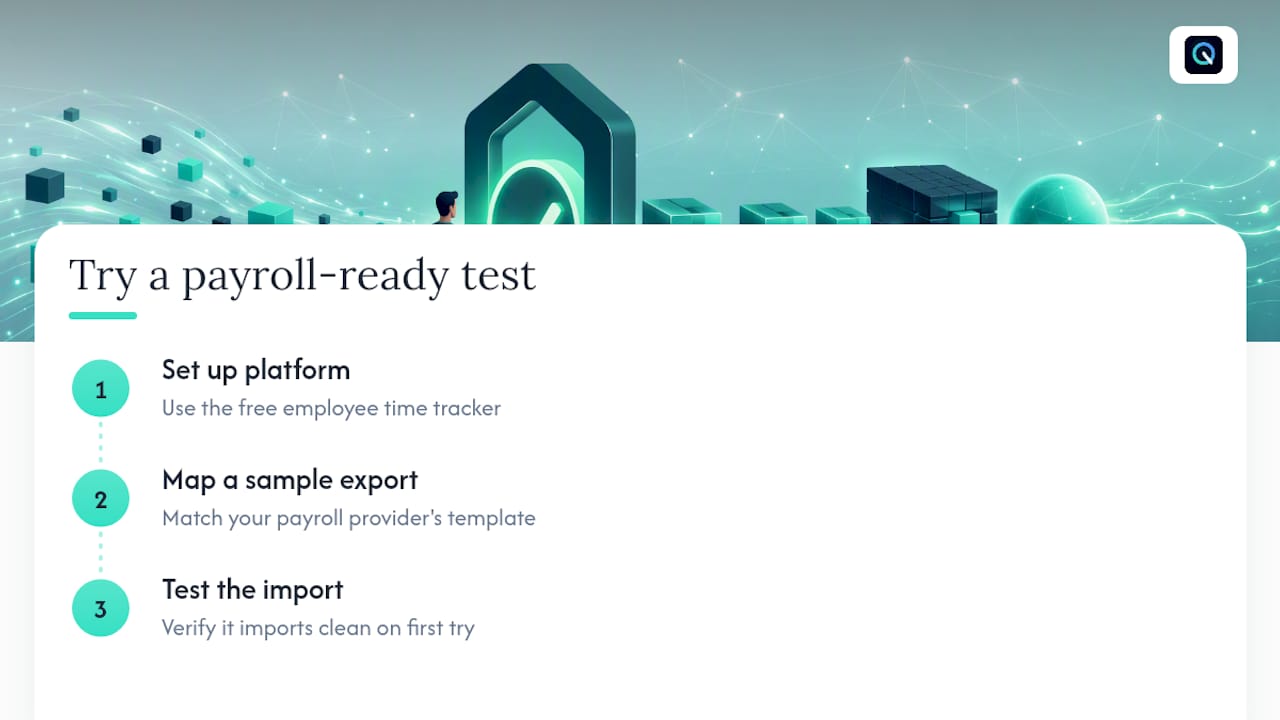
Try it with your next pay period: set up the free employee time tracking platform, map a sample export against your payroll provider’s template, and see whether it imports clean on the first try.
Helpful Resources for Approvals and Payroll Exports
A few practical references worth bookmarking as you build out your own workflow:
- Time approvals documentation covers how approval chains and period locking prevent post-approval edits.
- ADP export column reference walks through the exact CSV structure ADP expects, so you can catch mapping errors before submission.
- Timesheet Parser explains how format normalization handles mixed paper, spreadsheet, and digital inputs.
Sources
- Simplifying payroll mapping Finch
- Time approvals Teamwork support
- Exporting payroll-ready timesheets CleanLog
- Timesheet Parser Parse timesheets into payroll-ready structured data
FAQ
What Is a Payroll Timesheet?
A payroll timesheet records the hours an employee worked during a pay period, including regular, overtime, and break time, formatted so payroll can calculate accurate pay. A payroll-ready version has also been approved, locked, and mapped to match your payroll system’s import structure.
Does ADP Have a Timesheet?
ADP offers timesheet and time-tracking features within its payroll suite, but many small businesses use a separate time clock system and export data into ADP’s required CSV column format. Getting that mapping right the first time avoids rejected imports.
What Is the Best App to Track Paychecks?
The right tool depends on whether you need free core time tracking or built-in scheduling and PTO management. Some free time tracking tools include overtime calculations, break tracking, and payroll exports, covering what many small hourly-staffed teams need without added cost.
How Do I Do My Timesheet?
Clock in and out through a verified digital system, log required breaks, and confirm your employee ID and earnings code are correct on each entry. Submit the completed period for manager approval so it can move through review and locking before payroll export.
Why Do Timesheet Exports Get Rejected by Payroll Systems?
Exports usually get rejected because employee identifiers, earnings codes, or date formats don’t match the payroll provider’s required column structure. Testing a small batch export before running the full pay period catches these mismatches early.
Recommended
Sources
Every figure on this page traces to one of these. Primary law and government sources are listed first.
Written by
Marcus ReyesPayroll & Timekeeping Specialist
Marcus covers payroll accuracy, timesheets, and time tracking, the unglamorous mechanics that keep paychecks correct and audits painless.
Keep Reading
Track Hours the Easy Way
Kloqk is a free time clock that handles punches, breaks, overtime, and payroll-ready reports.
Start free