The Fingerprint Clocking Machine Small Businesses Actually Need
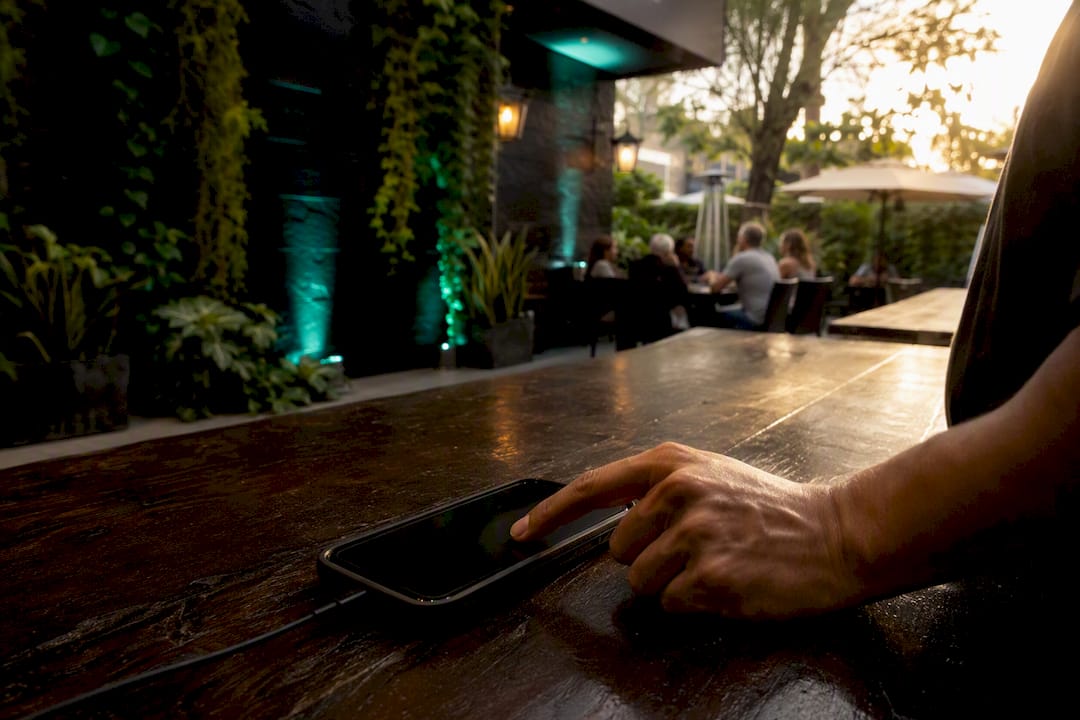
A fingerprint clocking machine, in modern practice, isn’t a box bolted to a wall. It’s cloud software that verifies each clock-in with a photo, checks the employee’s location against a job site or store, and timestamps everything on a server no one can edit after the fact. That combination is what actually stops buddy-punching, and it’s what small-business owners should be shopping for when they search this term.
The recommended setup pairs three things: photo verification at clock-in, GPS geofencing tied to your work sites, and automatic payroll exports that hand your bookkeeper clean, overtime-calculated hours. Kloqk builds all three into its free plan, which makes it a practical starting point rather than a theoretical one.
- Skip standalone fingerprint hardware unless you already own it and it’s working fine.
- Choose a cloud time clock with photo capture, geofencing, and server timestamps.
- Confirm the export format matches what your payroll process needs before you commit.
Key Takeaways
A cloud-based time clock with photo verification, GPS geofencing, and server timestamps stops buddy-punching more reliably than any single biometric check alone.
| Point | Details |
|---|---|
| Redefine the term | Treat “fingerprint clocking machine” as a cloud time clock app, not standalone biometric hardware, for lower cost and remote management. |
| Layer your controls | Combine photo verification, GPS geofencing, and server timestamps rather than relying on just one. |
| Roll out in stages | Run report-only mode for a week, tune geofences, then enforce to avoid false-positive exceptions. |
| Test before you buy | Export a sample payroll file and run a geofence test during any vendor trial. |
| Kloqk fits the checklist | Kloqk’s free plan includes photo verification, GPS geofencing, and payroll exports without per-seat fees. |
Table of Contents
- What “Fingerprint Clocking Machine” Really Means for a Small Business Today
- How Modern Time Clocks Stop Buddy-Punching
- How Do You Choose the Right Time Clock for Your Team?
- Kiosk, Mobile App, or Both?
- What Does a Fingerprint Clocking Machine Actually Cost?
- A 30-Day Rollout Plan for a Small Team
- How Fingerprint Scanning Technology Actually Works
- Is Fingerprint and Photo Data Actually Safe to Store?
- Comparing Accuracy Across Verification Methods
- Fixing Common Fingerprint Device Problems
- Get Started With a Free Cloud Time Clock
- Sources
What “Fingerprint Clocking Machine” Really Means for a Small Business Today
Search that phrase and you’ll find plenty of standalone biometric scanners, the kind that sit on a wall and read a thumbprint. For a small business running payroll on a shoestring, that hardware is usually the wrong answer. It costs money upfront, needs a technician if it breaks, and does nothing to help you calculate overtime or export hours to your payroll provider.
Cloud-based time clocks solve the same core problem, identity verification at the clock, without the hardware. They layer three checks instead of one biometric scan:
- A selfie or photo captured at the moment of clock-in, so a manager can see who actually showed up.
- GPS or geofencing that confirms the employee was physically at the job site or store.
- A server-generated timestamp that can’t be backdated or edited by the employee’s phone.
The payoff for a small operation is lower setup cost, the ability to manage clock-ins from your phone instead of a back-office panel, and payroll math (overtime, breaks) calculated automatically instead of by hand. A detailed comparison of hardware machines versus time clock apps breaks down that tradeoff in more depth if you want the full picture.
How Modern Time Clocks Stop Buddy-Punching
Buddy-punching, one employee clocking in for another, is the specific problem this whole category exists to solve. Three controls do the actual work, and each has a limit worth knowing before you rely on it.
Live photo verification captures an image at the exact moment of clock-in and attaches it to that time entry permanently. The stronger systems add a liveness check, asking for a blink or head turn, so a printed photo held up to the camera doesn’t pass as a real person. Managers review flagged photos in a dashboard rather than scrolling through every punch.
GPS geofencing draws a virtual boundary around a job site or store and checks whether the phone punching in sits inside it. Done well, this surfaces off-site punches automatically instead of requiring a manager to notice them. Indoor GPS drift is real, though. A phone inside a concrete-walled warehouse can read 200 feet off, which is why fences need real-world tuning, not just a pin dropped on a map.
Server-side timestamps and device IDs create the audit trail. The clock-in time comes from the server, not the phone, so nobody can change their device clock to fake an early arrival.
- No single control is airtight on its own. GPS answers where; photo answers who.
- Combining both closes the gap that either leaves open when used alone.
Pro Tip: Ask any vendor directly whether they detect mock-location apps. Some employees genuinely do spoof GPS with a free app, and a system that can’t catch that isn’t really solving the problem.
How Do You Choose the Right Time Clock for Your Team?
Run through this checklist during any demo or trial before you commit to a plan.
- Payroll export accuracy first. Confirm the export format matches what your bookkeeper or payroll provider actually needs. This single mismatch causes more support tickets than any other feature gap, according to comparisons of time clock and payroll software.
- Overtime and break rule support. The system should calculate overtime thresholds and unpaid break deductions automatically, not leave it to a spreadsheet formula you have to maintain.
- Geofence and photo capture, not just one or the other. Clock-first vendors tend to build deeper punch verification than payroll-first platforms, which often bolt these on as add-ons.
- Manager tools. Look for kiosk mode, one-tap approvals, and an exception report that flags late, early, or off-site punches without you hunting for them.
- Pricing transparency. Check what the free tier actually includes versus what triggers an upgrade, per-seat fee, or add-on charge.
During the trial itself, run four specific tests: export a sample payroll file and open it in your actual payroll software, punch in from outside a geofence to confirm it flags correctly, capture a photo and check how it’s stored, and walk through the manager exception workflow start to finish.
Kiosk, Mobile App, or Both?
Your setup should match how your team actually works, not the other way around.
- A kiosk (usually a mounted tablet) fits single-location restaurants and retail stores where employees punch in at the same spot every shift. It’s simple to manage, keeps the device locked into kiosk mode so nobody can wander into settings, and gives you one screen to glance at during a rush.
- A mobile app fits field crews and multi-site teams, construction, home services, delivery, where there’s no fixed point to punch from. GPS permissions need to be granted on each phone, and battery drain from constant location checks is worth testing before rollout, not after.
- A hybrid setup, kiosk at the shop and mobile app for crews on the road, works for businesses running both a fixed location and mobile labor, with role-based rules deciding which employees see which option.
Whichever combination you pick, the manager review process stays the same: exceptions get flagged, photos get checked, and approvals happen from a single dashboard regardless of which device generated the punch.
What Does a Fingerprint Clocking Machine Actually Cost?
Most cloud time clocks split features cleanly. The free tier usually covers the basics: clock-in/out, a timesheet, and a limited export option. Paid tiers add scheduling, PTO tracking, premium integrations, and sometimes GPS geofencing or SMS reminders.
The real return comes from math you can do on your own payroll. If buddy-punching adds even a small amount of time each day per employee, and you reduce that with photo and GPS verification, a five-person crew at typical hourly wages recovers significant money weekly in phantom hours, before counting the admin time saved from not manually reconciling timesheets. Watch for per-seat fees that scale badly once you hire, and confirm the export format you need isn’t locked behind a paid plan.
A 30-Day Rollout Plan for a Small Team
Don’t flip the switch overnight. A staged rollout catches problems before they become payroll disputes.
- Week 0: Turn on location capture in report-only mode. Don’t enforce anything yet, just watch where punches actually happen.
- Weeks 1 to 2: Tune your geofences based on what week 0 showed you, turn on photo capture, and add every employee with correct permissions.
- Week 3: Run your old system and the new one side by side. Review the exception report daily and fix false flags before they annoy your staff.
- Week 4: Go live for real. Keep checking exceptions weekly for the first month.
Pro Tip: Tell your team why you’re rolling this out before week 0, not after. “We’re fixing payroll accuracy” lands very differently than employees discovering a photo requirement with no warning.
How Fingerprint Scanning Technology Actually Works
Standalone biometric hardware, the kind this article steers small businesses away from, works by capturing a digital map of the ridges and valleys on a fingertip. An optical or capacitive sensor reads the pattern, converts it into a mathematical template, and compares that template against a stored record each time someone punches in. The scanner never keeps an actual image of the fingerprint. It keeps a numeric representation, which is one reason vendors describe the process as more secure than storing a photo.
The catch for small businesses is everything that template requires around it: a physical scanner at a fixed location, firmware updates, and a device that fails when it gets dusty, wet, or scratched by grease in a kitchen. None of that solves the deeper problem that a cloud time clock solves for free, verifying identity remotely across multiple locations and turning that verification directly into payroll-ready hours.
Cloud systems replace the fingerprint scan with a photo comparison instead. A selfie captured at clock-in gets checked against a reference photo on file, sometimes automatically, often by a manager glancing through a review queue. It accomplishes the same goal, confirming a real, specific person clocked in, without hardware, calibration, or a service contract. For a business running a single kiosk or a mobile crew, that trade-off almost always favors the software approach.
Is Fingerprint and Photo Data Actually Safe to Store?
Any system that captures identity data, whether it’s a fingerprint template or a clock-in selfie, raises a fair question: where does that data live, and who can see it?
Photo verification data should be stored encrypted, tied only to the specific time entry it belongs to, and accessible only to managers with a legitimate reason to review it, not exposed in a general employee directory. Look for a vendor that states plainly how long photos are retained and whether they’re deleted on a schedule rather than kept indefinitely by default.
Physical fingerprint scanners carry a different risk profile. Biometric templates, once created, can’t be reset the way a password can if a device is compromised. Several states, including Illinois under its Biometric Information Privacy Act, impose specific consent and storage requirements on employers who collect fingerprint or biometric data, with real legal exposure for getting it wrong. That’s a compliance burden a photo-and-GPS cloud system simply doesn’t carry in most jurisdictions, which is part of why it’s the lower-friction choice for a small business without a compliance department.
Whatever system you choose, ask the vendor directly about encryption at rest, who has access to stored images, and what happens to the data if you cancel your plan.
Comparing Accuracy Across Verification Methods
Physical fingerprint scanners are generally accurate under ideal conditions, clean hands, a well-maintained sensor, indoor use. Accuracy drops noticeably with wet, dry, cracked, or dirty fingers, which is a real issue in restaurant kitchens and on construction sites, exactly the small-business environments this article is written for.
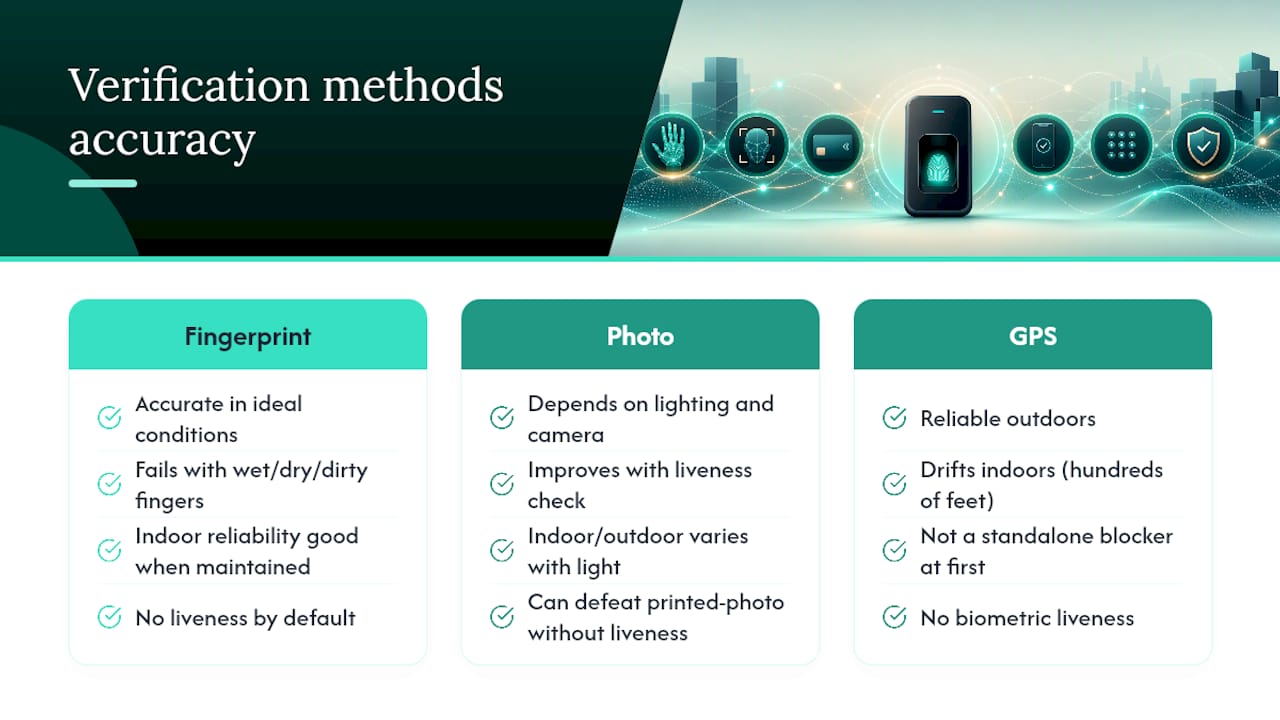
Cloud verification methods trade a single high-precision biometric check for layered, complementary checks. Photo verification depends on lighting and camera quality but improves significantly when paired with a liveness check that requires the person to blink or turn their head, since that step defeats the printed-photo trick that fools a static image alone. GPS geofencing is reliable outdoors but drifts indoors, sometimes by hundreds of feet, so it should flag suspicious punches for review rather than block them outright on day one.
Neither approach is flawless in isolation. A fingerprint scanner can be defeated by a low-tech print mold in rare cases; a phone’s GPS can be spoofed by a free app if the vendor doesn’t check for it. The meaningful comparison isn’t “which single method is most accurate,” it’s which combination of methods closes the most gaps. Photo plus GPS plus a server timestamp, reviewed by a manager on exceptions, tends to outperform a single fingerprint scan precisely because it doesn’t rely on one point of failure.
Fixing Common Fingerprint Device Problems
Physical fingerprint scanners run into a predictable set of failures, and knowing them helps you judge whether hardware is worth the maintenance overhead compared to a cloud alternative.
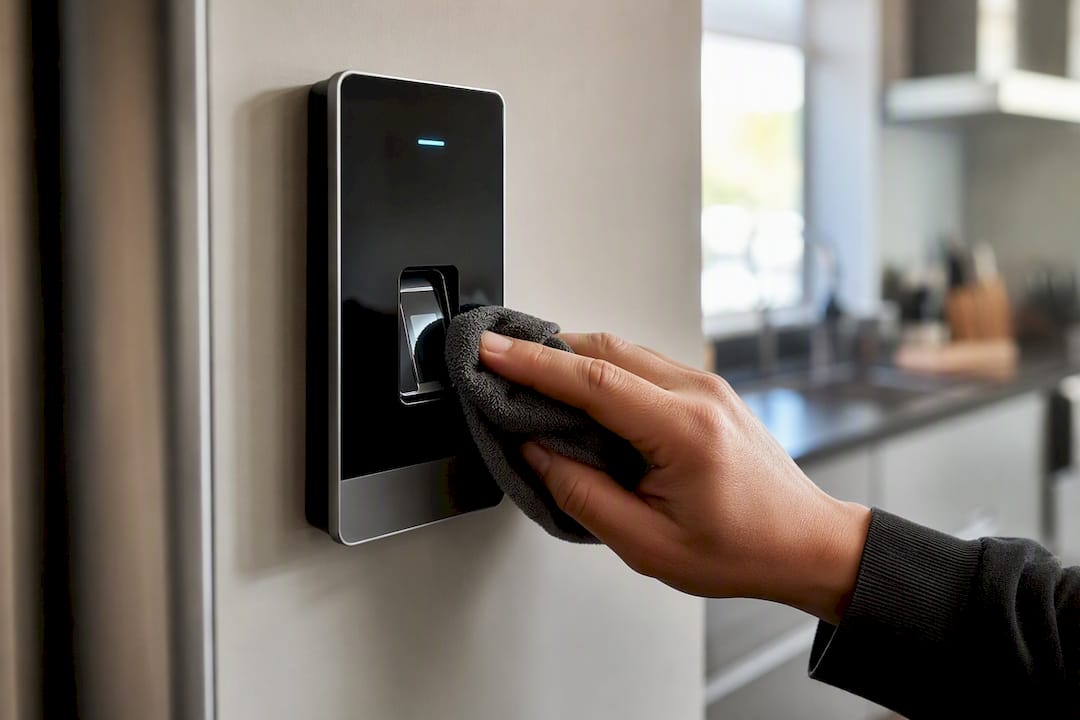
Dirty or worn sensor glass is the most common issue, especially in kitchens and warehouses where grease, flour, or dust builds up fast. A misread often looks like an employee getting locked out, which then turns into a manager manually overriding the clock, defeating the whole point of automated tracking. Dry or calloused skin, common in construction and manual labor, reduces ridge definition enough that some scanners simply can’t get a reliable read, forcing a fallback PIN that reopens the door to buddy-punching.
Firmware and connectivity issues cause a second wave of problems: a scanner that loses its network connection stops syncing punches to payroll until someone notices hours later. Routine maintenance, wiping the sensor daily, checking firmware updates monthly, and keeping a backup PIN process, cuts down on most of these, but it’s ongoing work a cloud time clock app doesn’t require. A phone camera doesn’t need recalibration, and a software update happens automatically in the background rather than requiring an on-site technician visit.
If you’re already running physical hardware and hitting these issues regularly, that maintenance burden alone is a reasonable trigger to evaluate a cloud-based alternative instead of replacing the scanner again.
Author perspective (Saad): practical gains and common pitfalls
Every business owner I’ve talked through this expects the software to be the hard part. It isn’t. The gains show up fast: fewer payroll edits, faster weekly runs, an audit trail nobody has to reconstruct from memory. The pitfall is skipping the communication step. Test the system, measure results for a couple of weeks, and tell your staff exactly why before you flip it on.
Saad
Get Started With a Free Cloud Time Clock
Kloqk maps directly to the checklist covered above: photo verification at clock-in, GPS geofencing tied to your job sites, automatic overtime and break calculations, and payroll exports that don’t require a spreadsheet in between. The free plan includes all of that, no per-seat fee attached, which puts it ahead of tools that charge extra for the exact features that stop buddy-punching in the first place.
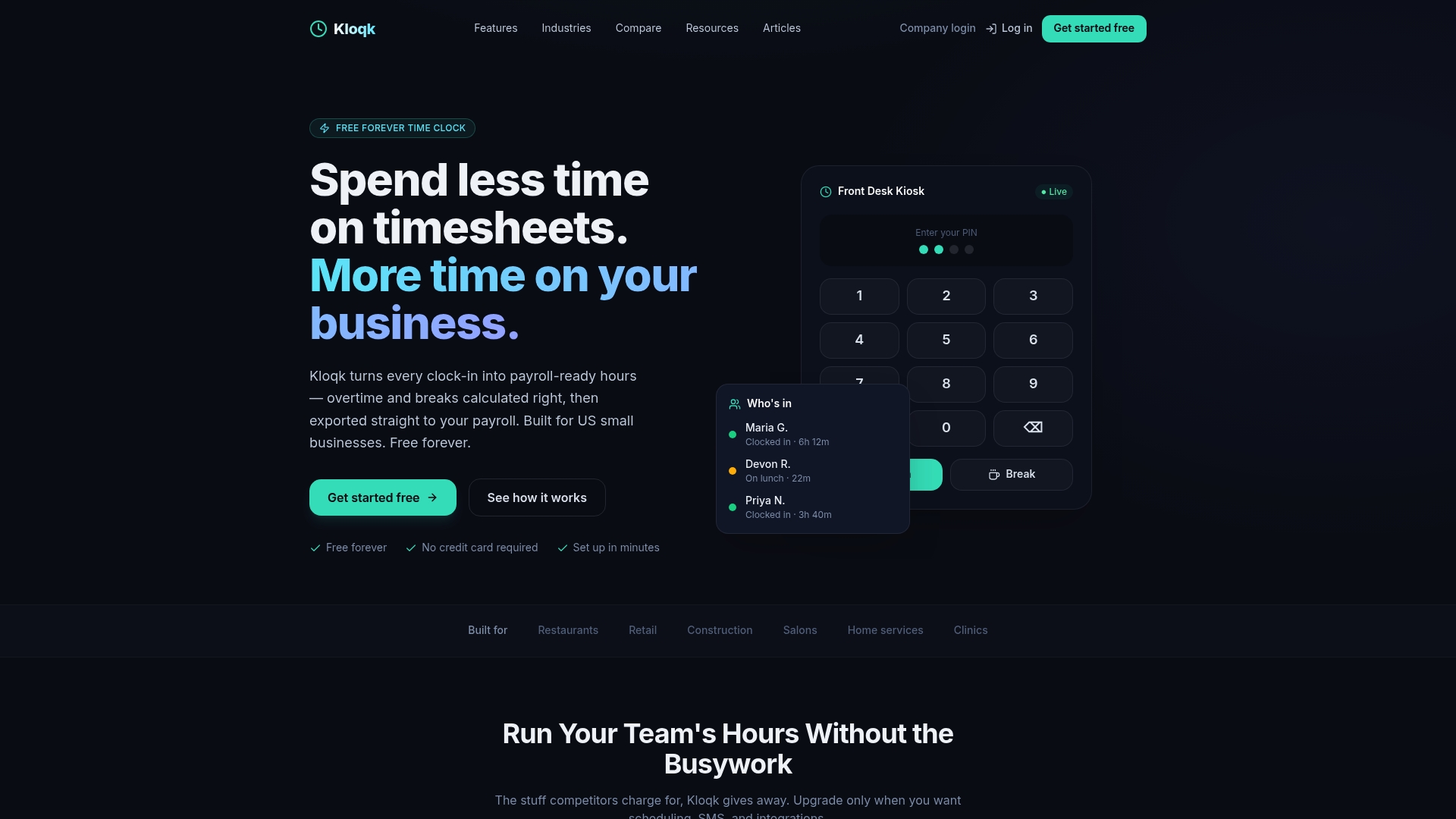
Setup takes a few minutes: add your employees, drop a geofence around your job site or storefront, and decide whether you want a shared kiosk, a mobile app for a crew, or both. Businesses running appointment or class schedules, like studios handling attendance without a clipboard, face a similar problem with managing attendance manually, and the same photo-plus-location approach solves it there too.
If your current setup still relies on manual sign-in sheets or a fingerprint scanner that keeps jamming, start a free time clock account and run your first week of punches in report-only mode before turning on enforcement.
Sources
- Time Clock and Payroll Software Compared | FirstHR
- How GPS Attendance Prevents Buddy Punching (2026 Guide) | AttendancePay
- How Live Photo Attendance Ends Buddy Punching | HROne
Recommended
Sources
Every figure on this page traces to one of these. Primary law and government sources are listed first.
Written by
Marcus ReyesPayroll & Timekeeping Specialist
Marcus covers payroll accuracy, timesheets, and time tracking, the unglamorous mechanics that keep paychecks correct and audits painless.
Keep Reading
Track Hours the Easy Way
Kloqk is a free time clock that handles punches, breaks, overtime, and payroll-ready reports.
Start free