Cloud vs. On-Premise Time Clock: Which Fits a Small Business?

For most small U.S. businesses, a cloud time clock is the better choice. Punches are stored on the vendor’s servers, you read them from any browser, and updates, backups and new locations need no IT project. An on-premise clock keeps the software and data on a server or PC you own and maintain. That can make sense for a few special setups, but it puts the maintenance on you. Kloqk is a cloud time clock with a free plan, so you can run payroll-ready timesheets without buying a server or a terminal first.
TL;DR
- Cloud: software and data live with the provider. You get access from any device, automatic updates and one view across locations.
- On-premise: you buy and host the software, so you own the server, the backups, the updates and the security patches.
- Cost: on-premise front-loads spending on hardware, licenses and IT time. Cloud spreads cost over time, and Kloqk’s core time clock is free with up to 10 people.
- Compliance: whichever you choose, the FLSA requires accurate records kept for set periods. Cloud storage makes that retention easier to meet.
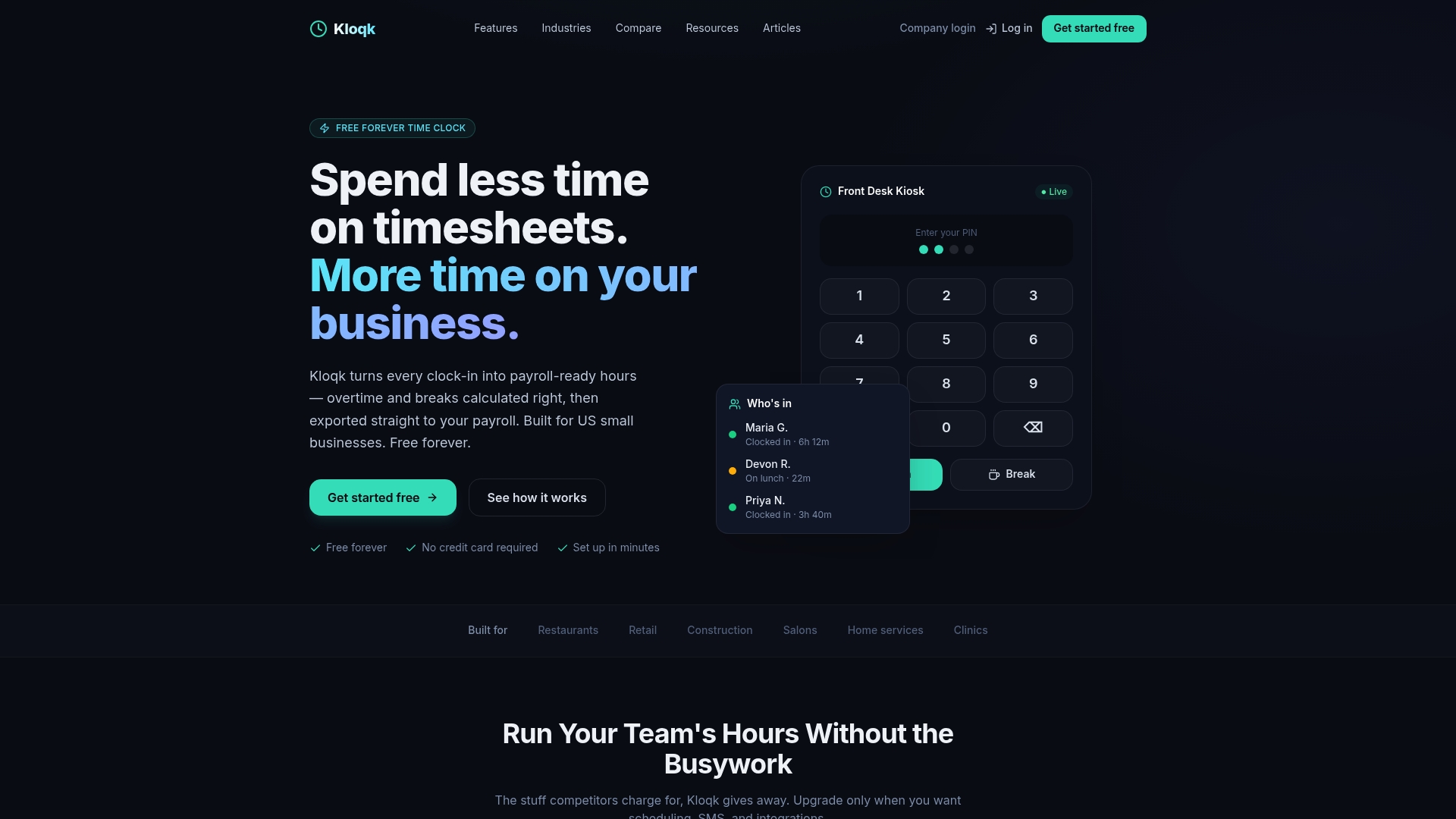
- Kiosk or phone: a cloud system still supports a shared tablet at the door, so you do not need on-premise to get a physical clock.
Table of Contents
- What the two terms actually mean
- Cost: where the money goes
- Setup and updates
- Multiple locations and remote crews
- Kiosks: you can have a physical clock in either model
- Security, privacy and data control
- When the internet drops
- How to decide
- Why we built Kloqk as a cloud time clock
- Try the cloud option free
- FAQ
- Sources
What the two terms actually mean
The names describe where the software runs and where the data lives, not what the punch device looks like.
On-premise (also called “on-prem” or “premises-based”) means you license the software once and install it on a server or computer at your business. Your staff punch in on a wall-mounted terminal, a PC or a card reader. The terminal sends data to your machine, and your own IT person, or you, keep it running, patched and backed up.
Cloud means the vendor hosts the software and stores the data on its own servers. Employees punch in on a phone, a tablet kiosk, a computer or a cloud-connected terminal. Managers log in through a browser to review hours, approve timesheets and export to payroll. The vendor ships updates and handles server upkeep.
The confusion comes from physical clocks. A wall terminal is not automatically on-premise. Many terminals simply send punches to a cloud portal. The real question is who runs the server behind the clock.

Cost: where the money goes
The two models spend money in different places.
On-premise costs usually show up in these lines:
- A software license, often priced per employee or per terminal
- Terminals, badge readers or other punch hardware
- A server or a dedicated PC, plus its power and backup storage
- Installation and setup, often by a technician
- IT time for patches, upgrades and recovery after a failure
- Paid upgrade cycles when a new version arrives
Cloud costs are usually a recurring subscription, plus whatever device employees use to punch in. With a phone app or a tablet on the counter, that device can be one you already own.
For small teams the cost gap often comes from the work around the software, not the software. A restaurant with 12 hourly staff does not have an IT department. When the server PC dies on a Friday before payroll, someone has to rebuild it and recover the data.
With Kloqk, the core time clock is free: up to 10 people, overtime and break calculations, photo verification on clock-ins and payroll exports. Paid plans add things like scheduling, PTO and integrations. The Pro plan is $37 a month for your first 10 people, then $3.75 a person ($29 and $3 billed yearly) and Premium is $74 a month for your first 10 people, then $6.25 a person ($59 and $5 billed yearly), as listed on the Kloqk pricing page. For a broader price breakdown, see our time clock software cost guide.
A quick worked comparison
Take a two-location coffee shop with 20 employees.
- On-premise route: buy a license, two terminals and a small server or PC for the back office. Pay someone to install it and connect the two sites. Each location’s data now sits on a different machine unless someone builds a link between them. Budget IT time every year for updates.
- Cloud route: create an account, add the two locations, add the staff and put a tablet at each counter. Both locations feed one dashboard from the first day.
The cloud route has fewer parts to buy, install and maintain. That is the main cost argument, and it grows with each location you add.
Setup and updates
On-premise setup is a project. You decide on hardware, install the software, connect terminals to the server, set up user accounts and test the whole chain. Updates are another project: someone has to download them, schedule downtime, install them and check that the terminals still talk to the server.
Cloud setup is closer to filling in a form. A typical sequence:
- Create the account and add your location, pay rules and overtime settings.
- Add employees with their pay rates.
- Choose how people punch in: phone, tablet kiosk or computer.
- Run one pay period alongside your old method to check the totals.
- Export hours to payroll.
Updates arrive without you doing anything, so tax and labor-rule changes reach your account without a maintenance window. If you want a deeper look at how this works for a small team, read our guide to a cloud-based time and attendance system.
Multiple locations and remote crews
This is where the models separate most clearly.
An on-premise system is tied to the building it sits in. A second location needs its own server or a secure network link back to the first. A construction crew on a job site, a mobile salon stylist or a manager reviewing hours from home cannot reach the data unless IT sets up remote access.
A cloud system treats every location the same way. Each site punches into the same account and the owner sees all hours in one place. That matters for overtime too: if an employee works at two locations in one week, the hours need to be added together to calculate overtime correctly. Our piece on multi-location time tracking shows how split data creates back pay risk.
For crews who work away from a fixed clock, GPS geofencing, which limits punches to a set area around a job site, keeps the location tied to each punch. See what geofencing is and how a GPS time clock works.

Kiosks: you can have a physical clock in either model
Franchise owners and city administrators often ask for a kiosk because they want a fixed place where everyone punches in. That is a hardware choice, not a hosting choice.
A kiosk can be a shared tablet or computer at the door running a cloud time clock. Staff select their name and punch in. Photo capture at clock-in helps show who actually punched, which addresses buddy punching, where one employee clocks in for another. Details are on our pages for photo capture at clock-in and preventing buddy punching.
For a city department or franchise with several sites, the cloud kiosk also means one set of employee records and one export for payroll, rather than a terminal-by-terminal reconciliation.
Security, privacy and data control
On-premise gives you physical control of the machine. That is also the responsibility: you must secure it, back it up and replace it if it fails. Data on one office PC is exposed to theft, fire, hardware failure and a missed backup.
With cloud, the provider hosts the data and you control who can see it through logins and permissions. Whichever model you use, ask the basics: who can view and edit punches, whether edits are logged, and how data is backed up.
Records you have to keep
The Fair Labor Standards Act (FLSA) is the federal law that sets minimum wage and overtime. According to the Department of Labor’s recordkeeping fact sheet, employers must keep payroll records for at least three years, and time cards for at least two years. Some states require longer. Your time clock should make those records easy to find years later. Our guides on FLSA recordkeeping and timesheet retention lay out the schedules.
Biometrics and location
Fingerprint and face-scan clocks bring extra rules. Illinois’s Biometric Information Privacy Act requires, among other things, a written release from the person before a business collects a biometric identifier. Other states have their own rules. Before you roll out biometric or location-based tracking, check the law where your staff work and have your attorney review your policy. Our guides cover biometric time clock laws and time tracking privacy laws by state.
When the internet drops
A fair question for any cloud clock is what happens in an outage. A cloud system depends on a connection, and an on-premise terminal on your local network can keep working when the wider internet is down, as long as the server itself is up. That is a real difference.
In practice, a few habits cover it:
- Use a phone on cellular data as a backup punch device if the shop’s Wi-Fi fails.
- Keep a simple written fallback, such as a paper log, for the rare outage, and enter those times afterward so the record stays complete.
- Make sure managers know how to correct a missed punch so pay stays accurate.
An on-premise system has outages of its own: a failed server, a crashed disk or a power cut at the one building that holds the data.
How to decide
| Question | Points to cloud | Points to on-premise |
|---|---|---|
| Do you have more than one location or a mobile crew? | Yes | Single fixed site |
| Do you have IT staff for servers and patches? | No | Yes |
| Do you want to avoid upfront hardware spending? | Yes | Budget set for capital purchase |
| Do managers need to approve time from anywhere? | Yes | Only from the office |
| Do you want updates handled for you? | Yes | You prefer to schedule them |
For the owner of a restaurant, retail shop, salon, clinic or construction crew, nearly every answer lands on cloud. The same is true for a franchise owner who wants a kiosk, and for a city administrator who needs one record across departments.
Why we built Kloqk as a cloud time clock
Small businesses should not have to pay to get accurate hours. We built Kloqk so the basics that turn a clock-in into payroll-ready time, overtime and break calculations, photo verification and payroll exports, are free, with up to 10 people.
A server in the back office adds a second job to the owner’s day: keeping the time system alive. A cloud clock takes that job off the list. You open it, see who is in, check the hours and export to payroll.
Compliance with federal and state labor rules is built into how Kloqk calculates hours, so owners are not doing overtime math by hand. If your team grows, you can add advanced scheduling, time-off rules and other tools on a paid plan. Until then, the free plan runs the whole time clock.
Saad
Try the cloud option free
If you are weighing the two models, the fastest way to see the cloud model is to run a pay period on it. Kloqk’s free time clock for small business covers up to 10 people, mobile and kiosk punching, overtime and break calculations and payroll exports. Paid plans are listed on the pricing page.
If overtime is your main concern, our overtime calculation guide and free overtime calculator show the math behind time and a half.
FAQ
Is a cloud time clock the same as a time clock app?
Not exactly. Cloud describes where the software and data live. An app is one way to punch in. A cloud system can accept punches from a phone app, a tablet kiosk, a browser or a connected terminal, and all of them feed the same records.
Can I use a physical kiosk with cloud software?
Yes. A tablet or computer at the entrance can run a cloud time clock as a shared kiosk. Employees select their name and punch in, and photo verification can capture who clocked in. Managers see the punches in the dashboard.
How long do I need to keep time records?
Under federal rules, the Department of Labor says payroll records must be kept at least three years and time cards at least two years. Some states require longer, so check your state’s rule and keep records for the longest period that applies to you.
Do I need legal review before using biometric or GPS tracking?
For biometrics, yes: laws such as Illinois’s Biometric Information Privacy Act require written consent before collection. For location tracking, keep it tied to work, such as a job site, and have an employment attorney review your policy before you roll it out.
Sources
- Fact Sheet #21: Recordkeeping Requirements under the FLSA (U.S. Department of Labor)
- 740 ILCS 14: Biometric Information Privacy Act (Illinois Compiled Statutes)
Recommended
Sources
Every figure on this page traces to one of these. Primary law and government sources are listed first.
- 1. U.S. Department of Laborprimary
- 2. law.justia.com
Written by
Kloqk teamKloqk
Written by the people who build Kloqk's time clock, timesheets and payroll exports. Prices and laws link to the source we checked, with the date we checked it.
Keep Reading
Track Hours the Easy Way
Kloqk is a free time clock that handles punches, breaks, overtime, and payroll-ready reports.
Start free