Prove Offline Punch Sync on 2-3 Devices in One Week for Managers

When a time clock app loses internet access, it saves every clock-in and clock-out to a local queue on the device, then automatically sends those records to the server the moment connectivity returns. As a manager, the single most important thing you can do is test this behavior yourself: force a device offline, punch in, reconnect, and confirm the record lands on your dashboard. Pair that test with a routine export of your records to a safe, off-vendor backup.
TL;DR:
- Offline punches retain timestamps, employee IDs, photos, and GPS metadata in a local outbox; records clear only after server acknowledgment.
- Battery saver settings can delay background uploads, while factory resets, app removal, or permanent disconnection can erase queued punches before they sync.
- Use persistent storage, spaced retries, required app updates, and a daily sync window; verify offline capture again after every update or device migration.
- California operations should keep retrievable records and be ready to provide paper copies on request; retain edit logs and override notes with timestamp provenance.
Table of Contents
- How offline punch sync works
- Common sync behaviors and limitations
- Implementation best practices
- Data integrity and compliance
- Troubleshooting and verification
- How Kloqk handles offline punch sync
- What operations teams should treat as standard practice
- Try offline punch sync on Kloqk before you commit to anything
- FAQ
- Sources
How offline punch sync works
Offline punch sync follows a simple sequence: write, queue, replay, acknowledge. When a device has no signal, the app writes the punch to local storage immediately, capturing the timestamp, employee ID, and any photo or GPS metadata tied to that clock-in or clock-out.
That record sits in an outbox, typically structured as a first-in, first-out queue so punches replay in the order they happened rather than the order connectivity happens to return. Batching matters here: apps often group several queued punches into one upload attempt instead of sending them one by one, which reduces server load and speeds up recovery after extended outages.
Once the server receives and confirms a batch, it sends an acknowledgment back to the device, and only then does the app clear that record from the local queue. This two-step handshake protects against data loss if the connection drops mid-upload.
- Local write: timestamp, employee ID, photo and GPS metadata saved instantly
- Queue behavior: FIFO ordering with batched uploads for efficiency
- Server handshake: records clear from the device only after acknowledgment
- Retry logic: exponential backoff spaces out retry attempts on unstable networks
Common sync behaviors and limitations
Most sync delays are normal, not signs of data loss. Understanding what to expect helps you avoid chasing phantom problems and lets you focus on the handful of situations that actually need intervention.
- Timing and batching: punches often sync within seconds of reconnecting, but apps may wait briefly to batch several records together.
- Device sleep and battery saver: aggressive power-saving settings can pause background sync, so a punch might sit queued longer than expected until the app is reopened.
- Timestamp source: reports can show either the device’s local timestamp or the server’s receipt timestamp, and mixing the two causes confusion when reconciling hours.
- Permanent disconnection: if a device is never reconnected, factory reset, or uninstalled before syncing, queued punches are lost for good, which is why manual export remains a backstop.
Implementation best practices
A few configuration choices make the difference between occasional sync friction and a system that quietly works in the background. Start with the outbox itself: make sure persistent local storage is enabled and retry settings are conservative rather than aggressive, since an overly short retry window can drain battery on flaky connections without improving reliability.
- Enable a persistent local outbox with conservative, spaced-out retry attempts
- Require app updates across all devices and set a daily mandatory sync window
- Confirm photo and GPS data is stored with each punch and uploaded inline, not separately
- Schedule automated exports and keep a backup copy outside the vendor’s system
Device policy matters as much as app settings. Oracle’s workforce management documentation for its SuitePeople mobile app instructs admins to confirm that offline-captured punches are fully synced before any app update or device migration, a step that prevents queued records from being orphaned during a rollout.
Pro Tip: Run your offline sync test the same week you push any app update, since updates are a common point where queued punches get stranded.
Data integrity and compliance
Proving your records are complete means keeping more than the punch itself. Maintain edit logs, manager override notes, and a record of each punch’s timestamp provenance (device time versus server time) so you can explain any discrepancy later.
- Keep edit logs and override notes attached to the original punch record
- Export sample records regularly and verify the file opens correctly and reads clearly
- For California operations, keep records in a retrievable format and be ready to provide a paper copy on request
- Avoid relying solely on vendor cloud access for your historical records
Legal guidance on electronic time records recommends exactly this approach: a recent analysis of California’s wage and hour rules advises employers to periodically download and store local copies of time records rather than depend entirely on a vendor’s cloud access, since that access can be disrupted during disputes or vendor transitions. The same guidance suggests testing your export process the way you would if preparing for litigation, pulling a sample record and confirming it is complete and readable.
Troubleshooting and verification
When a punch appears missing or duplicated, work through the chain in order rather than guessing.
- Check the device’s local outbox and app logs first to confirm whether the punch ever left the queue.
- Review server ingestion logs for that time window to see if the record arrived but failed to post.
- If the punch is still queued on the device, force a manual replay rather than waiting for automatic retry.
- For duplicates, compare timestamps and device IDs to identify which record is the original, then reconstruct chronological order before correcting the ledger.
Before contacting support, collect the device logs, the server ingestion logs, and a screenshot of the outbox status. Having all three ready cuts resolution time considerably since most sync issues trace back to one of those three points.
How Kloqk handles offline punch sync
We built Kloqk’s time clock to keep a local outbox on every device, so a punch recorded without signal replays automatically the moment the connection comes back, in the order it happened. Photo and GPS metadata captured offline stay attached to the punch through the entire sync process, so verification remains intact once the record lands on your dashboard.
- We keep a persistent local outbox that replays punches in chronological order on reconnect
- We preserve photo and GPS metadata captured offline through to the final synced record
- Admins can force a manual sync, export timesheets, and configure geofencing from one dashboard
- Our geofencing and GPS features are built for mobile or multi-site teams who punch in from outside a fixed location
Run a manual sync test on a couple of devices before relying on it for payroll, the same way you would test any new process.
What operations teams should treat as standard practice

Treat offline sync the way you treat a fire extinguisher: you want to know it works before you ever need it, not after. A lightweight daily sync check, paired with a weekly export to a separate backup, catches most problems before they touch payroll.
On retry settings, I favor short manual-retry windows over aggressive auto-delete policies. A queue that quietly discards unsent punches to save storage trades a small convenience for a real audit risk. Train every new hire to run an offline test during onboarding, and repeat it after any app update, since that is exactly when queued records tend to get stranded.
Saad
Try offline punch sync on Kloqk before you commit to anything
We offer the full time clock, including offline capture, photo verification, and GPS geofencing free, so you can run a real pilot before deciding on anything paid. Put it on two or three devices for a week.
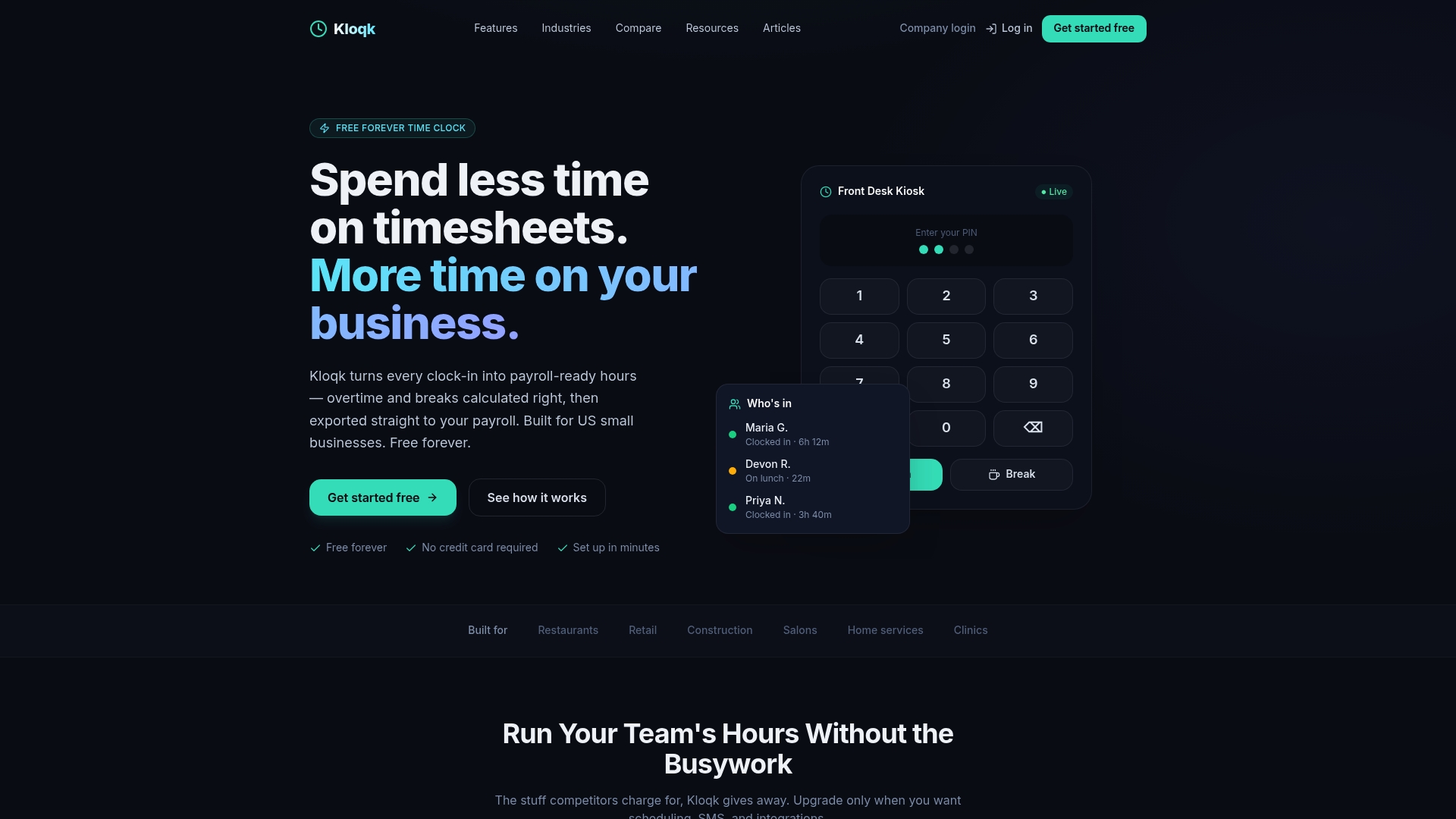
- Force one device offline, punch in with photo and GPS capture, then reconnect and confirm the export
- Pull a payroll-ready timesheet and check the format and timestamps
- Upgrade only if you need scheduling, PTO, or hiring tools, available on Pro and Premium plans
Start on the free time tracking plan and see how the sync behaves on your own team’s devices.
FAQ
What happens to a punch recorded with no internet connection?
The punch is saved locally on the device with its timestamp, employee ID, and any photo or GPS data, then sent to the server automatically once the device reconnects. It stays queued and never disappears unless the device is reset or uninstalled before syncing.
How long does it typically take for offline punches to sync?
Most punches sync quickly after regaining a connection, though apps sometimes batch several records together before uploading, which adds a short delay. Battery saver settings or a closed app can extend that wait until the device is active again.
Can I lose punch data if an employee’s phone dies before syncing?
Queued punches remain stored locally even if the device loses power, and they sync once the device is back on and reconnected. Data is only lost if the device is factory reset, uninstalled, or never reconnects before being replaced.
What should I export and keep outside the vendor’s system?
Keep regular exports of payroll-ready timesheets along with any edit logs or override notes, stored separately from your vendor’s cloud. Legal guidance on electronic time records recommends this as a hedge against disputes or vendor access issues.
Does Kloqk keep photo and GPS data if a punch is made offline?
Yes, Kloqk stores photo and GPS metadata locally with the punch, and that data stays attached through to the synced record once the device reconnects. You can verify both on your dashboard right after sync completes.
Sources
For a deeper technical reference, Oracle’s documentation on checking that the mobile workforce app is up to date walks through the admin steps for confirming offline punches are synced before updating or migrating devices. Some third-party time clock apps, like QRPunch’s offline anti-fraud clock, document similar local-storage behavior for camera-based check-ins.
On the compliance side, our buyer’s guide to electronic time punch clocks covers what to look for in an offline-capable system, and yard operations managers coordinating offline mobile staff may find the scheduling approach in this rota guide a useful parallel for reducing overtime drift.
- Checking that the SuitePeople Workforce Management phone app is up to date
- California’s wage and hour rules on electronic time records and pay stubs: Five things employers need to know
Recommended
Sources
Every figure on this page traces to one of these. Primary law and government sources are listed first.
Written by
Marcus ReyesPayroll & Timekeeping Specialist
Marcus covers payroll accuracy, timesheets, and time tracking, the unglamorous mechanics that keep paychecks correct and audits painless.
Keep Reading
Track Hours the Easy Way
Kloqk is a free time clock that handles punches, breaks, overtime, and payroll-ready reports.
Start free