4 Steps to Audit Ready Payroll Integration for Small Businesses

The fastest safe way to get payroll-ready hours is to configure pay rules, run an approval review, export using a payroll-ready CSV or XLSX template, and import into payroll, then validate totals and keep your records. Payroll systems still apply wages, taxes, and filings once the hours land, so accurate exports don’t remove your responsibilities as an employer. Some time clock providers offer payroll-ready exports and core payroll features like overtime and break calculations at no cost, which makes this workflow achievable for small hourly-staffed businesses without new software spending.
TL;DR:
- Accurate employee IDs and correctly formatted export files are essential to prevent rejection during payroll import processes.
- Running validations for unexpected hours, negative entries, and matching totals helps catch common errors before submitting files to payroll.
- Employers must retain payroll records for at least three years and supporting wage documents for two years to ensure compliance and support wage claims.
- Configuring pay rules and approving timesheets before export minimizes errors, especially for overtime, breaks, and timezone mismatches.
- Free payroll-ready exports and controls like photo verification and GPS geofencing are available from providers like Kloqk, reducing manual effort for small businesses.
Table of Contents
- Step-by-step workflow: prepare, review, export, import
- Prepare your time clock data: settings and controls that prevent errors
- Export formats and mapping: CSV, Excel, and what payroll software expects
- Validate and correct before import: checks to run and quick fixes
- Payroll responsibilities and recordkeeping: what you must keep and why
- Why we recommend this workflow (Kloqk’s practical perspective)
- Try Kloqk: payroll-ready exports and free time tracking
- Official DOL and IRS guidance to back the steps
- Sources
- FAQ
Step-by-step workflow: prepare, review, export, import
Getting from clock-ins to a clean payroll run comes down to four stages, done in order, every pay period.
- Configure pay rules first. Set overtime thresholds, break handling, and rounding rules in your time clock before the period closes, not after.
- Run approvals and lock timesheets. A manager or supervisor should review and approve every timesheet, then lock it so punches can’t change after export.
- Export in a payroll-ready format. Use a CSV or XLSX template built for payroll, or a provider-specific template or API when your payroll system offers one.
- Import and verify. Bring the file into payroll, check the totals against your source data, and run a test import in a sandbox environment when one is available.
A few habits make each stage more reliable:
- Close the pay period at the same time and day every cycle so approvals happen on schedule.
- Assign one person as the final approver to avoid duplicate or conflicting edits.
- Keep a copy of every exported file, named by pay period, before it reaches payroll.
Provider-specific templates and APIs matter most when your payroll system flags formatting errors on generic CSVs, or when you’re moving a large team’s hours every cycle and manual mapping becomes a bottleneck. For a single location with a stable staff, a well-built CSV template usually does the job. Testing a new export in a payroll sandbox, when your provider offers one, catches formatting problems before they touch a live pay run. Our guide to payroll exports walks through the technical side of connecting time tracking to payroll systems in more detail, including how to troubleshoot common export and import errors.
Prepare your time clock data: settings and controls that prevent errors
Most payroll mistakes start at the time clock, not in payroll software. Break and meal settings cause a large share of them. The Department of Labor’s guidance on hours worked under the FLSA explains that short rest breaks are typically paid time, while meal periods are unpaid only when the employee is completely relieved from duty. If your time clock treats every break the same way, you’ll misclassify hours every pay period.
A few controls reduce the risk of bad data reaching payroll:
- Turn on photo verification at clock-in to confirm the right person punched in.
- Use GPS geofencing to flag punches from outside an approved job site or location.
- Review the edit audit trail before approving, so any manual change to a punch is visible and explained.
Pro Tip: Run a quick scan for missed in or out punches, overlapping shifts, and timezone mismatches before you approve, not after.
Photo verification and geofencing work as deterrents against off-clock punching, and the audit trail gives you a record to point to if a wage question ever comes up. Our piece on automated clock-in systems covers these controls in more depth.
Export formats and mapping: CSV, Excel, and what payroll software expects
Payroll software reads specific fields, and a mismatch between your export and its expectations is the single biggest cause of failed imports. Most systems expect a consistent set of columns:
- Employee ID (matching the ID in your payroll system, not just your time clock)
- Date, shift start time, and shift end time
- Total hours, split by regular and overtime
- Pay code (regular, overtime, holiday, sick, and so on)
- A flag or column marking any hours that triggered overtime rules
Employee identifiers need to match exactly between systems. A mismatched or missing ID is one of the fastest ways to get a rejected file. Tips and job-costing columns need their own mapping too: if your payroll provider tracks tipped wages or cost centers separately, make sure those columns carry over instead of getting folded into a generic “hours” field.
Generic CSV templates work well for straightforward payroll setups. A provider-specific template or an API connection is worth the setup time once you’re handling tip credits, multiple job codes, or a payroll provider that rejects loosely formatted files.
Validate and correct before import: checks to run and quick fixes
Before you send a file to payroll, run a short set of checks that catch most problems in minutes.
- Compare total hours by employee against last period’s average and flag anything far off.
- Scan for negative or zero hours, which usually signal a missed punch or a data error.
- Confirm every row has a valid employee ID.
- Review any unexpected overtime and confirm it against your approved schedule.
Retention matters here too. The Department of Labor’s recordkeeping fact sheet requires employers to keep payroll records for at least three years and records supporting wage computations for at least two years, so corrections need a paper trail, not just a fixed number.
When payroll rejects a file, the cause is almost always one of a few things: a mismatched employee ID, a formatting error in the date or hours column, or a duplicate entry from re-exporting the same period. Fix the source data, re-approve if needed, and re-export rather than editing the payroll file directly. Retro adjustments should get logged with a note explaining what changed and who approved it. Our checklist for payroll-ready timesheets walks through these fixes step by step.
Payroll responsibilities and recordkeeping: what you must keep and why

Exporting hours accurately doesn’t end your responsibilities. The IRS Employer’s Tax Guide makes clear that employers remain responsible for withholding, deposits, and filings even when a third-party payer handles the payroll run. If a provider makes an error, you can still be on the hook.
Retention timelines differ by record type. Keep in mind:
- Payroll records: at least three years, per DOL guidance.
- Records supporting wage computations, like time cards and schedules: at least two years under the same DOL rule.
- Employment tax records: at least four years after filing, per the IRS.
The strongest evidence in a wage claim or compliance review is unedited raw punch data paired with your approved exported files and an approval log.
Keep those three items together for every pay period, not just the summarized totals.
Why we recommend this workflow (Kloqk’s practical perspective)
We built Kloqk around the idea that small hourly-staffed businesses don’t need an expensive system to get this right. Free payroll-ready exports, built-in overtime and break calculations, photo verification, and GPS geofencing give a restaurant or construction crew the same controls that larger payroll platforms charge for. The workflow in this guide works whether you use Kloqk or another time clock, but the controls matter more than the price tag.
For deeper steps on connecting systems and cutting admin time, our guide on how payroll integration saves time covers the administrative side in more detail.
Saad
Try Kloqk: payroll-ready exports and free time tracking
If you’re running this workflow by hand right now, a time clock solution can remove most of the manual steps without requiring a subscription, as explained in our fleet tracking data export: a practical guide for managers. Some free plans include payroll-ready exports, overtime and break calculations, photo verification, and GPS geofencing, providing the controls covered in this guide.
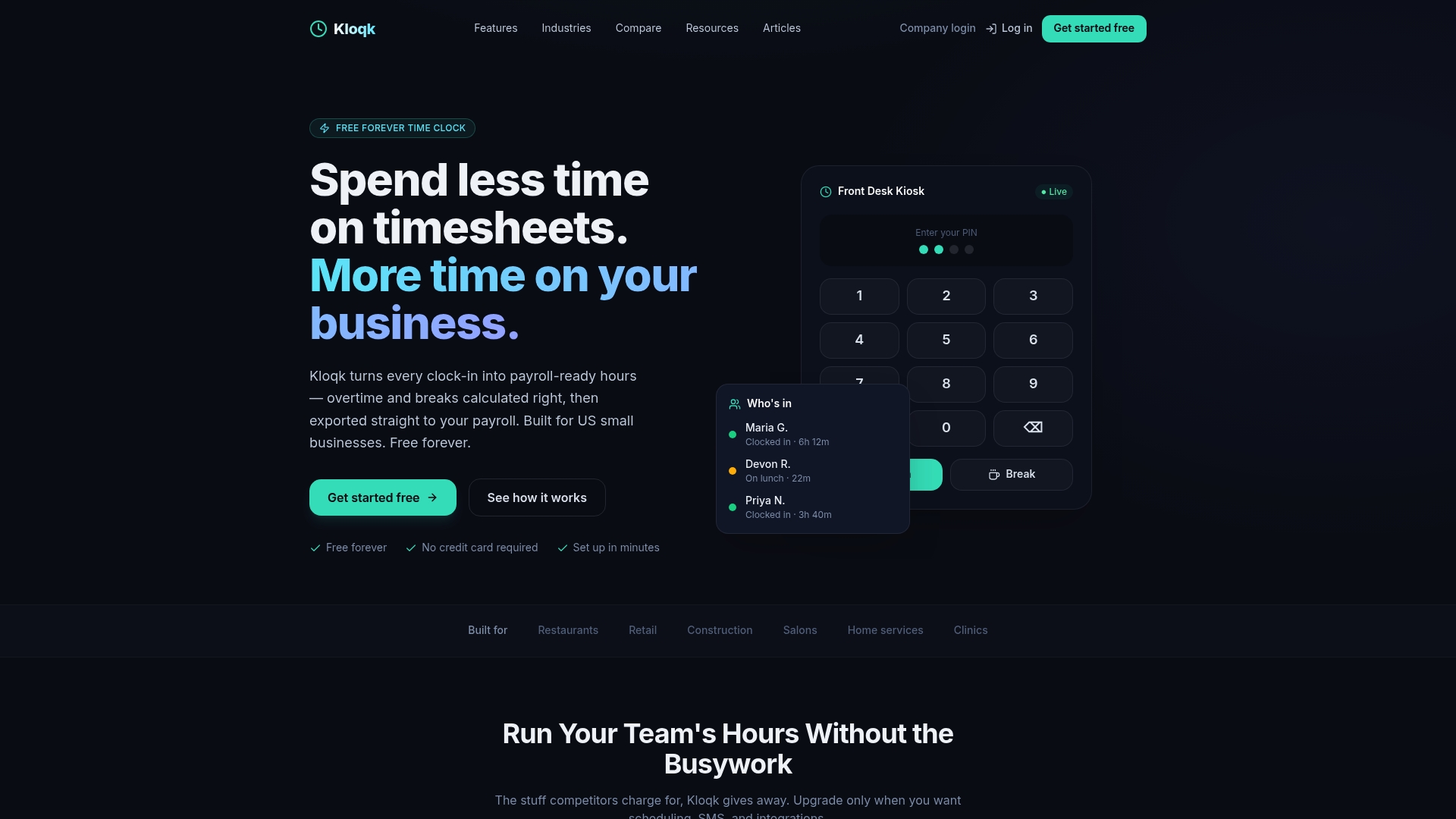
Create a free account, run a test export against your current pay period, and compare it to what you’re doing manually now. If your team needs scheduling, PTO tracking, or hiring tools later, the Pro plan runs $29 per month per location and Premium runs $59 per month per location, both optional upgrades on top of the free core. Start with the free time tracking features and see how the export compares.
Official DOL and IRS guidance to back the steps
These are the primary sources behind the recordkeeping and compliance points in this guide:
- DOL Fact Sheet #21: recordkeeping requirements under the FLSA.
- DOL Fact Sheet #22: hours worked and break rules.
- DOL FAQ on the FLSA: recordkeeping and pay stub requirements.
- IRS Publication 15: employer tax responsibilities.
- IRS employment tax recordkeeping: retention timelines.
Sources
- Fact Sheet #21: Recordkeeping Requirements under the Fair Labor Standards Act (FLSA)
- Fact Sheet #22: Hours Worked Under the Fair Labor Standards Act (FLSA)
- Questions and Answers About the Fair Labor Standards Act (FLSA)
- Publication 15 (2026), Employer’s Tax Guide
- Employment tax recordkeeping | Internal Revenue Service
FAQ
What is the fastest way to export timesheets for payroll?
Configure your pay rules, get timesheets approved and locked, then export using a payroll-ready CSV or XLSX template, or a provider-specific template when one is available. Always run a quick validation of totals before sending the file to payroll.
How long do I need to keep payroll records?
Payroll records should be kept for at least three years, and records supporting wage computations like time cards for at least two years, per DOL guidance. Employment tax records should be kept for at least four years after filing, per the IRS.
Why does my payroll import keep getting rejected?
Rejections usually come from a mismatched employee ID, a formatting error in a date or hours column, or a duplicate entry from re-exporting the same period. Fixing the source data and re-exporting resolves most of these cases.
Am I still responsible for payroll taxes if I use a payroll provider?
Yes. The IRS states that employers remain responsible for withholding, deposits, and filings even when a third-party payer handles payroll.
Does Kloqk offer free payroll-ready exports?
Yes, Kloqk’s Free plan includes payroll-ready exports along with overtime and break calculations, photo verification, and GPS geofencing at no cost. Paid upgrades are optional and cover features like scheduling and PTO tracking, detailed on the pricing page.
Recommended
Sources
Every figure on this page traces to one of these. Primary law and government sources are listed first.
- 1. U.S. Department of Laborprimary
- 2. Internal Revenue Serviceprimary
- 3. motowatchdog.com
Written by
Marcus ReyesPayroll & Timekeeping Specialist
Marcus covers payroll accuracy, timesheets, and time tracking, the unglamorous mechanics that keep paychecks correct and audits painless.
Keep Reading
Track Hours the Easy Way
Kloqk is a free time clock that handles punches, breaks, overtime, and payroll-ready reports.
Start free