Set up the Field Time Clock for your crew
Let your crew clock in from their own phones at job sites, with GPS showing where each punch happened and how far from the job.
The Field Time Clock lets your crew clock in and out from their own phones at job sites. Each punch records where it happened, so you can see who was on site, how far they were from the job, and anyone who punched somewhere else. It is part of Premium ($59 per location per month), with a free 30-day trial that starts at your crew's first phone punch, no card needed. Job sites are never billed as extra locations.
How it works, in one minute
- You add a job site with its address. Kloqk draws a circle around it (150 m by default, about 490 ft).
- You give each crew member a login. They get an email with a link to set a password and the steps below.
- On their phone they open your workspace address ending in /me and sign in. No app to install.
- They tap Clock In at the job site. Inside the circle, the punch is stamped with the job site and its distance from the center. Anywhere else, it is saved and flagged with its address (or refused, if you choose that).
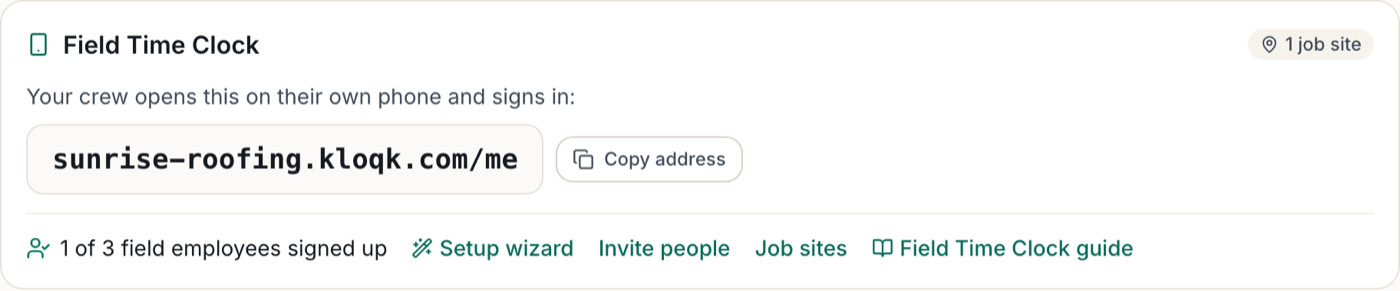
Step 1: Find your crew's clock address
Open Time Clock in the sidebar. The Field Time Clock card shows the address your crew opens on their phone, a Copy address button, how many of your field employees have signed up, and invites still waiting.
Step 2: Add a job site
- Open Job Sites in the sidebar.
- Under Add a job site, type a job name and the address off the work order.
- Leave Counts as on-site within at 150 meters for most jobs (it covers a house and its street), or make it bigger for a large lot.
- Pick the First day and, if the job ends, the Last day. Leave the last day empty for a site that stays live.
- Tap Add job site.
Step 3: Give your crew a login
- Open Employees and click a person, then Edit.
- Add their email.
- Under Works at, tick the job site (and their shop, if they work there too).
- Tap Save changes. Kloqk emails them an invitation to set a password, with the phone steps built in.
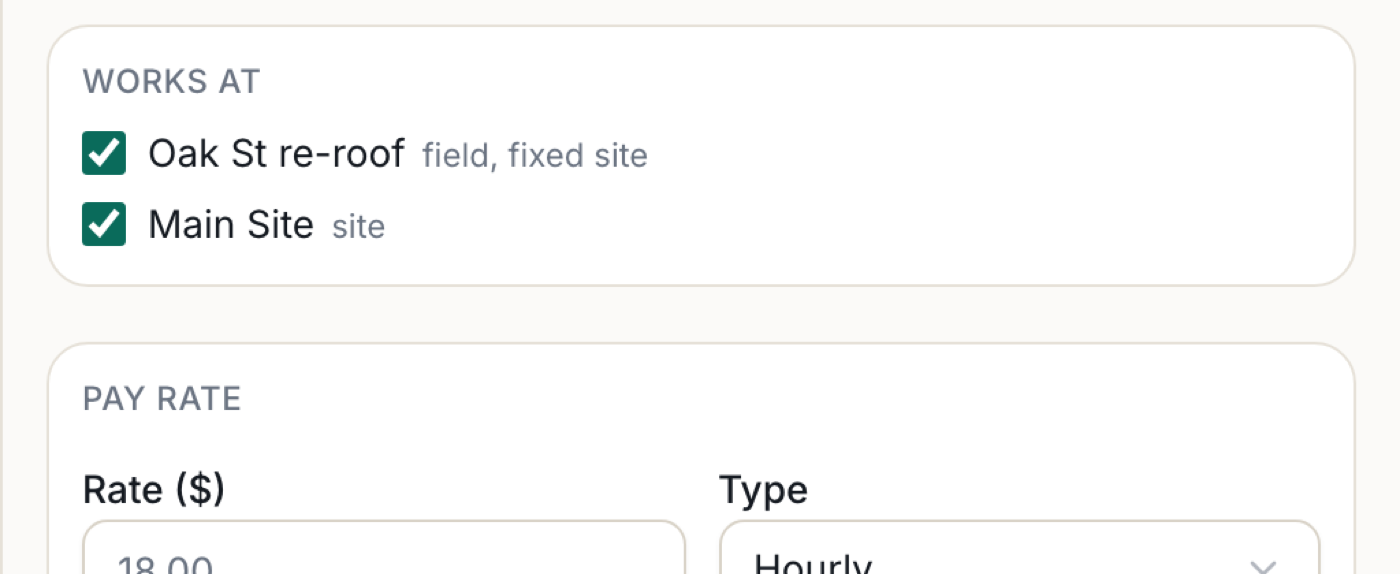
If someone works at more than one site, a Home button appears next to each ticked site. Home decides whose pay rules and totals they count under; they can still clock in at every place ticked.
Step 4: What your crew does on their phone
- Open the invitation email and tap Set up my account. Choose a password.
- Open the clock address (for example yourbusiness.kloqk.com/me) and sign in. Adding it to the home screen makes it one tap tomorrow.
- When the phone asks to use their location, tap Allow.
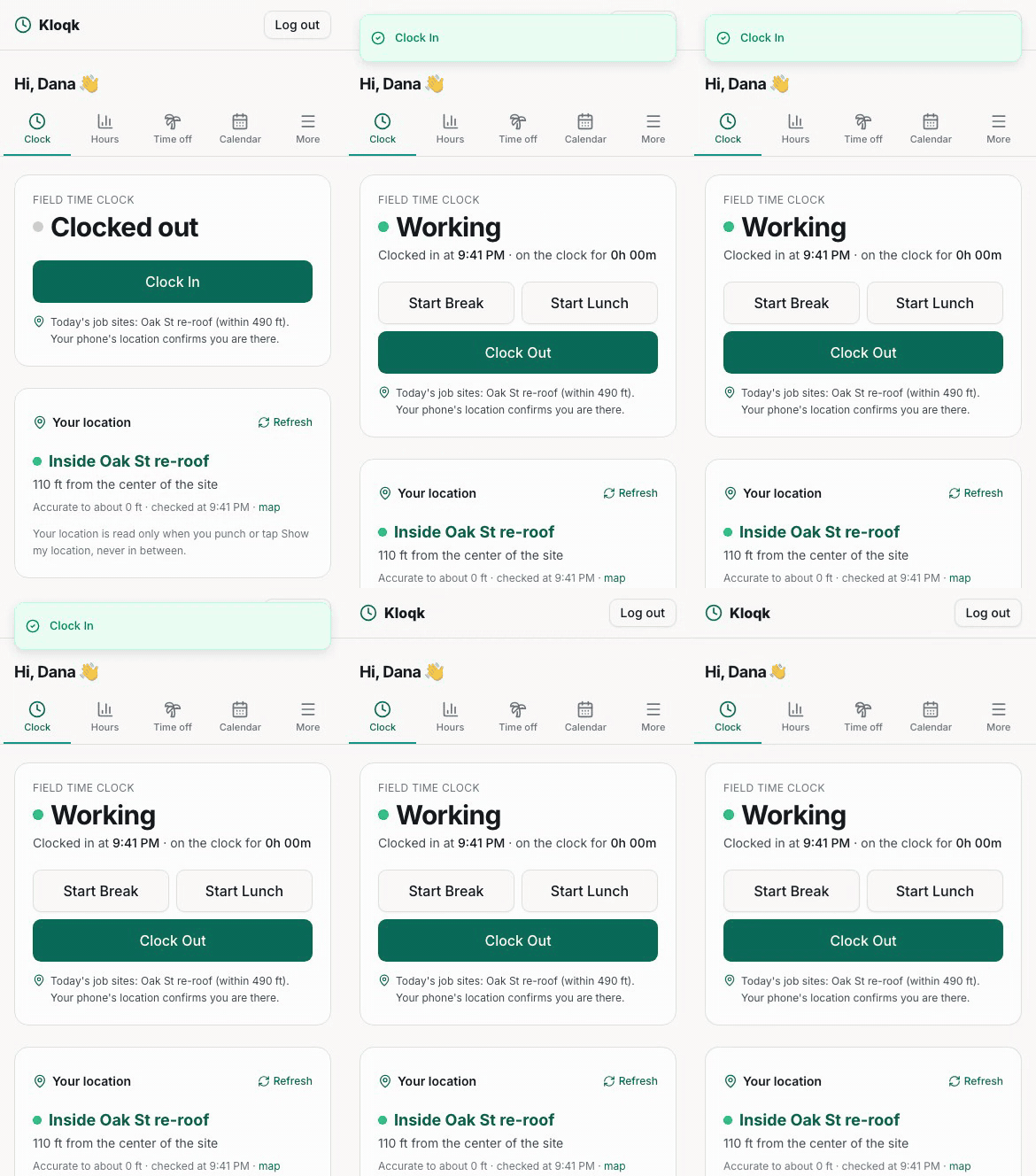
- At the job site, tap Clock In. Tap Clock Out when they leave. Breaks and lunch have their own buttons.
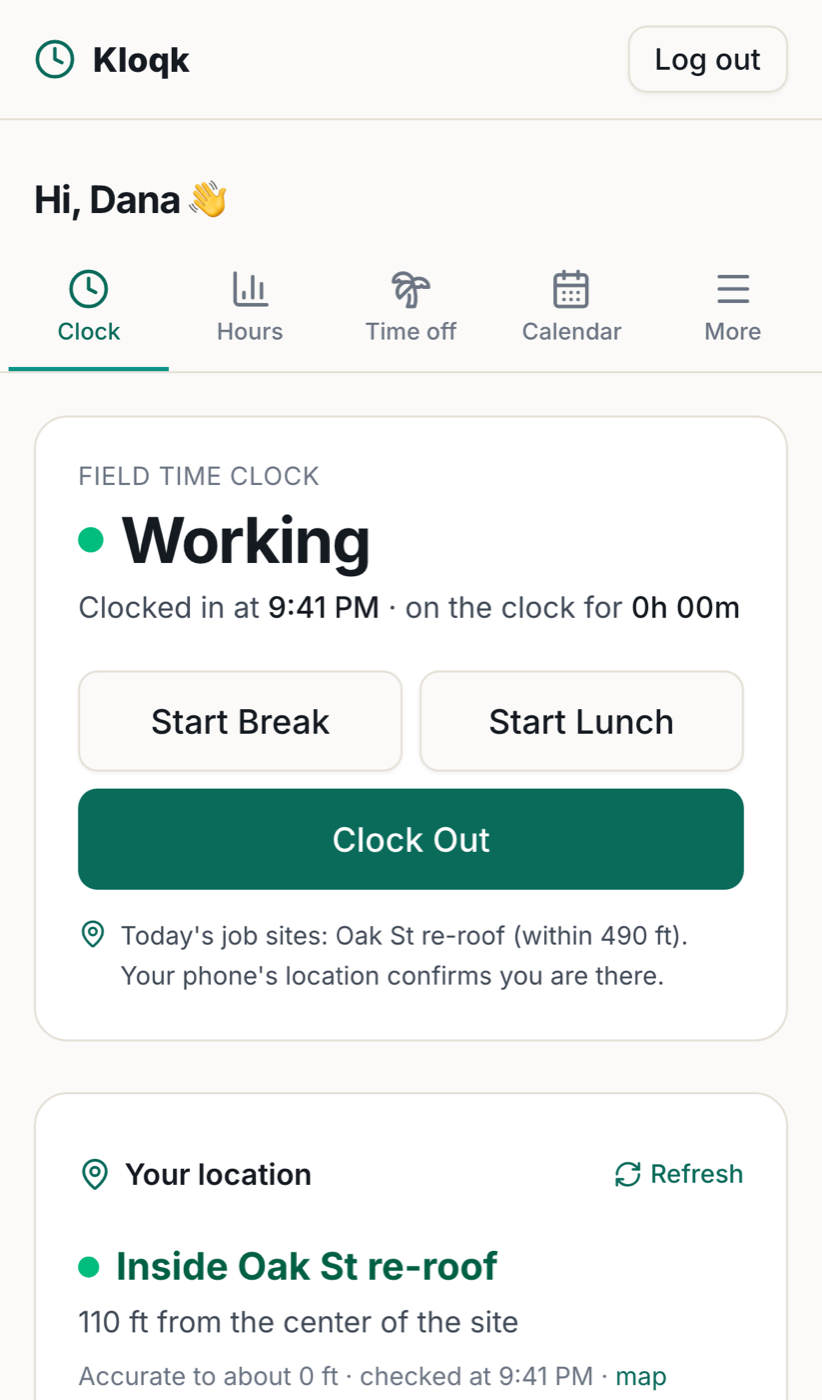
The Your location panel on the Clock tab shows where the phone thinks they are, the nearest job site and the distance, before they punch. If location is blocked, it shows the steps to turn it on for iPhone and Android. See Location on the phone.
Step 5: See where punches happened
- Job Sites lists each day's punches under the site they were made at, with the distance from the marker, and flags anything made elsewhere with its address.
- Reports, Detailed shows each phone punch's job site and distance, marked inside or outside the circle, on screen, in the PDF and in the CSV. Pick a job site from the Location dropdown (it shows as "Name (Field)") to see the people assigned there.
- The Overview lists who is on the clock at each job site right now.
Good to know
- Location is read only at the moment someone punches or taps Show my location. Kloqk never tracks anyone between punches, and it is a web page, so it cannot run in the background.
- If a phone shares no location, the punch is still saved and marked "no location shared", unless you chose Block it.
- A job site with a last day stops counting after that day, so last week's job does not catch today's punches.
- Your office tablet clock keeps working alongside the Field Time Clock. People can use both.
Questions people ask
Does my crew have to share their location all the time?
No. Kloqk reads the location only when they tap Clock In, Clock Out, a break or lunch, or Show my location. Nothing is tracked in between.
What happens if someone clocks in away from the job site?
With the default setting the punch is saved and flagged with the street address it was made at, so you can check it. If you choose Block it, the punch is refused until they are inside a job site.
Do job sites cost extra?
No. The Field Time Clock is part of Premium, billed per site location, and job sites are never counted as extra locations. Add as many as you like.
Do they need to download an app?
No. They open your workspace address ending in /me in the phone's browser and sign in once. Adding it to the home screen makes it one tap.
Can I see how far someone was from the job when they clocked in?
Yes. The Detailed report and the Job Sites page show the job site each phone punch counted for and its distance from the site's center, marked inside or outside the circle.
Related guides
Still stuck, or missing a feature?
Ask in the chat in your dashboard or email [email protected]. A real person reads every message, and we'll work it out.
Updated 2026-10-07